
Inspiring
October 28, 2025
Answered

How to hide track matte layer??
  • October 28, 2025
  • 3 replies
  • 261 views

Hi All!


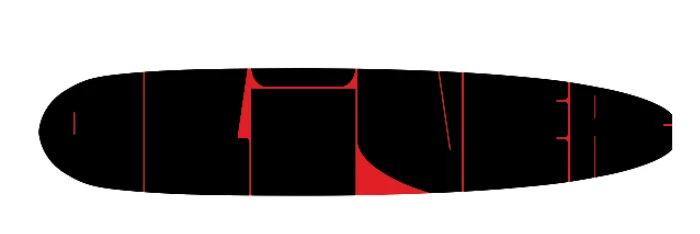
The surf board shape is my track matte for my text. As you can see, portions of the red surfboard are still visible but I don't want them to be. Is there a way I can hide the portion of the track matte that aren't being covered by the text?


Thank you so much!


Correct answer mynameiso_8710

I finally figured out why your steps weren't working! My surfboard layer was actually a smart object. Upon rasterizing, I was able to achieve it. Thank you!!

3 replies

mynameiso_8710AuthorCorrect answer
Inspiring
October 31, 2025

I finally figured out why your steps weren't working! My surfboard layer was actually a smart object. Upon rasterizing, I was able to achieve it. Thank you!!

Trevor.Dennis
Community Expert
Community Expert
October 28, 2025

If I am understanding yopu correctly:


Set the Fill Opacity of the surfboard layer to 0%

Double click the text layer to open Blend Options, and uncheck Blend Clipped Layers as Group

I actually had to work this out, so I have learned a new trick as well.

Inspiring
October 29, 2025

I really appreciate this, Trevor.Dennis..


Unfortunately, when I lower the opacity to 0% on the surfboard, the text goes along with it. And when I open up the blending options menu to deselect "Blend Clipped Layers as Group", I see it is already unchecked..


I'm not sure if it's because my text layer was converted to a shape layer so I could independently adjust the handles of each letter to fit what I wanted into the surfboard shape... Or perhaps because my surfboard was created in Illustrator and imported into Photoshop as a .png...

Trevor.Dennis
Community Expert
Community Expert
October 29, 2025

Did you lower 'Fill' opacity?

Use my screen shots as a reference.  It will work if you do exactly as shown.

Conrad_C
Community Expert
Community Expert
October 28, 2025

Have you posted in the correct community? The term “track matte” comes from video production, so a question about track mattes is usually expected to be found in the Adobe Premiere or After Effects communities here.


Or, because you posted in Photoshop, are you doing a track-matte-like effect but in Photoshop, like in the Photoshop video Timeline panel? If so, please also include a screen shot of the Layers and Timeline panels so that we can see how they’re set up and offer the right suggestions.

Inspiring
October 28, 2025

Thanks for the message, Conrad!


My mistakes on the terminology - I use after effect 99% of the time. I meanto to say clipping mask? Where the layer above is only seen within the bounds of the layer below it? 

Conrad_C
Community Expert
Community Expert
October 28, 2025

OK, I see. Then Trevor.Dennis’s reply in this thread could be a good answer. Except when I try it, it doesn’t work to deselect Blend Clipped Layers as Group for the text layer, it works if I change that setting for the shape layer.