Participant
June 7, 2018
Question

How to keep details when applying Color Overlay?

  • June 7, 2018
  • 1 reply
  • 332 views

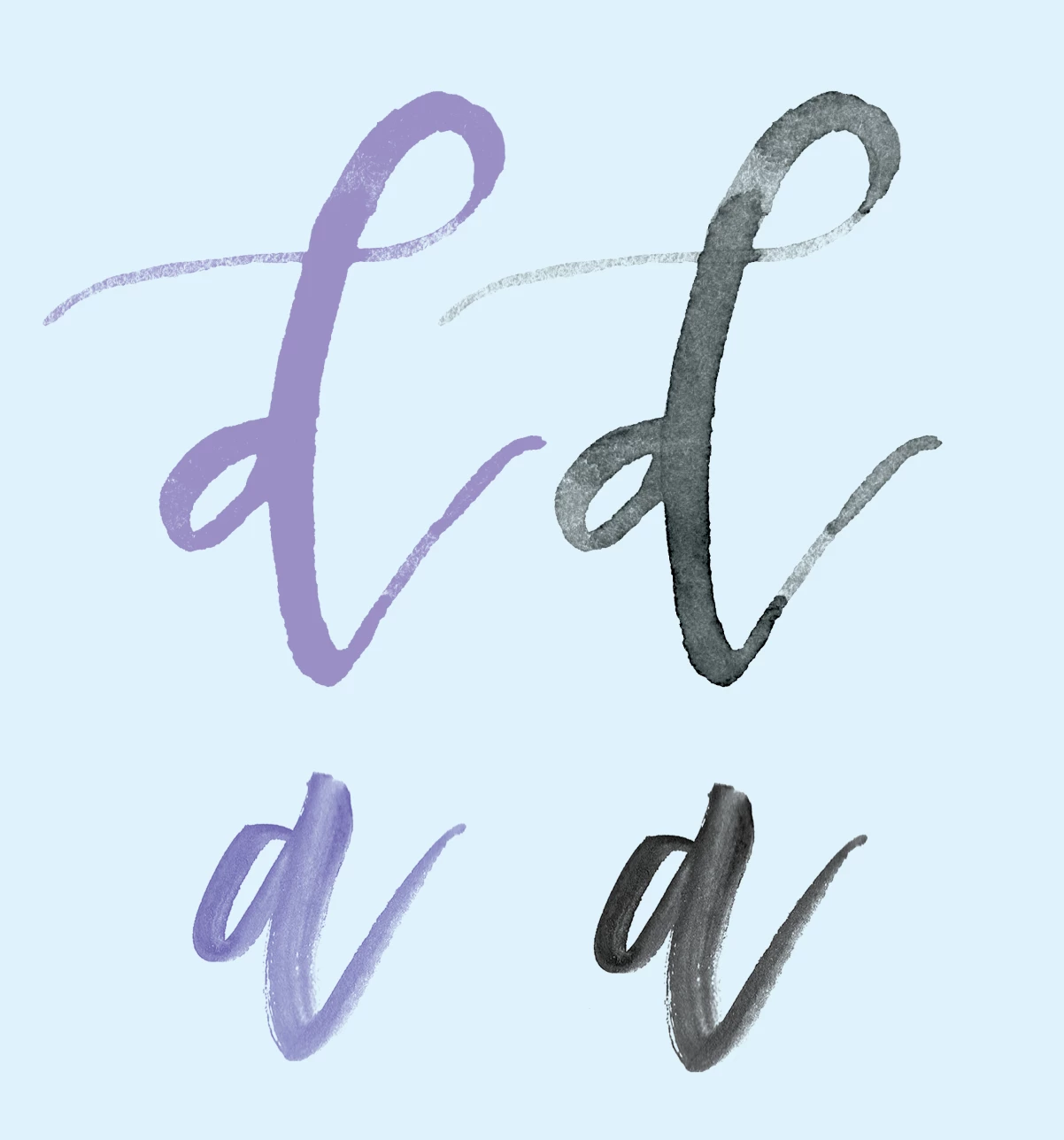
For some reason, when I apply a color overlay my sketch (letter 'd') in photoshop, it doesn't keep the watercolor details. I want to be able to see the brush strokes (see letter 'a' for instance). Does anyone know how to change this?

Thanks in advnance!

Bianca
This topic has been closed for replies.

1 reply

Mohammad.Harb
Community Expert
Community Expert
June 7, 2018

When applying color overlay, change the blending mode in the color overlay settings

Participant
June 7, 2018

Hi there Mohammad.Harb . For some reason, I don't need to change the blending mode for the letter 'a' shown above.  It shows all of the details without changing the blending mode. Have any idea why?

Trevor.Dennis
Community Expert
Community Expert
June 8, 2018

Hi Bianca

It's difficult to understand your question from the information provided.

Are the black letters without the color overlay, and the mauve letters with the color overlay?

Is the color overlay applied with a layer style, or with a separate layer? (I am fairly sure it was a layer style)

Are the conditions for the letters a and d identical as far as you know?

Are you using an existing brush preset to sketch the letters?

If you are using a layer style, can you show us a screen shot of the layer styles panel? (Just copy to clipboard and simply paste to this thread with Ctrl v (Cmd v)

In the example below I have used a brush preset that has texture and variable opacity, and there is a pretty good match before and after.  If there is a difference, it might be to do with how colour affects underlying tonal values (opacity), but that depends on how you have applied the color overlay.  (Layer styles work very differently to using a separate layer).

So if you still need answers, give us some more information, and we'll hopefully be able to give you some sort of answer.