Kitsune8
Participating Frequently
March 30, 2022
Answered

How to make a drawing solid-black with crisp edges?

  • March 30, 2022
  • 5 replies
  • 3570 views

I need to make some simple ink drawings usable for putting on tee-shirts. As in, they need to be solid black (with the color being able to be easily swapped) and with crisp/clear edges that don't have any blur. Basically I'm looking to make a raster image work a little like a vector image (crisp edges and easy to swap the colors). The raster images I'm using are scanned in at a high resolution (600dpi).


I'm used to making tee shirt designs using Illustrator, but as of right now I only have access to Photoshop.


All of my designs are simple one-color designs, and are meant to be white against a black background. I would also like the option to make them black against a white background, which is why I would like to make the drawings easily color-swappable. Once again, I'm used to doing all of this in vector, so the switch to Photoshop has been kind of an adjustment for me 😅


Here is an example of one of the scanned drawings that I am trying to do this with:
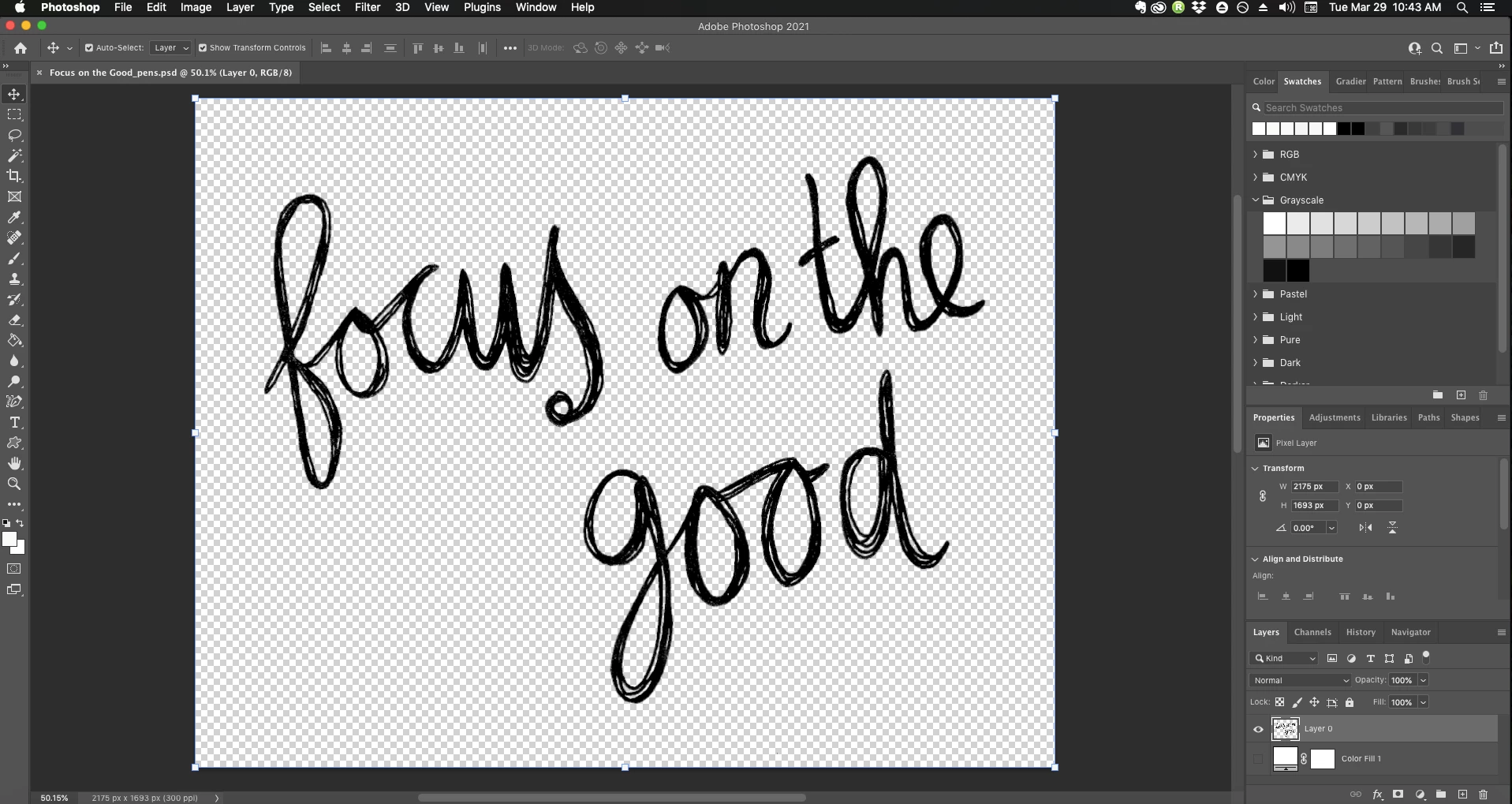
 

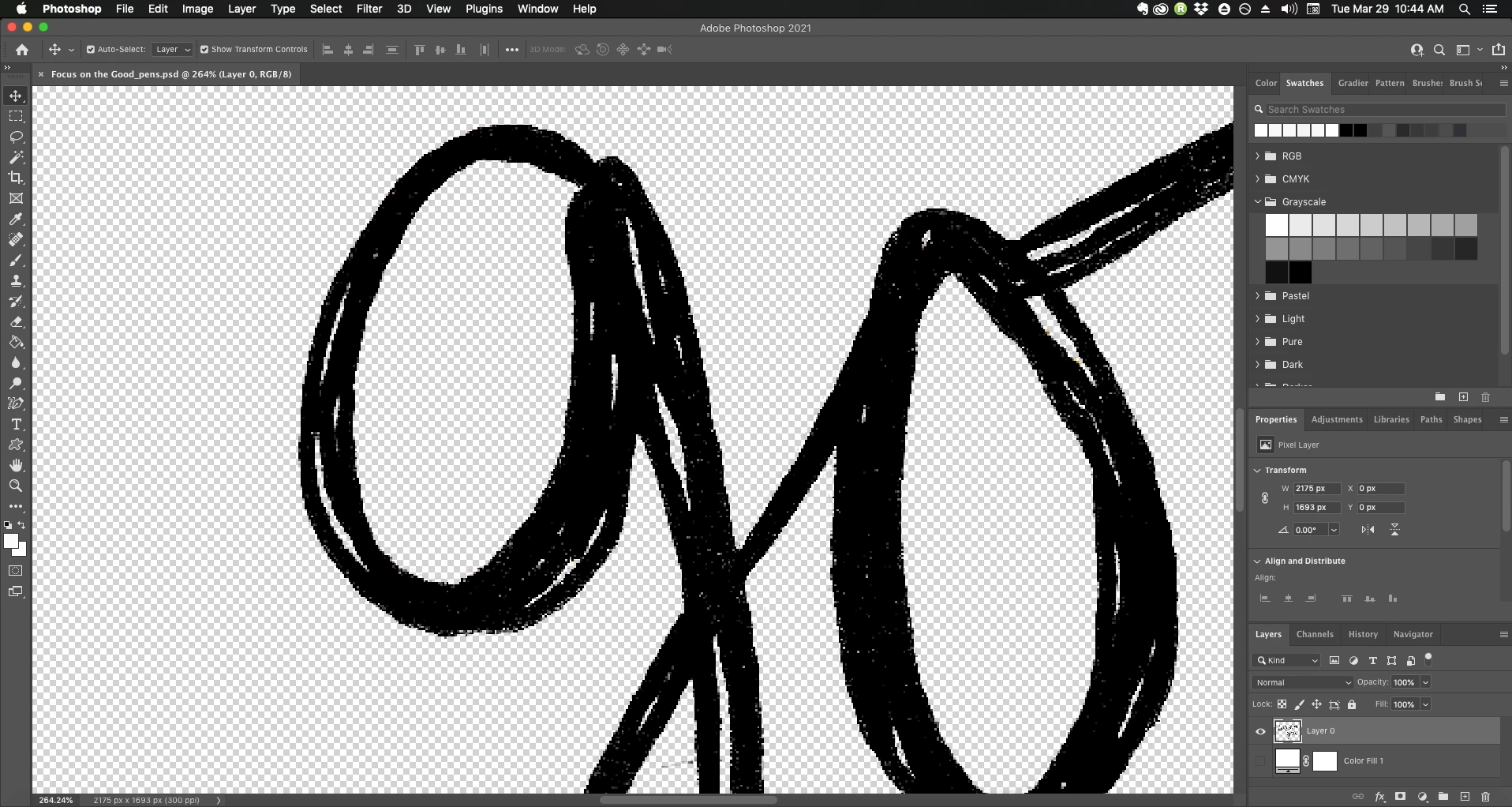
Other than using Contrast/Levels to make the drawing as black as I can and knocking out the white background using Select Color Range, what else can I do? I've tried Bitmapping the drawing at a 50% threshhold but that just gives it slightly jagged edges. And tracing vector paths over this with the Pen tool would take FOREVER, lol. Is there another process that I am overlooking?


I am using Photoshop 2021 on MacOS Mojave. Thanks! 🙂

This topic has been closed for replies.
Correct answer Bojan Živković11378569

Everything is already explained. When you blur it will mix black and white and create transition area something like gradient from black to white. Gradient area can be manipulated using Levels, for example. Grey pixels can be manipulated to "convert" them to black or white using three sliders in Levels dialogue. 


To learn more about process and how thing works I will sugest following:

  • Alt + click on layer mask to show mask on screen.
  • Zoom in closer to white part(s)
  • Use Gaussian blur to blur edges and watch what is happening and how.
  • Use Image > Adjustments > Levels and start dragging sliders while watching what is happening.

In this way you can shrink/grow unprotected area and to minimize jagy edges.

5 replies

Known Participant
August 20, 2023

In an ideal world you should be able to create a selection of all the black > create path from selection > then turn that path into a shape.


The problem is that photoshop's "create path from selection" function is a big failure and you end up with an awful looking (probly unrecognizable) path/shape. 

Leslie Moak Murray
Community Expert
Community Expert
March 30, 2022

I think the problem is that they're scanned drawings.Why not draw the art directly into Photoshop using a tablet? That way, you get smooth crisp lines on a separate layer. Part of what caused your artifacts/jaggy lines was the process of removing the background.


Kitsune8
Kitsune8Author
Participating Frequently
April 2, 2022

I would love to. I have a Wacom One tablet, but I haven't been able to get it to work lately so that is why I have been scanning drawings in by hand. The tablet works, but I think there may be a hardware issue with my computer's HDMI ports. Once I get it working again, I will definitely be using the tablet!

josephlavine
Community Expert
Community Expert
March 30, 2022

It sounds as though you should use Vector shapes and not pixel-based lines. This may help.

https://helpx.adobe.com/photoshop/how-to/photoshop-vector-shape-tools.html

warmly/j


Bojan Živković11378569
Community Expert
Community Expert
March 30, 2022

If I can understand what are you talking about then try with layer mask to "sharpen" edges. Make selection using transparency (dragging layer onto layer mask may help) then blur mask. The last step to move mask edge inward is to use Levels directly on mask or try without blurring to use Select and Mask > Radius and Shift Edge.

mglush
Community Expert
Community Expert
March 30, 2022

Using the Blur and Levels command works really well! Great suggestion.

Michelle

Theresa J
Community Expert
Community Expert
March 30, 2022

Try Capture to create a vector shape graphic. Here's a quick tutorial for Capture in Photoshop.

https://youtu.be/KMyzM6-CxaU