
Inspiring
April 3, 2023
Question

How to make Content Aware to expand pixels?

  • April 3, 2023
  • 2 replies
  • 545 views

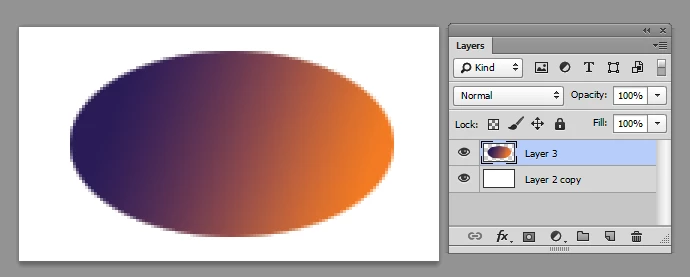
There are two layers. The first object has a shading around the edges, and the second layer is filled with white.
What is the sequence of steps to extend the colored object by 2 pixels around the outside using Content Aware to do this ?
 

This topic has been closed for replies.

2 replies

Jeff Arola
Community Expert
Community Expert
April 3, 2023

Another way you could try is go to Filter>Other>Minimum and enter 1.0 px and Preserve Roundness


For other objects you would have experiment with the settings while using the Info panel to see how much the object has been expanded.


Kevin Stohlmeyer
Community Expert
Community Expert
April 3, 2023

Hi @andyf65867865 easiest way I can think of is to simply enlarge your object instead of trying to do content-aware.

Duplicate the layer, then using the move tool/transform controls enlarge from center 2 px.

Inspiring
April 3, 2023

thanks for reply, but the image is only example 
in case of non symmetrical image using enlarge would not be enough

Conrad_C
Community Expert
Community Expert
April 3, 2023

You can use Kevin’s suggestion, but instead of choosing Edit > Free Transform, choose Edit > Content-Aware Scale.


In the options bar when Content-Aware Scale is active, you can use the link icon to determine whether or not to maintain the aspect ratio of the non-symmetrical image. If the W and H dimensions are not in pixels, you can right-click them and choose Pixels. Then you can simply type “+2” after either dimension’s value to enlarge by 2 pixels.