
Known Participant
June 6, 2018
Question

How to make image 2 color and then overlay on background image

  • June 6, 2018
  • 1 reply
  • 625 views

Per the image below, I want to take the sound wave file (jpg) on top of the lighter blue background, and make it so the sound wave bars are white, and then add that white pattern over the blue background image. The result would be the sound wave bars in white over the lighter blue background.
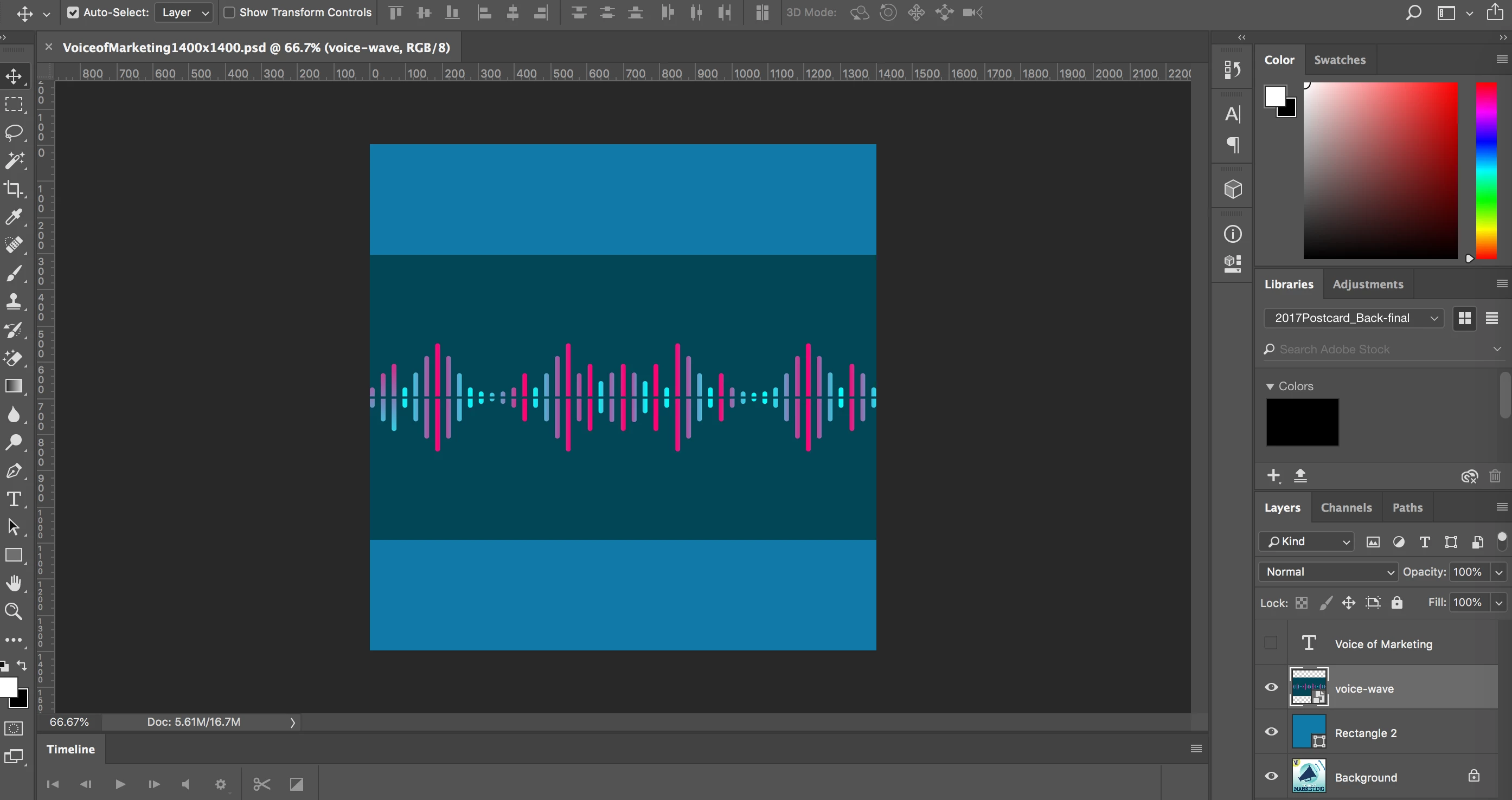
I was thinking I would posterize the top layer (voice-wave) image to 2 colors, black and white, then select and delete the black area (the non-voice wave part), and then just lay it over the top of the lighter blue background.

The end result would then be the white sound wave over the light blue background color.

However, I can't find any posterize filter.

Perhaps there's a better way to do this?

Any input greatly appreciated.

doug

This topic has been closed for replies.

1 reply

davescm
Community Expert
Community Expert
June 6, 2018

Hi

One way

1. Use Select colour to make a selection then a mask from the mid blue/green colour

2. Clip a white solid colour layer to the masked layer (to clip Alt-Click on the border between the layers in the layer panel

Dave

Norman Sanders
Legend
June 6, 2018

An alternate approach uses the Blend If option:

Open the file, place a blank layer below it and return to the image layer.

Double click on the layer to bring up Layer style, and at the bottom.

Adjust the top slider as shown. Hold down the Option key to split the slider

Layer > Merge Down. Then lock the transparent area and Edit > Fill with white

Place a blank layer below the image layer and Edit > Fill with blue