
Participant
December 6, 2024
Question

How to prevent brush overlap on hollow brushes

  • December 6, 2024
  • 2 replies
  • 217 views

Hi All,


Hopefully someone can help me by figuring out if Photoshop has an option for the following.

I made a hollow ring brush to which I want the following to apply:

-the brush cant overlap itself, even empty spaces. To make it more clear I have added the following screenshot
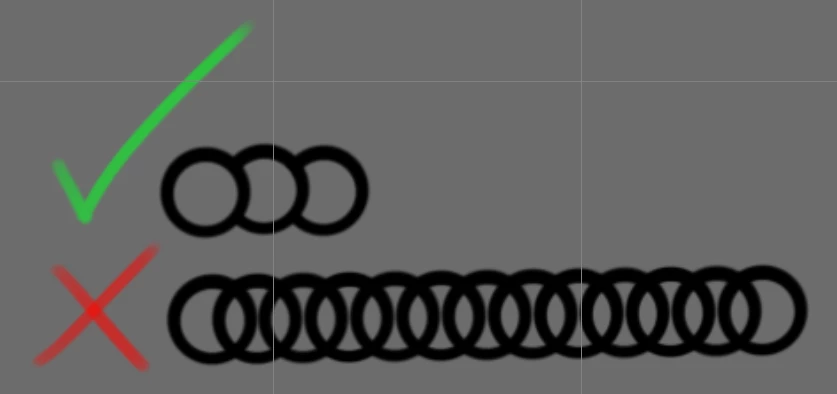
Does anyone know how to achieve this effect? So it looks like the empty space of the brush is also not allowed to be overlapped.

Thanks in advance!

This topic has been closed for replies.

2 replies

Trevor.Dennis
Community Expert
Community Expert
December 6, 2024

You'll need to define a new brush preset that looks like this, and adjust spacing as Jeff told you

If you are not sure how to do that that make a circular selection, and use Edit > Stroke with black as the foreground color on a new layer.

Copy the layer and move it into position to give you the overlap you require.

Ctrl click the copied layer, select the first layer and hit the delete key.


That will leave an easy bit to erase


Edit > Define brush

adjust spacing and you are good to go.


Participant
December 6, 2024

Still not quite what I was looking for..

I appreciate the help though gentlemen

Jeff Arola
Community Expert
Community Expert
December 6, 2024

Go to Window>Brush Settings>Brush Tip Shape and adjust the Spacing


Participant
December 6, 2024

Sorry, I should have phrased my question better, I do want the brush strokes to interact as they do in the top side depiction with the green checkmark. If I increase the spacing the lines would no longer intersect in the same way. I erased the left part of the second and third ring by hand but I want this to happen automatically, is there a way to achieve that? (leaving the spacing untouched)