Participating Frequently
November 19, 2015
Question

How to replace an image in a mockup by script / Remplacer image dans un script

  • November 19, 2015
  • 2 replies
  • 4087 views

hi, fisrt, sorry for my english, I am french. I am going to try to be understood easily...

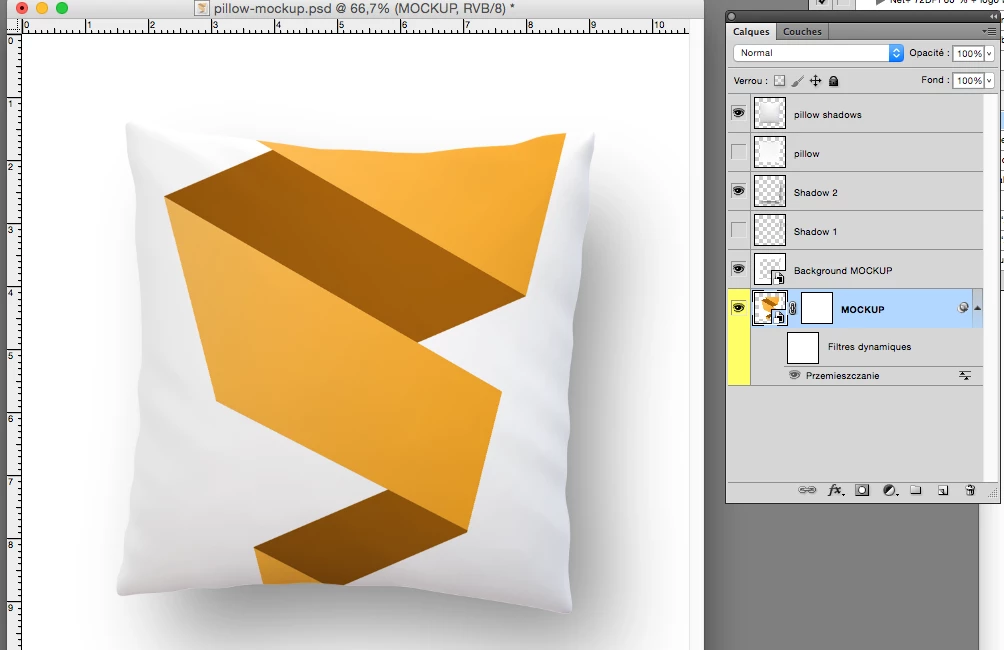
I have a mockup file (pillow-mockup.psd). As you can see on my picture white and yellow.  (Here is the mockup to download: Behance


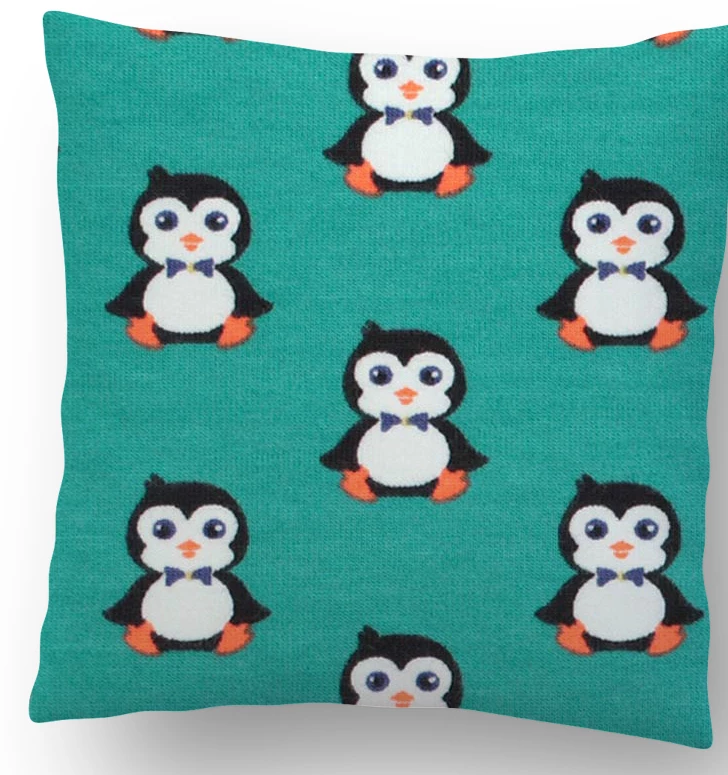
I have to change the mockup using 1000 images (example : image1.jpeg, image2.jpeg) . As on my picture with pingoiuin.


I can do it but my final file has always the same name : pillowmockup instead image1, image2

What I did in my script

-I open pillow-mockup.psd on photoshop

-I open image.jpg on photoshop
- I move image1.jpg on the file mockup.psd

I would like to have my final file called image1 (or better : image1-mock) and not pillow-mockup

How to do  ?

Thanks...
----------------------------------------------------------------------------------------

Bonjour,

J'ai un fichier "mockup.psd" avec différents calques. Un oreiller avec un logo.

Je dois utiliser un script pour changer le logo en utilisant 1 000 images différentes à chaque fois.

J'ai réussi en glissant une image sur le calque mockup.psd à remplacer le logo de l'oreiller.

Le soucis, c'est que mon fichier final a le nom mockup.psd et que du coup je ne peux pas l'utiliser en script sinon les fichiers s'enregistrent avec le même nom...

Le top serait que le fichier prenne le nom de l'image glissée.

Exemple : je glisse image1.jpjeg sur mockup.psd, mon fichier final se nommerait : image1.psd ou image1.jpeg


Merci!!!!!

This topic has been closed for replies.

2 replies

Participating Frequently
November 20, 2015

Bonjour

Plutot que d utiliser le traitement par lot de Photoshop tu devrais le faire dans ton script avec la methode getFiles() - ainsi tu peux recuperer le nom des images ouvertes et l utiliser pour sauvegarder le psd.

//Nom du fichier

nomFichier = docRef.name;

nomFichier = nomFichier.split(".");

nomFichier = nomFichier[0];

alert(nomFichier);

Participating Frequently
November 20, 2015

Merci. Je vais continuer de voir avec la méthode précédente car je ne vois pas au ajouter les lignes de code...

JJMack
Community Expert
Community Expert
November 20, 2015

I know no French so your better them me I have to use English my native tong but I failed every English class I had to take in school.

It sounds like your doing the replacement  and because your replacing the smart object layer's object the filename of the replacement is lost in the shuffle.

If you were to automate the process with a script. The script would have access to that filename and could name the file it save and include that name.

I do not have a script that replaced smart object layer's objects because all replacement need to be the same size and resolution as the original template object. I prefer to be able to handle and size image.

I created a template from your template that would work with my batch script.  Because I do not use replace layer content I can not attach smart filter to image layers. I do place in images but would not know how to adjust a smart filter for the layer content. All my scripts can do is add layer styles to image layers.  However a demo of my script will show you the a script would have no prone creating the file mane you would want.

JJMack
Participating Frequently
November 20, 2015

hi,

Thanks very much for everything. (And your post about script to download : how do I insert my image into a template?)

I tried to manage all my layers to do like you. (I changed some names and the pillow.)

My problem is to succeed in creating the channel you called "image 1".

Could you explain me please ? Thanks for all.....

JJMack
Community Expert
Community Expert
November 20, 2015

In your template if you Ctrl|CMD+click on your Pillow Layer's Layer Content Icon in the layers palette that will select the Pillow pixels. You then use menu Select>Save Selection,,,  Then in the save selection dialog you save in the current document a new channel and name it "Image 1".  

It would also be possible to eliminate your shadows layers.  You could create a Layer Style the coul add those effects.   You need the Pillow layer to blend in the pillow texture and shadows. If you downloaded  my Photo Collage Toolkit you can add additional Layer Styles to the toolkit's preferences script.  The script is use by all the Collage populating scripts.

If you look at the video you will see I used a layer that is 50% gray with a layer style to overlay an image layer and burn the NYFD logo into the image. In my template the color did not hav to be 50% gray for I set the fill to 0. The layer was as shape layer I rasterized to reduce the psd file size. Additionally you can Layer styles to image layers and text layer the script add populating the collage.  Image can be stamped with the file name in on of 9 locations over the images.  If the collage is being populates is a single image collage you can stamp the filename on the image or on the collage.

JJMack