There's a wee bit to it, so I'll give you a step by step.
Find a suitable image with good close up action, and open in PS. The image you use is is important so chose with care, and plan ahead.
Copy the background layer, and in the Properties panel click on Remove Baclground. This will isolate the player and possibly the ball with a layer mask.
Select the background layer (I actually made it a normal layer — just click on the padlock icon)
Use Free Transform (Ctrl T) to make it larger — mine looks about 300% but you deside.
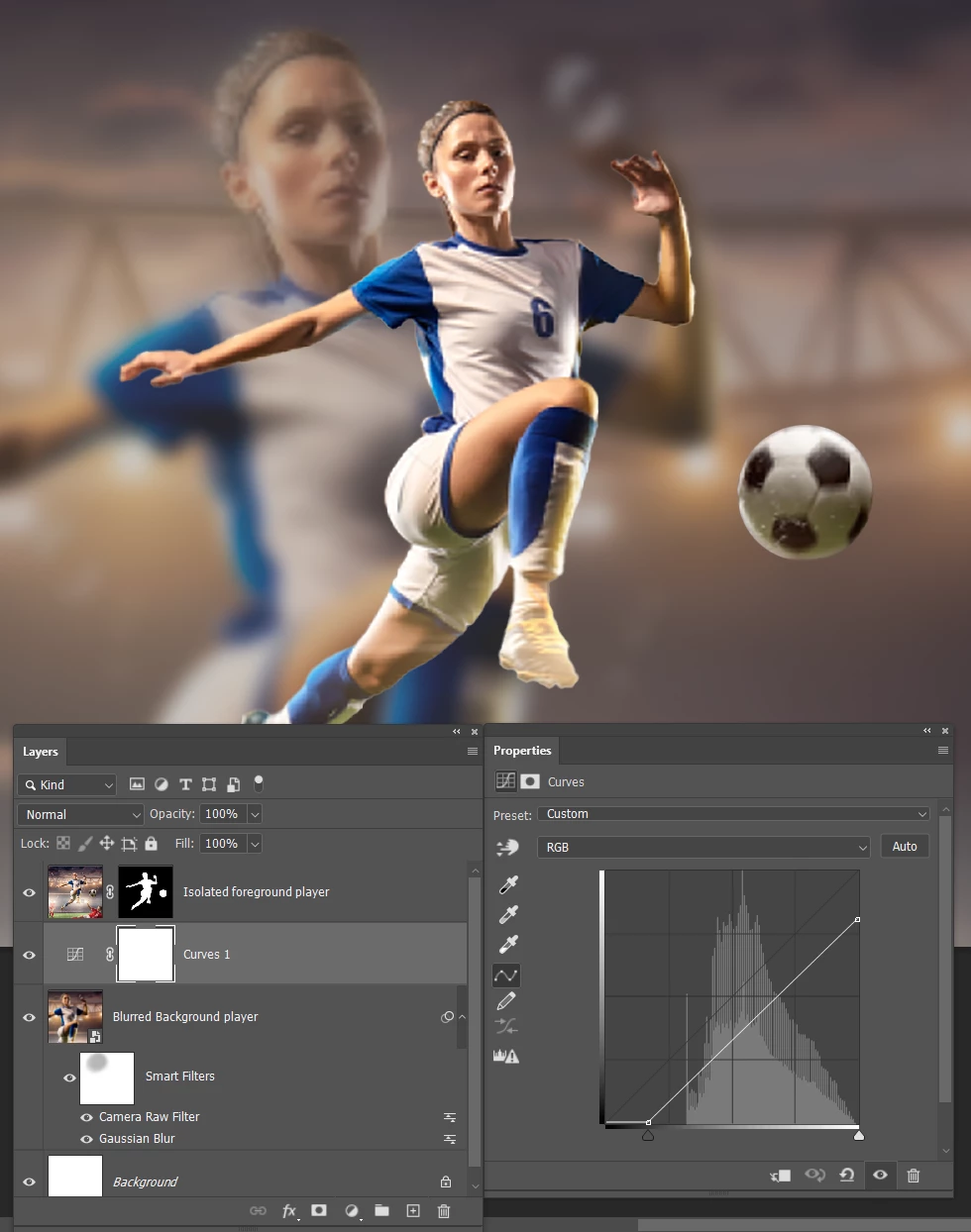
Make the enlarged background layer a Smart Object by right clicking the layer.
Blur the background layer — I used Gaussian Blur value 10.0
If you look at my screen shot, you can see I used a low opacity soft brush in the mask to reduce the blur of the head. This is entirely non destructive as you can control things with the mask.
I didn't like the look of the background, so I used a curves adjustment layer, with the settings you can see in my screen shot.
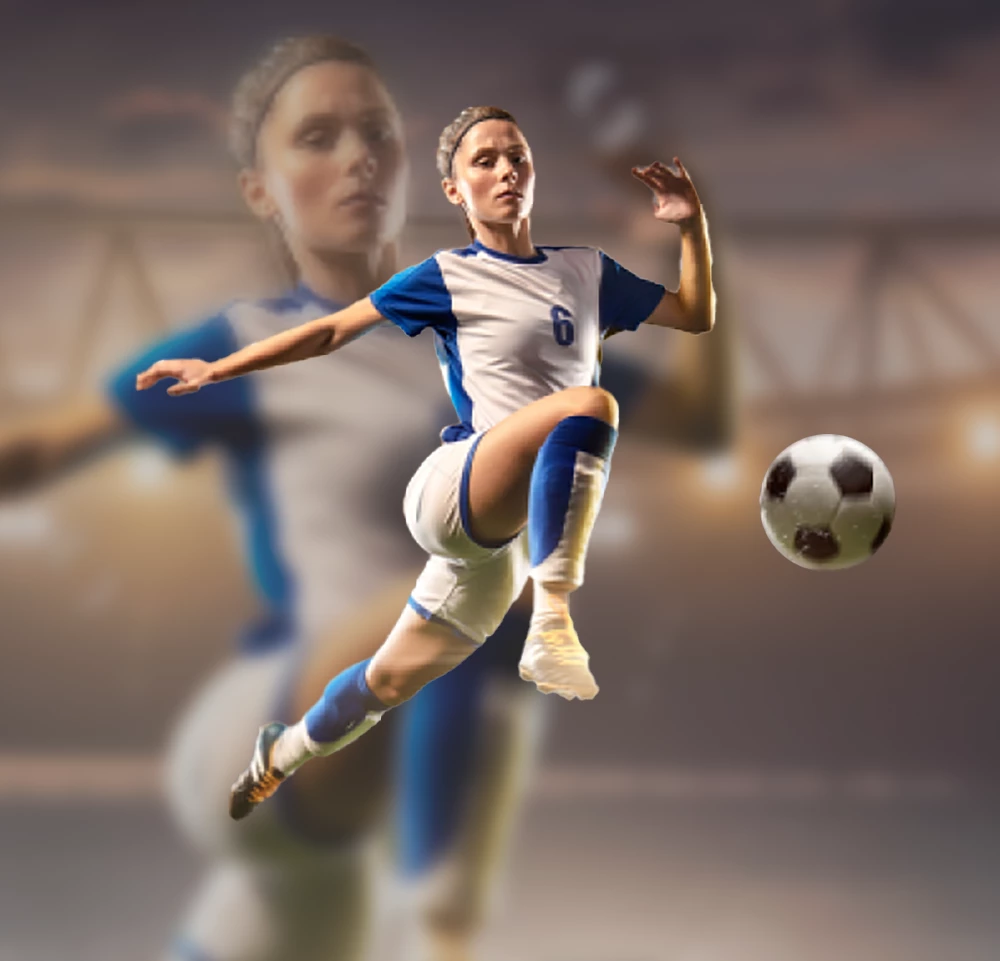
The ball was still visible in the background layer, and was a distraction, si I removed it with the Remove Tool.
BTW I went with Women's Soccer as their World Cup is about to start in New Zealand where I live.

 AdChoices