
Participant
December 15, 2023
Pregunta

How to resize an image to be exact pixels (without having to manually drag it or crop) 2024 edition

  • December 15, 2023
  • 3 respuestas
  • 13923 visualizaciones

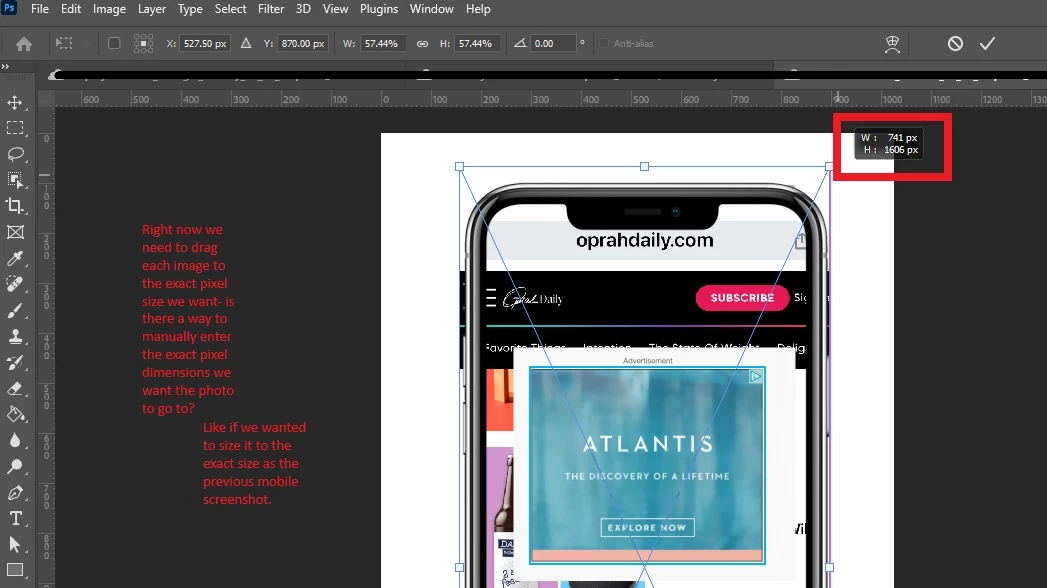
Hello everyone! Would love some input on how to resize an image without cropping. Usually I do the command T function and then manually drag and resize (since i want it to be the exact same size as my other screenshot) but after cups of coffee my hands get shakey and I am always a pixel off.
Este tema ha sido cerrado para respuestas.

3 respuestas

Conrad_C
Community Expert
Community Expert
December 16, 2023

Your own screen shot contains a possible answer. Instead of trying to drag to a precise size, simply enter the exact dimensions you want into the W and H (width and height) fields into the options bar when the Free Transform bounding box is active, and then press the Enter key. The W and H values may be in percentages right now, but you are free to enter any supported unit of measure you wish. For example, if you want it to be 400 pixels wide, in the W field type “400px” and press Enter. You can also right-click the W and H fields and choose the unit of measure you want them to use, such as px.


Bojan Živković11378569
Community Expert
Community Expert
December 16, 2023

Do not forget to click chain icon to keep aspect ratio when transforming to avoid distortions.

Stephen Marsh
Community Expert
Community Expert
December 15, 2023

@Nancy29860360twtt


To clarify, are you resizing a layer?

Stephen Marsh
Community Expert
Community Expert
December 15, 2023

As my reply was marked correct, then I guess it is a layer resize and not a document resize?


If you don't wish to resize a pixel layer using transform, you can convert the layer in to a smart object. Then edit the smart object, use image size to enter exact pixel values and then close/save the smart object. You may or may not wish to convert the smart object back to a regular layer or rasterize the layer etc.


P.S. I forgot to mention, when using transform, you can set the unit of measure from % to px in the options bar at the top, either by typing in a target value such as 1000px or by right clicking in the field and changing the unit to pixels. This was you can type in the desired size in px without having to drag the resize to the correct value. Note that actions will always record % values, not px for transform (which is why the smart object image size trick can be useful).

Trevor.Dennis
Community Expert
Community Expert
December 15, 2023

You can add a custom size to the Image Size dialog.  Open Image Size and click on Fit To and choose Custom.

Just place a value in the Width field if you want to retain the original Aspect ratio.

If you want to force the height and width, click to turn off the little chain icon (my smaller green highlight)

Use Save Preset if you need to use the size again.