Participant
January 17, 2023
Question

How to retain .ai quality in photoshop?

  • January 17, 2023
  • 2 replies
  • 1717 views

First off, apologies as I'm sure this question of keeping the quality of vector images when using photoshop has been asked hundreds of times but I can't seem to get it to work. Thank you in advance for taking the time to help. I'll attach screenshots to show what is happening. 


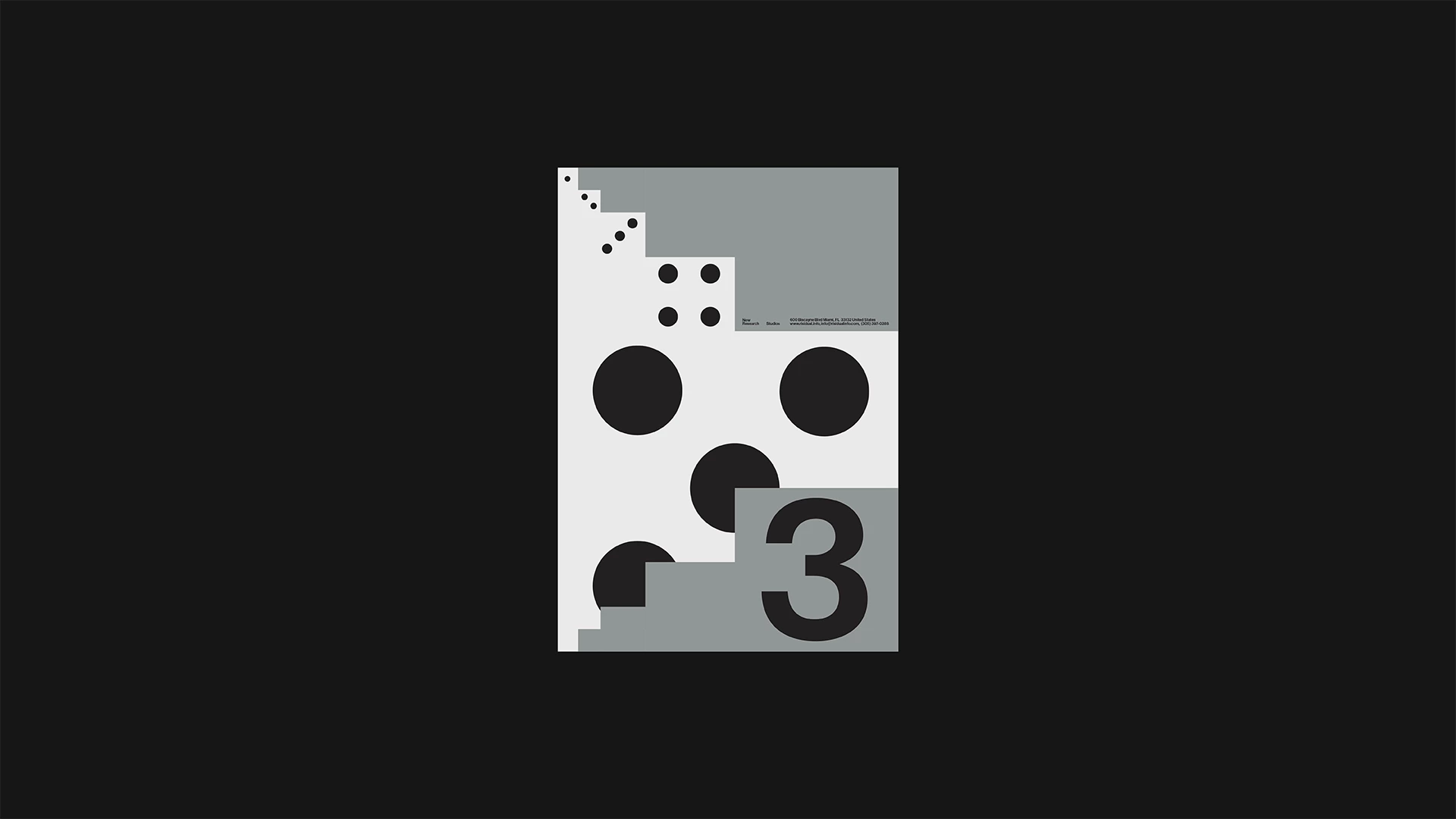
I begin with my file in AI as a 1920x1080 px artboard that produces a clean .png file once finished with the small text legible and clear. 
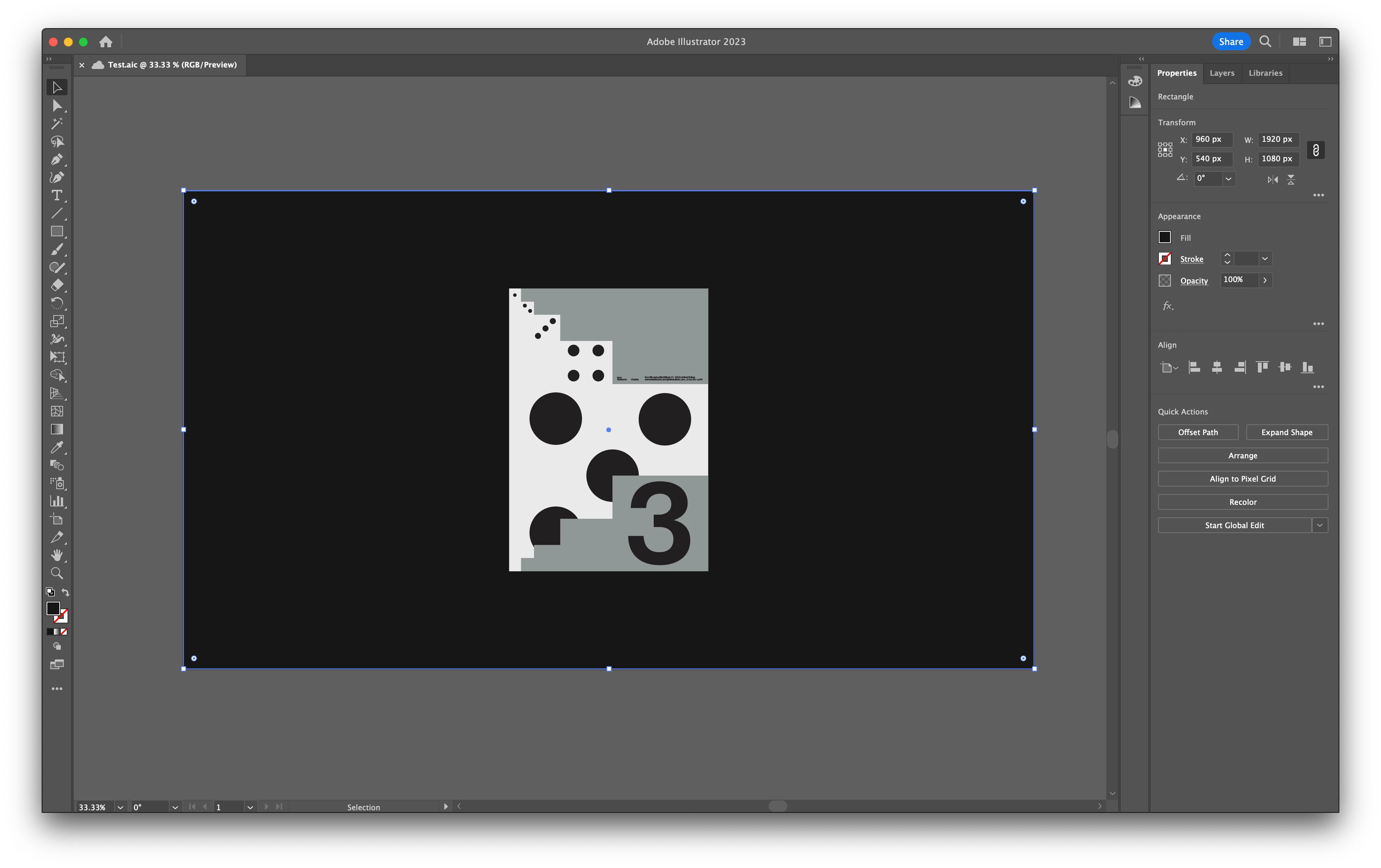
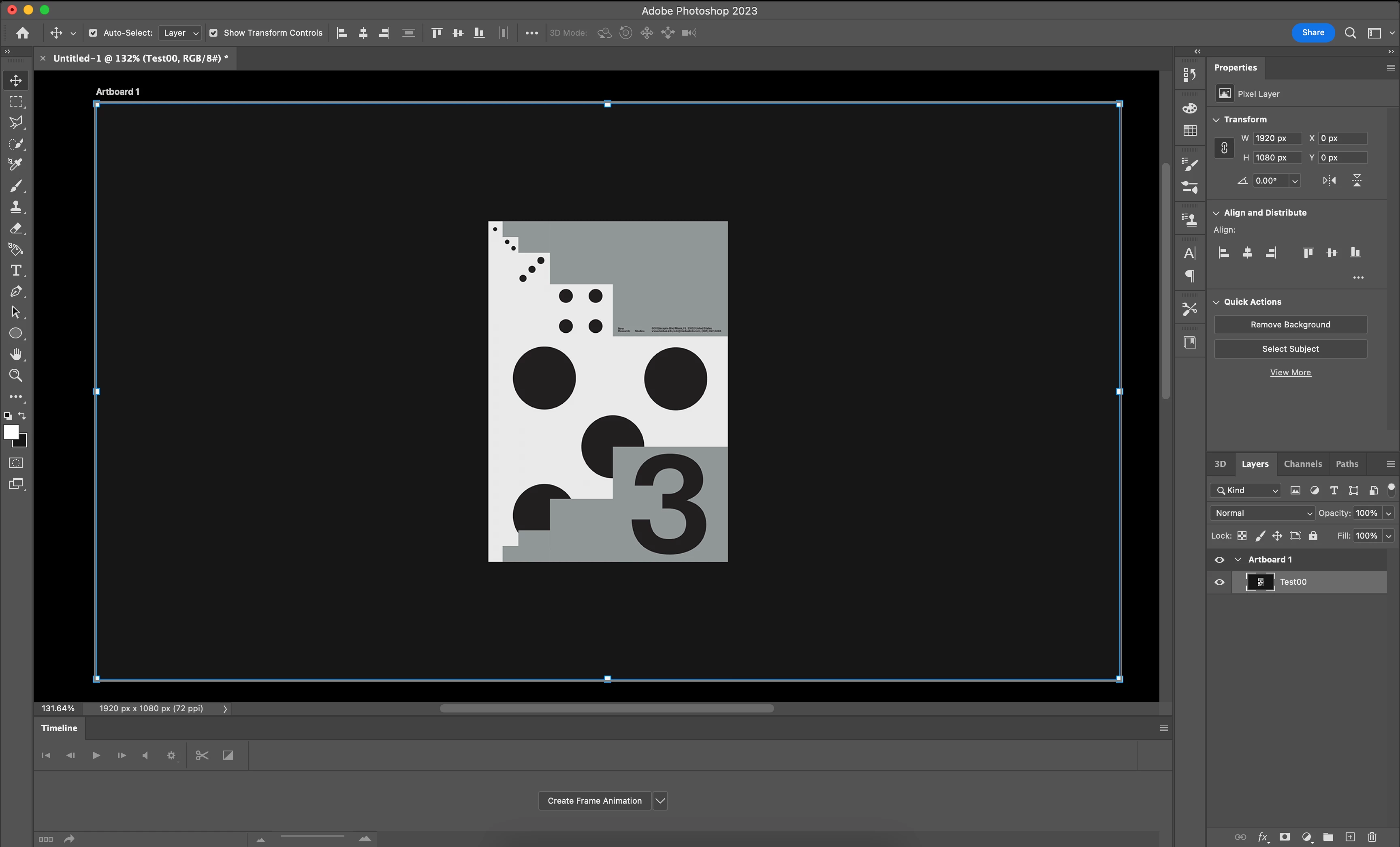
I try to import it into photoshop using different methods, copy & paste, place embedded, place linked - all of which results in it becoming a pixelized image and losing legibility. I'm assuming it's a quick fix with changing the settings of DPIs, but can't seem to do it myself.  
----


See attached images because I'm nervous that uploading them onto this post defeats the purpose of showing how clear the first .ai file is vs photoshop.

Thanks again for the help, and I know it's a nooby question. 

This topic has been closed for replies.

2 replies

D Fosse
Community Expert
Community Expert
January 17, 2023

You need to view at 100% in Photoshop. This represents one image pixel by exactly one physical screen pixel. You're viewing at 33.3%.


Ai, as a vector application dealing with vector data, will always render at full screen resolution.


PS, as a raster application dealing with pixel data, will always render to the document's base pixel grid.

Imaginerie
Community Expert
Community Expert
January 17, 2023

Hello!
First of all, do you know what is the size (in pixels) or the PNG you are exporting?
Depending on how you export your PNG, the size could be very tiny, without you realising. For example, if you export using the command "save for web" will give you ridiculously small files by default (of course you can change the size)

You have other ways of exporting as PNG (export as, export for screen, and the assets export panel)

If you choose either save for web and export for screen, your resolution will also be fine tuned for screen (72 dpi) which has an impact when you place the file into photoshop, in a document where the resolution may be different.

You can try something to see if it helps:

Instead of exporting a PNG, try to place the .ai file directly and open it as a smart object
see (via the place embbeded option in the edit menu)


You can also try to select the whole of the artwork in illustrator copy it (CTRL+C/CMD+C) and paste it into Photoshop (CTRL/CMD+V)

in that case you will be asked in which way you want to paste: Choose "smart objects"


That way, placing a .ai file as a smart object, you keep the vector nature of the file, rather than rasterising it when you do export as a PNG. Raster image degrade when either enlarged or reduced in size, vector files do not. That also works for the resolution (Vector files aren't dependant on resolution)


See if that helps, and if you want to keep your files rasterised (either JPEG or PNG) make sure you export them in a size that is sufficient to fit in the Photoshop file. Either in number of pixels and resolution.
 Hope it makes sense, but don't hesitate to ask, if not.

Participant
January 17, 2023

I appreciate the response, I actually solved it by when creating a new file in photoshop to match the DPI in the Illustrator file. 

Imaginerie
Community Expert
Community Expert
January 17, 2023

Glad you figured it out,

It is not obvious to figure out the size when you export an .ai file as a raster image. And while to can always change the size before exporting, placing it as a smart object was the easy answer 😉