R_Domalpalli
Inspiring
November 7, 2018
Answered

How to select artifacts when their layer is unknown?

  • November 7, 2018
  • 2 replies
  • 435 views

Hello,

     I'm using Photoshop CC 2019 on a Macbook Pro.

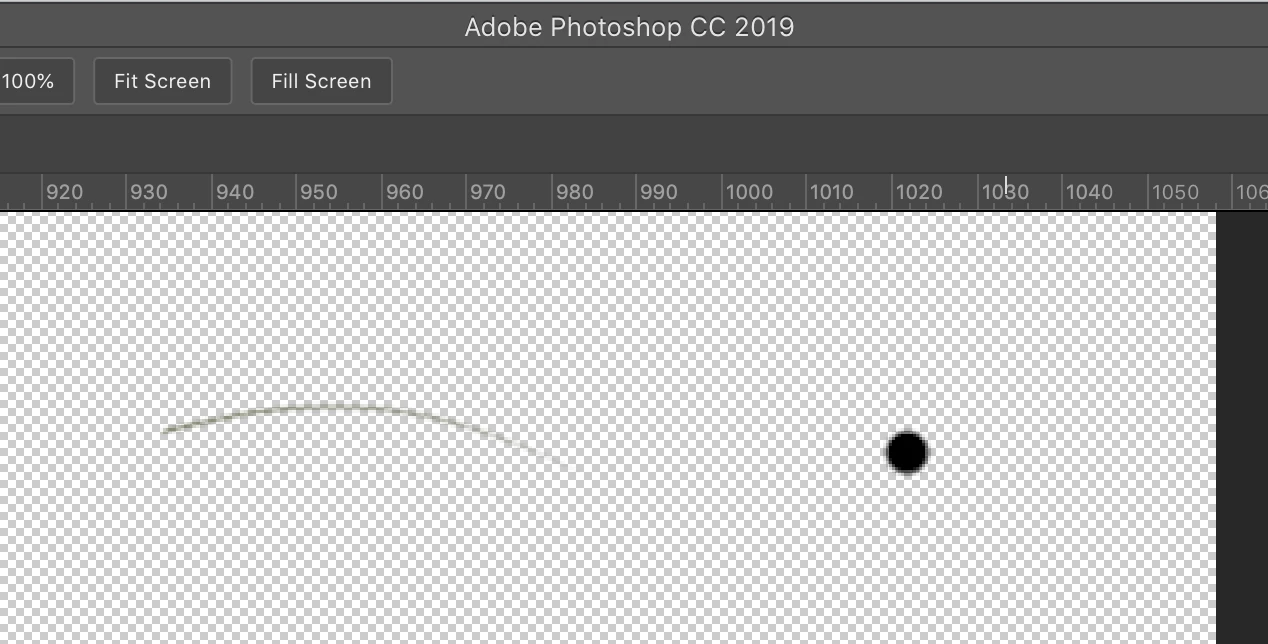
     I have a Photoshop file with many layers. I see that I have artifacts / junk on some layer(s), but I'm not sure which one they are on.

     Is there an easy way to get rid of them? I've attached a Screen shot.

     Thank You.

Regards,

Rajnesh
This topic has been closed for replies.
Correct answer Chuck Uebele

You can also use the move tool, right click with it over the area that has the artifact and a list of the layers will pop up that are under the cursor. Might narrow down which layers to look at.

2 replies

Chuck Uebele
Community Expert
Chuck UebeleCommunity ExpertCorrect answer
Community Expert
November 7, 2018

You can also use the move tool, right click with it over the area that has the artifact and a list of the layers will pop up that are under the cursor. Might narrow down which layers to look at.

joanH
Inspiring
November 7, 2018

Hello RajneshD, I do not see your layers for this photo. If you open layers and see more than one, you will need to examine each layer by touching the eye beside the layer you click on and see what disappears then you will know what is on that layer. Go there - run the selection tool over the two items and click delete and they should disappear. Continue learning about layers. Best regards, JH