aianee
Participating Frequently
November 16, 2017
Answered

How to select specific area in shapes and move it

  • November 16, 2017
  • 1 reply
  • 2212 views

Hello,

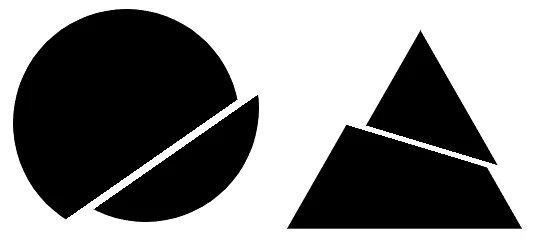
I am wondering how to accomplish the figures below in Photoshop. I've been searching and the ones I got were to cut or delete certain parts. However, what I want to learn is how to cut shapes without deletion. Like, I just want to select a specific area from the shape and move it a little as shown in the figures.

Moreover, I found this link Move, copy, and delete selected pixels in Photoshop, but it's not working for me.

Please help. Thank you in advance!
This topic has been closed for replies.
Correct answer daphneb80592977

No worries!

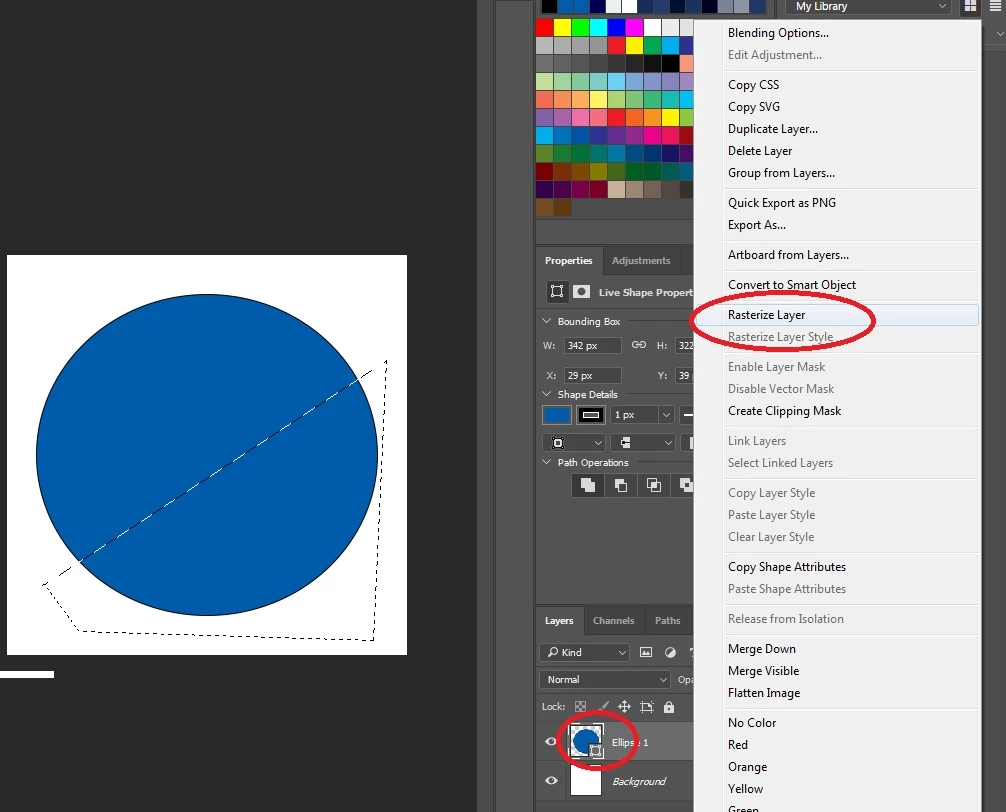
Have you tried rasterizing the layer before trying to move the selection? Simply right click on the layer > "Rasterize layer. "

Let me know how it goes

1 reply

daphneb80592977
Participant
November 16, 2017

Hi aianee,

Could you clarify what is going wrong when you try to follow the steps as indicated in the link you've added?
Simply selecting the area you want to move, and then dragging it into the desired direction should work.

  1. You can use the Polygonal Lasso tool to make the desired selection
    (right click on the lasso tool > select "Polygonal Lasso tool"
  2. Now select the part of the shape you want to move
  3. Switch to the "Move Tool" > Drag the selection to the desired location


    That should do the trick

    Daphne.
aianee
aianeeAuthor
Participating Frequently
November 16, 2017

Thanks for the response Daphne!

Whenever I select the part I want to move, the entire shape moves instead. I noticed when I'm going to move the selected area, the pointer doesn't show the "scissor" icon, it was always the cross arrowhead. Once, I was able to cut and move a certain part but it was the background not the desired shape

daphneb80592977
daphneb80592977Correct answer
Participant
November 16, 2017

No worries!

Have you tried rasterizing the layer before trying to move the selection? Simply right click on the layer > "Rasterize layer. "

Let me know how it goes