
Inspiring
June 15, 2020
Answered

How to select the interior of lines more quickly?

  • June 15, 2020
  • 3 replies
  • 5682 views

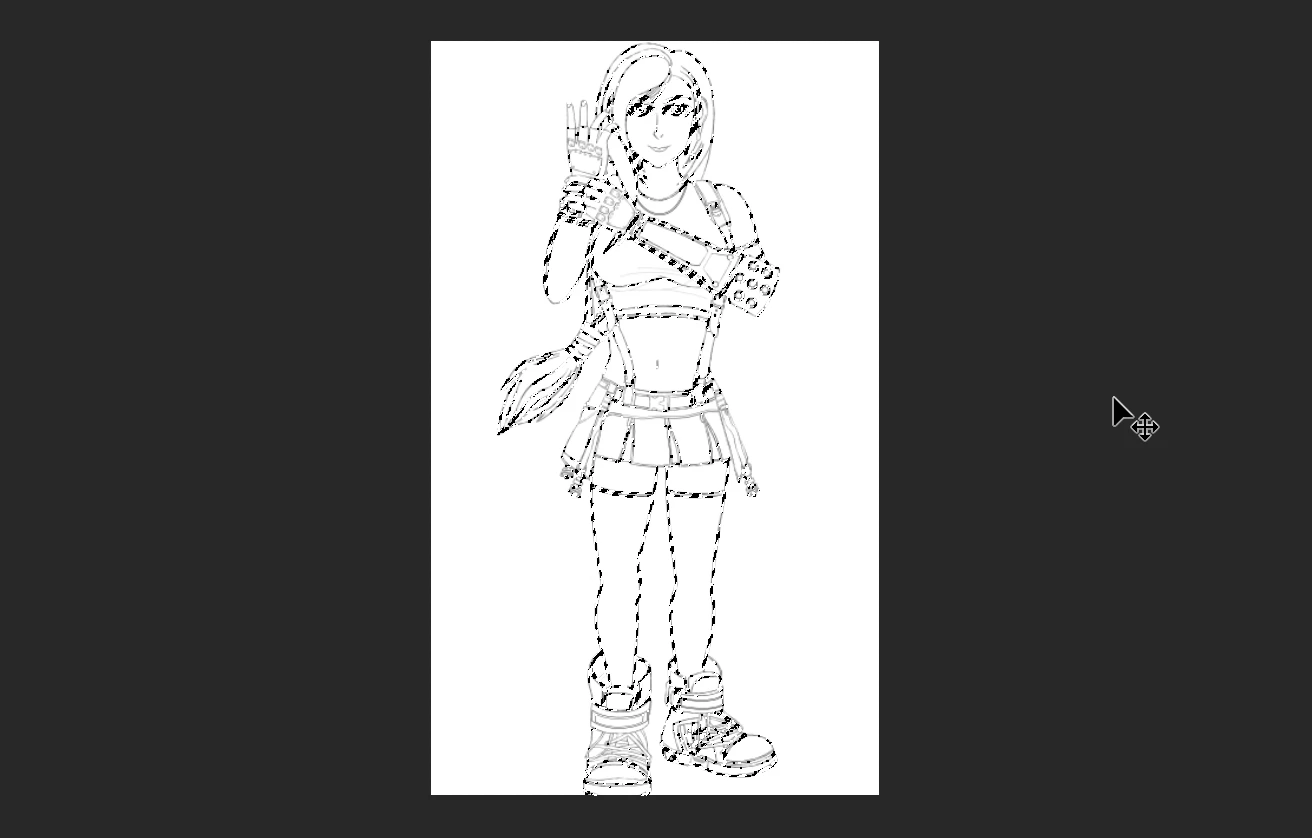
I have a digital sketch I've recently finished, and I want the insides of the lines selected so I can add a Mask layer. If I hold Ctrl and left click on the layer, it just selects all the edges instead. So when a mask is applied, only the lines/edges appear white and the insides are black. Apart from using the Quick Selection or Magic Wand Tool, and systematically click on every empty space, is there a quicker way of doing it? Thanks.


This is the sketch in question:
 

This topic has been closed for replies.
Correct answer c.pfaffenbichler

I said »inverting … the Selection«, but you seem to have tried applying the Adjustment »invert«. 

Try

Select > Inverse 

3 replies

KShinabery212
Community Expert
Community Expert
June 15, 2020

This is where you are probably making a big mistake.

If you draw the lines in black.

Create a new layer under it for the various colors.  Then paint each color at a time.


I do this with my designs in Illustrator as well.  I create the outline and leave that in the top layer.

Then I create a new layer under that.  This is where I create solid colors.

Between the colored layer, I create layers for shadows and highlights. 


Here is an example of some of my final work.

https://kennshinabery.myportfolio.com/not-your-average-princess-digital-vol-1


When you are finished you can flatten the image if you like and save it as a jpeg or png.  Do not overwrite your Photoshop Document file.

Let's connect on LinkedIn. https://www.linkedin.com/in/kshinabery/
Inspiring
June 15, 2020

Okay, I'll give that a try a bit later. Thanks. 🙂 If black lines cause that issue, what would you suggest when drawing?

davescm
Community Expert
Community Expert
June 15, 2020

Try using the select object tool which will get you close then go into select and mask and use the quick select tool to adjust that selection (you can add to the selection by clicking, holding down Alt and clicking takes away from the selection)

Dave

Inspiring
June 15, 2020

Trouble is, when I click, nothing appears to happen. I can't tell what, if anything, has been selected. Same goes for holding Alt and left clicking.

Turning up the Radius shows me very briefly what's selected, but then it disappears.

c.pfaffenbichler
Community Expert
Community Expert
June 15, 2020

Please post a meaningful screenshot that includes all the pertinent Panels and Bars. 


Selecting the »outside« with the Magic Wand Tool (with »Contiguous« checked), then inverting and slightly expanding the Selection should work out fairly well if the lines are closed. 

Inspiring
June 15, 2020

Unfortunately when I do that, I get a warning saying the following...

c.pfaffenbichler
Community Expert
c.pfaffenbichlerCommunity ExpertCorrect answer
Community Expert
June 16, 2020

I said »inverting … the Selection«, but you seem to have tried applying the Adjustment »invert«. 

Try

Select > Inverse