
Inspiring
March 4, 2016
Answered

How to set correct color profile

  • March 4, 2016
  • 4 replies
  • 21028 views

Up front: I am not an expert on this...

When looking over Internet about color management, color profiles, I often get a lot of text and usually meant for 'experts'.

Actually I am not so much interested in all the technical details. Rather I am seeking a simple instruction as to how 'set' a default color profile.

I don't know how my .icc profiles to select from...

Hardware:

Printer: Epson WorkForce Pro WF-5620  (having its color profiles)

Monitor: HP DreamColor Z27x

Photoshop CS6

Windows 10 x64

When launching my pc, the monitor shows that it is set to AdobeRGB.

Issues:

1) when I browse through simple .png files using Windows Explorer (png files without any EXIF data, let's say, screenshots, or images from Internet) and drag them into Photoshop, they are much darker and I need to adjust this. What Windows Explorer shows is pretty much correct, in Photoshop they are way too dark.

2) when having created a PSD within Photoshop and it all looks okay, the print results are bad, they are too light and I need to try and mess around with profiles or so in an attempt to get it right.

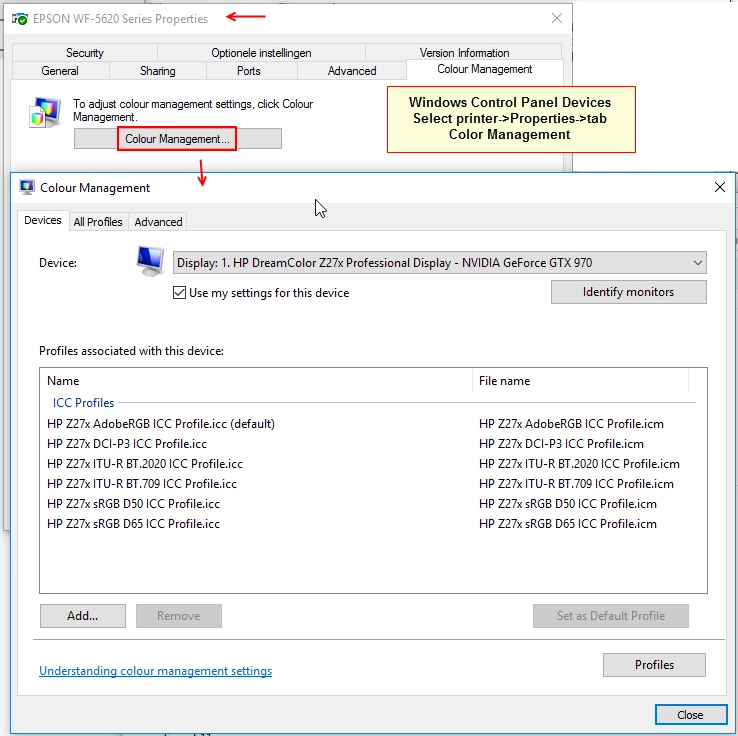
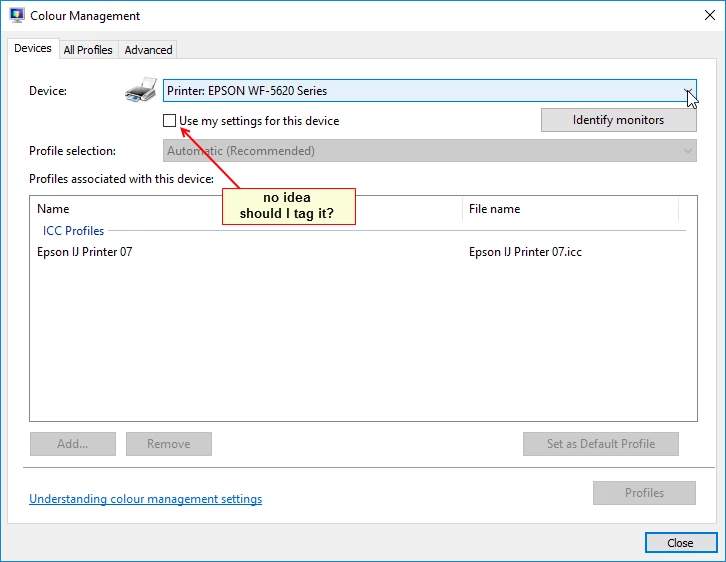
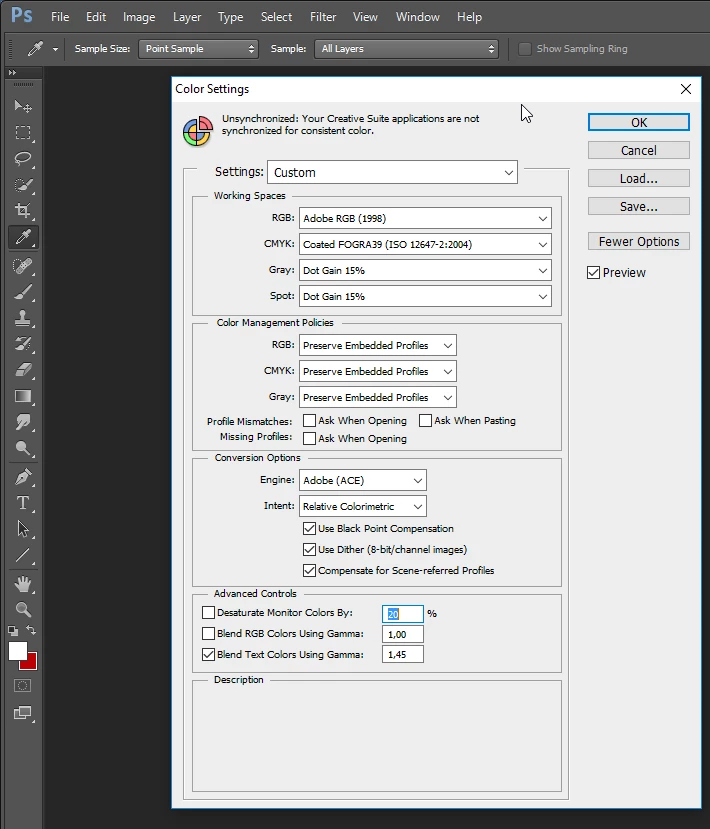
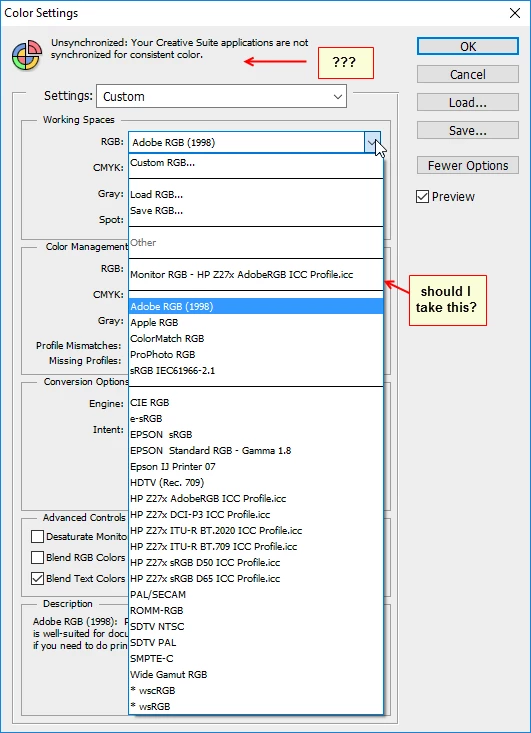
Below some screenshots:
=
=
==
=

Could anybody pleasssee... assist and give me some advice as to how to set this up?

i.e. which profiles to select where so the results on the monitor are the same as that of the printout.

again, I am not an expert and I don't intend to become one 🙂

there are sooo many profiles to select from, I don't know..

Thanks!

=

This topic has been closed for replies.
Correct answer D Fosse

Mylenium wrote:

Simple answer: None of it matters if your system isn't actually calibrated. You can set the default factory profiles all day and wear yourself out, and they will still be wrong.


Bit of a negative attitude there, wouldn't you say?

This isn't as complicated as many will have it. You need to think, always, in terms of source profile and destination profile. You always need two profiles, and each should be an accurate description of the color space it represents.

So what's your source? That's your file. Fine. Adobe RGB, done, don't mess with that. Don't confuse document and monitor profile! You need both.

Then you have two destinations, the monitor and the printer. Each profile an accurate description. The monitor profile is set up at system level (or your calibrator will do it), and Photoshop will find it there and use it to display the image. Again, it's a straight source > destination conversion. Once the monitor profile is set up, no further user intervention is required.

Next, the printer. Here you have different profiles for different media, and there's no default. You need to pick the correct profile for the paper you're using in the Photoshop print dialog. There you also need to make sure that Photoshop handles color, and then you need to go into the printer driver and make sure that printer color management is turned off. Pick the right paper here as well, since this controls total amount of ink.

That's it. If all profiles are present and correct, display and print should now match. If you want to take it further, you can set your monitor calibration targets so that they match the paper you're printing on - IOW set the monitor white point so that it is a visual match to paper white, and monitor black so it matches max ink density for the paper.

4 replies

Participant
November 3, 2017

Hi,

Got the same dark colors on photoshop on the same monitor HP dreamcolor Z27x, and solved the problem:

I just changed the color profile in windows color management from "hpZ27x AdobeRGBICC Profile.icc" to "Adobe RGB(1998)" as default profile. With this setting, proofing towards "RVB Monitor" (with CTRL+Y) don't show any difference which is expected.

The color profile given by HP for the HP Z27x seems to have a problem, however, "hpZ27x AdobeRGBICC Profile.icc" and "Adobe RGB(1998)"  are very close since converting a picture to the "hpZ27x AdobeRGBICC Profile.icc" profile doesn't show any difference.

Regards,

JC

D Fosse
Community Expert
Community Expert
November 3, 2017

That just confirms what I was trying to get across throughout this whole thread:

A wide gamut monitor requires full color management at all times, and you must have a valid monitor profile set up at system level. The only way to be sure to get that is to buy and use a calibrator.

In fact, any wide gamut monitor sold without including a calibrator in the deal is a disaster waiting to happen. It's an essential part of the package. Vendors really should start taking a little responsibility here, instead of just marketing these units for their "brilliant color".

BTW Anything else in connection to the special requirements of wide gamut displays is well covered above. Read again from the start.

D Fosse
Community Expert
Community Expert
March 4, 2016

Actually this whole exchange is an excellent example of what I've been saying all along: Color Management is simple. Lack of color management quickly gets difficult.

This would have basically worked with Photoshop at out-of-the-box settings, the monitor at out-of the-box settings, and an hp monitor profile installed automatically. Then we could discuss how to set things up so that it works optimally - getting a calibrator to make a better monitor profile, setting the calibration parameters to get a good match from screen to print, and so on.

But when people see non-color managed software display incorrectly, they panic, change settings east and west, convinced color management is "broken" in Photoshop. It's not broken. The other applications are broken, because they don't do the required conversion from document to monitor. That's the one thing that has to happen when using wide gamut displays, and Photoshop does it.

Leave Photoshop's color settings alone, and color management just works. Not only that, it solves problems.

The question was fully answered in my first post. That covers all basic principles, the rest is just details and cleaning up misunderstandings.

adwul62Author
Inspiring
March 6, 2016

Sorry for the delay.

Many thanks for all your advices.

It is truly appreciated.

I have reset Photoshop settings (ctrl-alt-shift)  when launching Photoshop and leave it to Europe Prepress 3, which apparently is the default.

As for the dark images, they seem to be CYMK.

when opening I get a warning

The document "Wild World ..." does not have an embedded

CMYK profile.

What would you like to do?

O Leave as is (don't color manage)

O  Assign working CMYK: Coated FOGRA39 (ISO 12647-2:2004)

O Assign profile:    Coated    FOGRA27    (ISO    12647-2:2004)

and then convert document to working CMYK

Nothing changes, whatever option I select.

So, I'll be using my ' crappy workaround' (which I am sure is -absolutely not- the proper way, but it works for me)

Image->Mode->change from CYMK to RGB

then

View->Proof Setup->Select Monitor RGB
(the monitor is set to AdobeRGB)

Anyway, again - thanks - for input and above all patience

=

D Fosse
Community Expert
Community Expert
March 6, 2016

adwul62 wrote:

View->Proof Setup->Select Monitor RGB

No no no... Stop and go back to start.

That turns off/disables all display color management. You must have full display color management with that monitor! OK? It's an absolute requirement. What you need is:

  • An embedded document profile
  • A valid monitor profile set at system level - one that accurately describes the monitor's actual behavior
  • Color managed software that reads both these profiles, and converts from one into the other

Listen carefully now: ignore what the non-color managed applications show you. It's wrong and will never be right, not if the earth turned on its axis. They will never display identically to properly color managed software like Photoshop. That's always true, but with a wide gamut monitor the difference really jumps in your face.

Any material that is intended to be viewed without color management is sRGB - for the simple reason that most standard monitors are close enough to sRGB natively that it displays roughly correctly. If the monitor is not close to sRGB natively, and yours isn't, that no longer applies. All the normal fallbacks are dead and void and you need color management.

D Fosse
Community Expert
D FosseCommunity ExpertCorrect answer
Community Expert
March 4, 2016

Mylenium wrote:

Simple answer: None of it matters if your system isn't actually calibrated. You can set the default factory profiles all day and wear yourself out, and they will still be wrong.


Bit of a negative attitude there, wouldn't you say?

This isn't as complicated as many will have it. You need to think, always, in terms of source profile and destination profile. You always need two profiles, and each should be an accurate description of the color space it represents.

So what's your source? That's your file. Fine. Adobe RGB, done, don't mess with that. Don't confuse document and monitor profile! You need both.

Then you have two destinations, the monitor and the printer. Each profile an accurate description. The monitor profile is set up at system level (or your calibrator will do it), and Photoshop will find it there and use it to display the image. Again, it's a straight source > destination conversion. Once the monitor profile is set up, no further user intervention is required.

Next, the printer. Here you have different profiles for different media, and there's no default. You need to pick the correct profile for the paper you're using in the Photoshop print dialog. There you also need to make sure that Photoshop handles color, and then you need to go into the printer driver and make sure that printer color management is turned off. Pick the right paper here as well, since this controls total amount of ink.

That's it. If all profiles are present and correct, display and print should now match. If you want to take it further, you can set your monitor calibration targets so that they match the paper you're printing on - IOW set the monitor white point so that it is a visual match to paper white, and monitor black so it matches max ink density for the paper.

D Fosse
Community Expert
Community Expert
March 4, 2016

BTW don't set the monitor to Adobe RGB or any other preset. Just leave it at its native behavior. As long as the profile describes that behavior, you're good.

adwul62Author
Inspiring
March 4, 2016

Sorry, my posting crossed yours, let me revert a little later.

Mylenium
Legend
March 4, 2016

Simple answer: None of it matters if your system isn't actually calibrated. You can set the default factory profiles all day and wear yourself out, and they will still be wrong. That's the whole point. And Monitor profiles are just that. You don't use them as workspace profiles except when correcting screenshots. So for what it's worth, just leave everything at sRGB and un-mis-tweek your monitor and print calibration charts for your printer.

My colors look different outside Photoshop. | Mylenium's Error Code Database

My printed colors look wrong. | Mylenium's Error Code Database

Mylenium

adwul62Author
Inspiring
March 4, 2016

The monitor at least came calibrated. Admittedly I need to re-calibrate it again one of these days. I could set the monitor to sRGB. As you can see above, there is a number of them:

sRGB IEC61966-2.1

e-sRGB

EPSON sRGB

HP Z27x sRGB D50 ICC Profile.icc

HP Z27x sRGB D65 ICC Profile.icc

So, I need to set the monitor to e.g. sRGB D65

the printer (all-in-one) to Epson sRGB

the scanner to sRGB

=