One way you can do this would be to use the Shear filter. It would be best if the logo and the curve were on separate layers, but you could fake it by using duplicate layers with masks.
So, with a layer for the logo and one for the curve, rotate the image 90°. Duplicate the curve layer, and flip it horizontally. Filter > Distort > Shear. The interface for this filter is ancient and horrible, but with patience, you can get it to work. Adjust the splines on the axis of the filter (making up my own terminology here), so that the curve looks straight in the (tiny) preview.
Click OK, and check the results; if the curve is nice and straight, good, move on. Else, undo and try again. The filter retains the last used settings, so you can tweak them. Hide or delete this layer; its job is done. Go to the logo layer, and run the Shear filter with no changes, and rotate the image back to its original orientation.
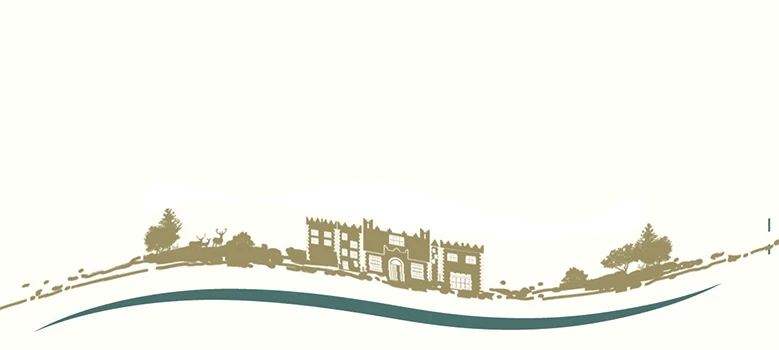

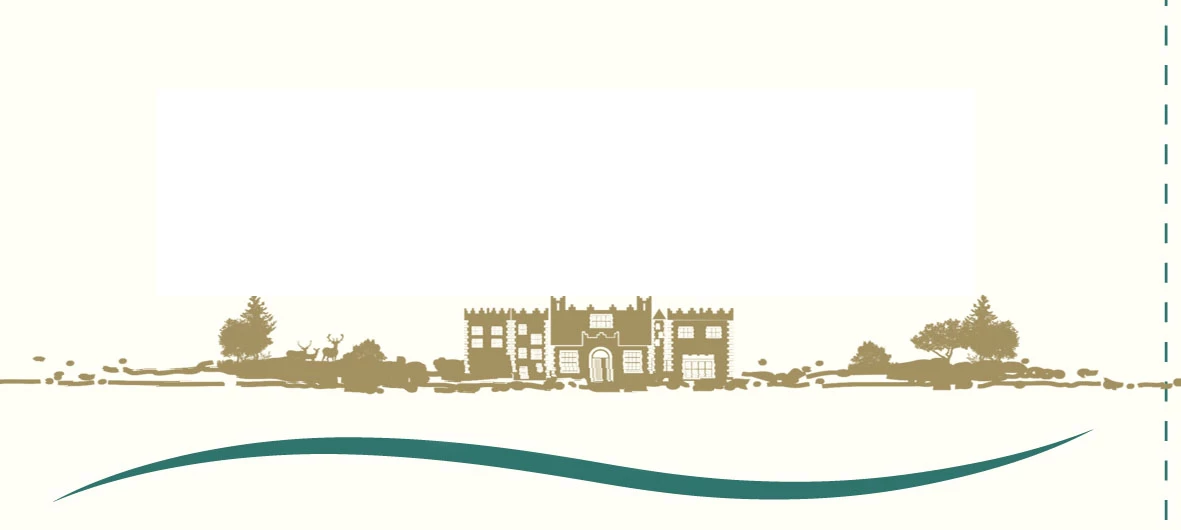 How can I curved this logo around the smae path of this line without getting distored? I have looked online for a few hours cant find any videos on Youtube
 AdChoices