Participant
August 21, 2025
Answered

How to show vector masks in the Layers panel for Color Fill layers in Photoshop CC?

  • August 21, 2025
  • 2 replies
  • 227 views

Regular layers and adjustment layers show the Vector Masks to the right of the layer, like so:


But for some reason in Photoshop CC, color fill layers turn like this once a Vector Mask is linked to them, with an icon at the bottom right indicating there is a Vector mask:


Is there an option to make the color fill layers act the same as regular layers? This is what I would like (it's a photoshop edit):


My principal issue with this is the "link" icon is missing - the one between the layer and the mask that toggles editing the layer and mask separately or together. I sometimes duplicate and drag Vector Masks from a regular layer to a color fill - and then have no way of toggling or even knowing if the Vector Mask is "linked" or not. Please at least tell me how to do that.

Correct answer Conrad_C

I don’t think there’s any provision for a link icon for a vector mask on a fill layer (this doesn’t just affect Color Fill, it also applies to Gradient Fill and Pattern Fill). I don’t know what the reason is, but Photoshop definitely treats the fill layer category differently than other layer categories.


Traditionally, for other layer types, the only purpose of mask linking was to set whether a mask moves with its layer. For a vector mask on a Solid Color fill layer there’s no way to prevent the mask from moving when you drag a Solid Color fill layer with the Move tool, but it is possible to move the vector mask independently of any fill type of layer: Select the vector mask path(s) and reposition it with the Path Selection or Direct Selection tool.


Maybe part of what Adobe was thinking is that for a Solid Color fill layer, separating a layer move from its mask is completely irrelevant because it’s solid, so it looks the same no matter where you position it! The only possible thing to move is the mask, so that’s what moves when you drag a Solid Color fill layer with the Move tool.


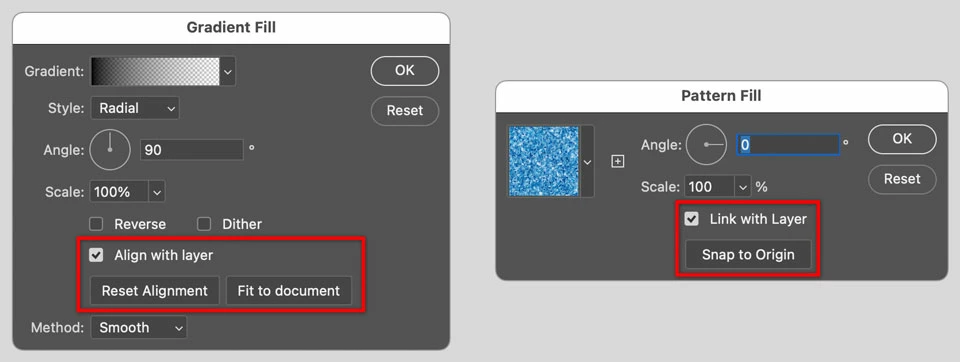
For a Gradient fill, a gradient isn’t uniform across the canvas and it can have its own position relative to the layer content, so here there is a case for optionally unlinking their positions when you move the layer. But the way you do that isn’t with a link icon, instead you deselect Align to Layer in Gradient Options so that if you drag it with the Move tool, you’re actually dragging its mask while the gradient (layer content) stays in place. It works similarly with a Pattern fill layer, it’s controlled by Link with Layer. 


It would be fair to suggest to Adobe that it’s weird that mask positioning is done with inconsistent UI and naming for three different kinds of fill layers. You could certainly make an argument that Align to Layer for gradient fill layers, and Link with Layer for pattern fill layers, should both be represented by a simple link icon in the Layers panel. If you want to suggest something to Adobe you can submit a feature request in the Ideas section of this community, and see if gets enough votes versus the other submitted requests.


But there probably is still no point in a link between a Solid Color fill layer and its mask, because unless I’m missing something (feel free to point it out if I am), there still wouldn’t be any visual difference linking or unlinking a vector mask for a layer type where the content is uniform across the canvas.

quote

The link icon is not visible on a Color Fill layer, but its function is still active. To toggle the link between the Color Fill layer and its vector mask, simply hold down the Shift key and click on the Vector Mask thumbnail. You'll see a tiny 'X' appear on the mask thumbnail, indicating that the mask is unlinked.

By @creative explorer


The X isn’t for linking. It’s for whether the mask is enabled/disabled (visually applied or not). Shift-click is a shortcut for the command Layer > Layer Mask (or Vector Mask) > Enable/Disable. You can see this in the History panel. Shift-clicking a mask doesn’t create a History step for Layer > Layer Mask (or Vector Mask) > Link/Unlink.


That’s why pixel layers have both a link and an X that work independently, because they’re technically different things.


Also, Shift-click does not do anything on a Solid Color fill layer, which is the subject of this thread. Shift-click only affects a pixel or vector mask when it has its own thumbnail icon separate from its layer content.


2 replies

Conrad_C
Community Expert
Conrad_CCommunity ExpertCorrect answer
Community Expert
August 24, 2025

I don’t think there’s any provision for a link icon for a vector mask on a fill layer (this doesn’t just affect Color Fill, it also applies to Gradient Fill and Pattern Fill). I don’t know what the reason is, but Photoshop definitely treats the fill layer category differently than other layer categories.


Traditionally, for other layer types, the only purpose of mask linking was to set whether a mask moves with its layer. For a vector mask on a Solid Color fill layer there’s no way to prevent the mask from moving when you drag a Solid Color fill layer with the Move tool, but it is possible to move the vector mask independently of any fill type of layer: Select the vector mask path(s) and reposition it with the Path Selection or Direct Selection tool.


Maybe part of what Adobe was thinking is that for a Solid Color fill layer, separating a layer move from its mask is completely irrelevant because it’s solid, so it looks the same no matter where you position it! The only possible thing to move is the mask, so that’s what moves when you drag a Solid Color fill layer with the Move tool.


For a Gradient fill, a gradient isn’t uniform across the canvas and it can have its own position relative to the layer content, so here there is a case for optionally unlinking their positions when you move the layer. But the way you do that isn’t with a link icon, instead you deselect Align to Layer in Gradient Options so that if you drag it with the Move tool, you’re actually dragging its mask while the gradient (layer content) stays in place. It works similarly with a Pattern fill layer, it’s controlled by Link with Layer. 


It would be fair to suggest to Adobe that it’s weird that mask positioning is done with inconsistent UI and naming for three different kinds of fill layers. You could certainly make an argument that Align to Layer for gradient fill layers, and Link with Layer for pattern fill layers, should both be represented by a simple link icon in the Layers panel. If you want to suggest something to Adobe you can submit a feature request in the Ideas section of this community, and see if gets enough votes versus the other submitted requests.


But there probably is still no point in a link between a Solid Color fill layer and its mask, because unless I’m missing something (feel free to point it out if I am), there still wouldn’t be any visual difference linking or unlinking a vector mask for a layer type where the content is uniform across the canvas.

quote

The link icon is not visible on a Color Fill layer, but its function is still active. To toggle the link between the Color Fill layer and its vector mask, simply hold down the Shift key and click on the Vector Mask thumbnail. You'll see a tiny 'X' appear on the mask thumbnail, indicating that the mask is unlinked.

By @creative explorer


The X isn’t for linking. It’s for whether the mask is enabled/disabled (visually applied or not). Shift-click is a shortcut for the command Layer > Layer Mask (or Vector Mask) > Enable/Disable. You can see this in the History panel. Shift-clicking a mask doesn’t create a History step for Layer > Layer Mask (or Vector Mask) > Link/Unlink.


That’s why pixel layers have both a link and an X that work independently, because they’re technically different things.


Also, Shift-click does not do anything on a Solid Color fill layer, which is the subject of this thread. Shift-click only affects a pixel or vector mask when it has its own thumbnail icon separate from its layer content.

REF-RDAuthor
Participant
August 25, 2025

Thanks for the answer.

quote

But there probably is still no point in a link between a Solid Color fill layer and its mask, because unless I’m missing something (feel free to point it out if I am), there still wouldn’t be any visual difference linking or unlinking a vector mask for a layer type where the content is uniform across the canvas.


By @Conrad_C


It really is an edge case, but one that happens to me every so often.

1. I add a Vector Mask to regular layer.

2. Later I fiddle with the position of the content without wanting to move the Vector Mask, so I unlink them.

3. Even later, I duplicate and drag the same Vector Mask to a Color Fill. In this case, the Color Fill retains the original layer's "link" status.

4. I move a Group, or a selection of different layers, that include the Color Fill.


It is an issue that can be fixed with my own workflow (i.e. always relinking Vector Masks after unlinking), but I also think it's an issue base on oversight from Adobe. As you said, if Color Fills being moved by themselved is meaningless, then duplicating and dragging a Vector Mask to a Color Fill should ALWAYS be "linked". Or the UI should be consistent.

creative explorer
Community Expert
Community Expert
August 24, 2025

@REF-RD there is no option to change the display of Color Fill layers to show the vector mask thumbnail and link icon in the same way that regular or adjustment layers do. Unlike regular layers, a Color Fill layer is not a pixel-based layer; it is a solid color fill with a layer mask. The small icon at the bottom right is Photoshop's way of indicating that a mask is present on this specific type of layer.

The link icon is not visible on a Color Fill layer, but its function is still active. To toggle the link between the Color Fill layer and its vector mask, simply hold down the Shift key and click on the Vector Mask thumbnail. You'll see a tiny 'X' appear on the mask thumbnail, indicating that the mask is unlinked.

  • When linked, the layer and mask move and transform together. This is the default state.

  • When unlinked, you can move or transform the layer or the mask independently.

You can also move an unlinked mask from a regular layer to a Color Fill layer and it will remain unlinked.

m
