

Sara W
Known Participant
December 5, 2019
Answered

How to stop Photoshop from accidentally selecting layers overlapping or near layer I am working on

  • December 5, 2019
  • 3 replies
  • 19146 views

It truly drives me nuts that often when I click on a layer (in the layers panel) to then do something directly to that layer on the canvas, it many times will start working on / activate a different overlapping or adjacent layer, most times an adjustment layer. But of course it could be any layer that happens to be in the same vicinity.


Is there any way to deactivate this? Photoshop didn't used to do this. You had to click on a layer (in the panel) to change it or work on it. My workaround is to temporarily lock or hide the layer I don't want to accidentally select, but it is silly that I have to do that.


Whoever thought that clicking on a layer (to change to another layer) directly on the canvas was a good idea, probably doesn't actually USE photoshop on a regular basis. I cannot be the only person who hates this (?) Help!
Correct answer SJRiegel

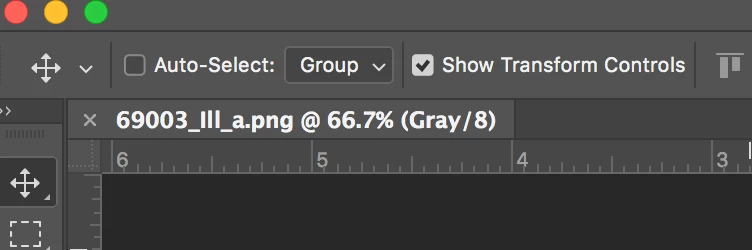
You must have auto-select (layer or group) selected. This has been an option for a long time - uncheck it and you should be fine.

3 replies

Shangara Singh
Inspiring
November 20, 2023

I turn it off and it stays off. It should OFF by default as it's very dangerous.


Once off, select Move tool (V), then Cmd/Control-drag to auto-select layer underneath the tool.

Shangara SINGH.
sideliner
Known Participant
December 12, 2023

Yes, this should be OFF by default. I was about to hit the roof with frustration, not having time until now to troubleshoot this due to urgent work deadlines. 


It's much friendlier to established users to introduce new features that alter current interface behaviors with the option to turn them on. It would allow us to discover what the benefit could be when we have time, vs. forcing unexpected tool behaviors on us while we're already working on tight schedules.


Some of us have decades of muscle memory of our tools behaving in expected ways. Imagine if a carpenter's hammer suddenly obeyed an opposite law of gravity. 

Known Participant
April 11, 2022

OK, but what about Photoshop Elements?  It is great that they have a cheap alternative but why do they have to make it function differently and why do they NEVER make instructions for both editions??  It is asinine that a layer-based photo editor would default to selecting layers based on a click in the workspace.  I see how it could be helpful on occasion but there should also be an obvious way to disable it.  

SJRiegelCorrect answer
Legend
December 5, 2019

You must have auto-select (layer or group) selected. This has been an option for a long time - uncheck it and you should be fine.

Sara W
Sara WAuthor
Known Participant
December 5, 2019

Thank you!