nana alderweireld
Participant
June 6, 2024
Question

How to transform rectangular in centimeters
  • June 6, 2024
  • 2 replies
  • 7958 views


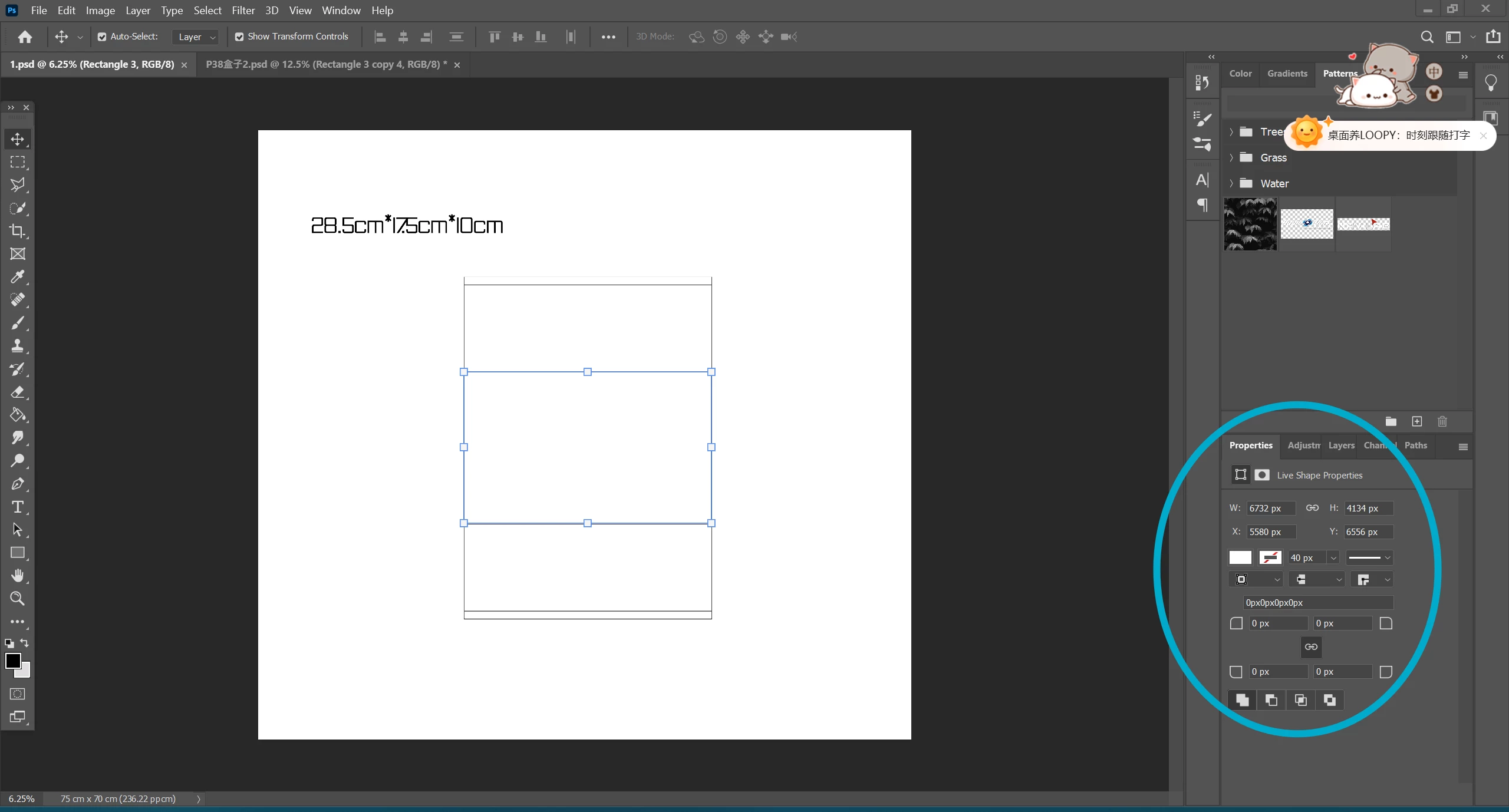
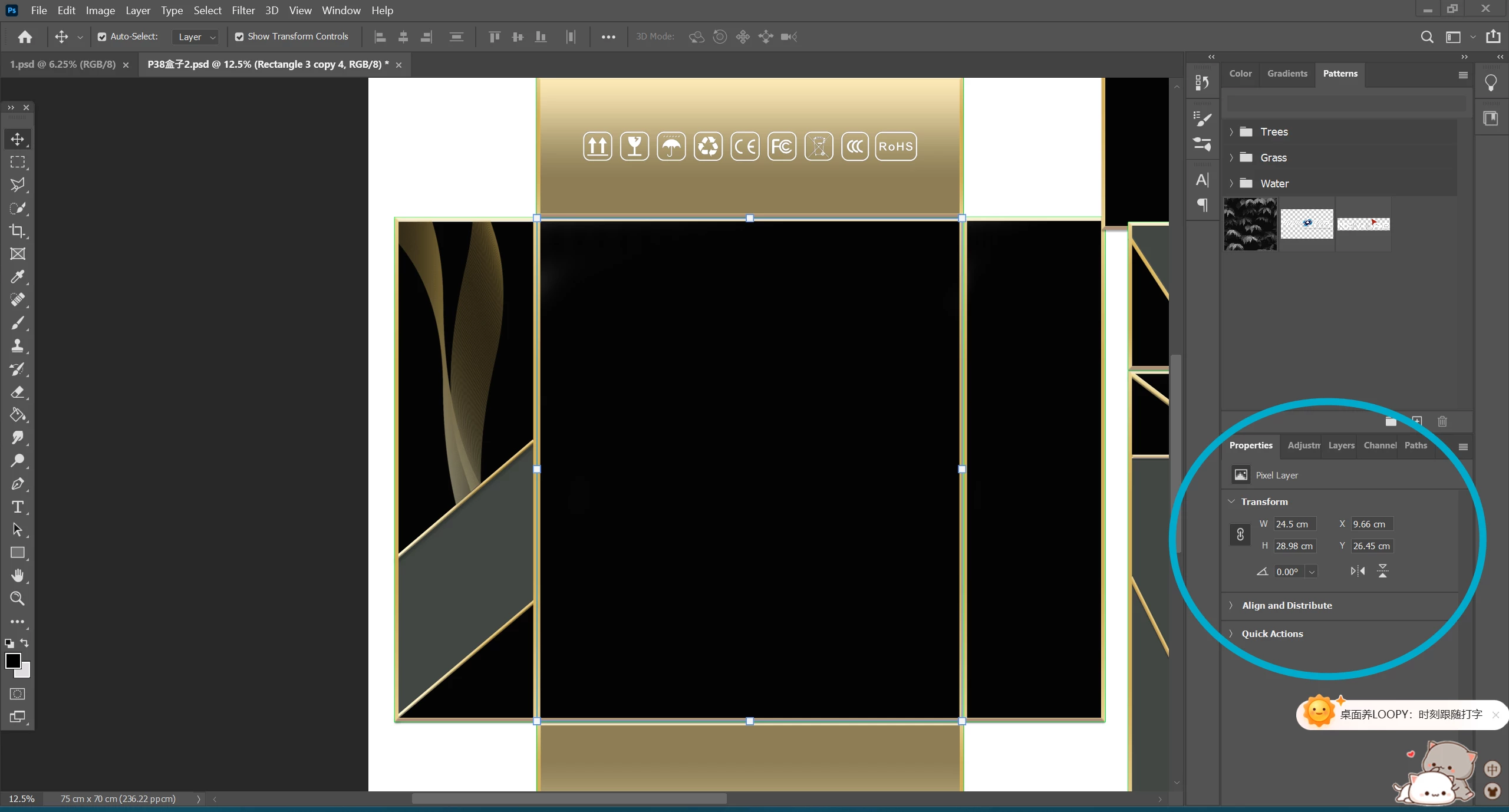
Hi, i've done pic 1 several months ago and i remember at the time it was easy to  make the rectangular using cm as measurement unit, but now i'm trying to make another rectangular and for the life of me i just couldn't make the same properties page as the same as before (pic 2). Can someone kindly teach me please, thanks.

2 replies

Trevor.Dennis
Community Expert
Community Expert
June 6, 2024

I like to box the shape I need with guides.

Drag a pair of guides to intersect at the top left corner, and drag the grid zero, zero point to the intersection (it will snap into position).


Create new guides for the width and height.  The New Guide dialog values reflect whatever unit you have set the rulers to.

Drag the shape or selection to fit the guides.  Either will snap perfectly into position.

Bojan Živković11378569
Community Expert
Community Expert
June 6, 2024

To change the measurement unit of Rulers to centimeters, press Ctrl + R to display the Rulers. Then, right-click on the ruler and select 'Centimeters'. To hide the ruler after changing the units, press Ctrl + R again.

nana alderweireld
Participant
June 6, 2024

Thank you for your reply, i'm terribly sorry if i worded too vaguely, but what i wanted to ask -- in a nutshell is, i don't want the properties layout as shown in pic 2 (bcs it's very inconvenient), i want it to be the properties layout as pic 1. But i really have no idea how to change it.  If you know please kindly teach me, Thanks again.

jane-e
Community Expert
Community Expert
June 6, 2024

@nana alderweireld 


You can try changing the unit of measurement in Preferences or the Info panel.


https://helpx.adobe.com/photoshop/using/rulers.html

Change the unit of measurement

  1. Do one of the following:
    • Double-click a ruler.

    • (Windows) Choose Edit > Preferences > Units & Rulers, or right-click the ruler and then choose a new unit from the context menu.

    • (Mac OS) Choose Photoshop > Preferences > Units & Rulers, or Control-click the ruler and then choose a new unit from the context menu.

  2. For Rulers, choose a unit of measurement.
    Note: Changing the units on the Info panel automatically changes the units on the rulers.
  3. Click OK.
     
    One more thing: you can type "24.5 cm" in the text box. PS will convert to pixels or whatever your current unit of measurement is. I know this isn't what you want, but it will get you through.
     
    Jane