Participant
September 13, 2012
Answered

How to wrap a text/image around a bottle/cylinder/object in specific Photoshop CS6?

  • September 13, 2012
  • 2 replies
  • 269370 views

Hi everyone!

I'm the lucky owner of Photoshop CS6 - love all the new features and design - but I've never worked with 3D effect before (not even in the earlier versions), until now when I finally need it. I've therefore searched the Internet and the Adobe Forums in order to get to know how to wrap a text/image around a glass bottle in Photoshop CS6. I've found several answers and tutorials, but none of them regards CS6 or they are simply too primitive, whereby the effect is too fake. But when I try follow the instructions in the explanations/tutorials I've found so far for earlier versions of Photoshop (especially regarding 3D effects), I can't find the right buttons, commands, etc. - I can't make it work.

Therefore, someone who will help me explain how to do wrap a text/image around a bottle/cylinder/object in Photoshop CS6?

Best, Marie W.

(www.mariewengler.com) 

visual photographic artist

editor of Toxique Magazine

This topic has been closed for replies.
Correct answer SG...

Hi,

What version of Photoshop are you using? Did you not want to display the 3D can as Noel has done above, and just want to warp text so that it distorts around the surface?

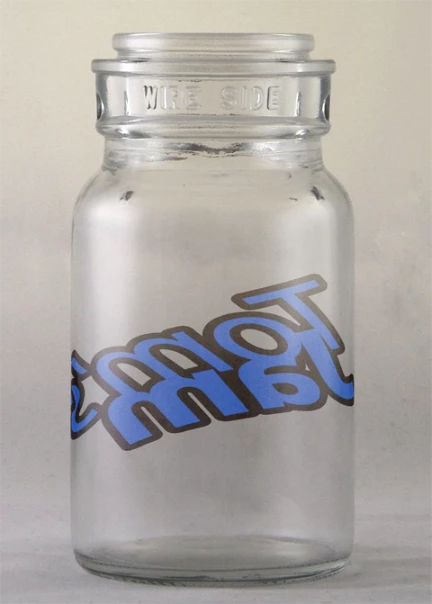
Something along these lines but without the transparency of the glass?

regards,

steve

2 replies

Noel Carboni
Legend
September 13, 2012

It's pretty easy, and Pierre is right - those tutorials are fun.

I think putting things on soft drink cans is fun...

-Noel

Participating Frequently
October 9, 2013

how do I wrap text aroung an "object"? I have a picture of can, and I want to make it look like the text is on the can. How do I do that?

Trevor.Dennis
Community Expert
Community Expert
October 16, 2013

Hi K,

Try these steps out and let me know if you need more details or have questions.

Outline for this exercise is to generate a 3D cylinder, create artwork you want to wrap around the cylinder, duplicate and modify that artwork to be used in an opacity map, and then arrange the 3D element on an image to composite together.

So the basic steps I used to do this:

1) New 1024px x 512px, RGB doc w/White background.

2) 3D> New Mesh from Layer> Depth Map to> Cylinder.

3) Change the workspace to '3D'

4) In the 3D panel, select the material 'Background'.

5) In the Properties panel, select the Opacity texture pop-up and choose 'Remove Texture' (you will be adding one back in step 10).

6) In the Properties panel, select the Diffuse texture pop-up and choose 'Edit Texture...'

7) Here's where you add the label graphics that you want bending around the cylinder. I used a text layer w/stroke layer style for the jar example. You'll also want to scale the width down around 60% to account for the stretched UV mapping on the cylinder. (the scale factor changes if you use gray values instrad of white in step 1)

8) When you have the artwork as you want it, Layer> Duplicate Layer... to a new file.  This new file will be used for the Opacity texture which masks off the area of the label you want, while removing the unwanted cylinder (ie. die-cut label).

9) Select all the layer pixels and change them to white, then on a new layer below fill it black. This is your new Opacity map. Save it to a working directory for use in the next step, and close the file. Also save and close the artwork file from step 6 & 7 (it is stored as a smart object in the original file from step 1)

10) Back with the original file from step 1 (with the 3D layer selected) select the Background material again in the 3D panel. Now in the Properties panel, select the Opacity texture pop-up and choose 'Load Texture...'. Browse to the opacity texture from step 9 and choose 'Open'.

11) You should now see just your label artwork wrapping in a cylindrical shape. You can use the 3D Camera Rotate tool to view the various angles.

12) Now, bring in your jar image for compositing. This is where manipulating the 3D layer to align the scale and perspective can get tricky. I try to just use the 3D camera tools for this work (with global object scaling an exception). I also use the 'Shaded Illustration' Rendering preset to help visualize.

Hopefully this helps out. I left out details around interacting with the 3D layers, but ask questions if you get stuck.

regards,

steve


This sort of effect always makes me think of when Donnie Hoyle first appeard telling us that we all sucked at Photoshop back in 2007.  It still makes me smile just thinking about it.

PECourtejoie
Community Expert
Community Expert
September 13, 2012

Hi! I suggest to follow Daniel Presedo's videos: http://www.youtube.com/user/dramenon?feature=watch

He is one of the Photoshop engineers, and plays a lot with the features he helps shape up.

This one might answer your question: http://www.youtube.com/watch?v=LhZQyXNza9E&list=UUZUppPJ_aMM6cna7PGnNQrw&index=37&feature=plcp