BDRANEY
Participating Frequently
June 5, 2018
Answered

How would you delete the shoe from this image?

  • June 5, 2018
  • 4 replies
  • 852 views

Hey everyone.

I would like everyone's feedback on what they would do so I can better myself at Photoshop.

My question is, how would you go about deleting the background shoe in this picture?
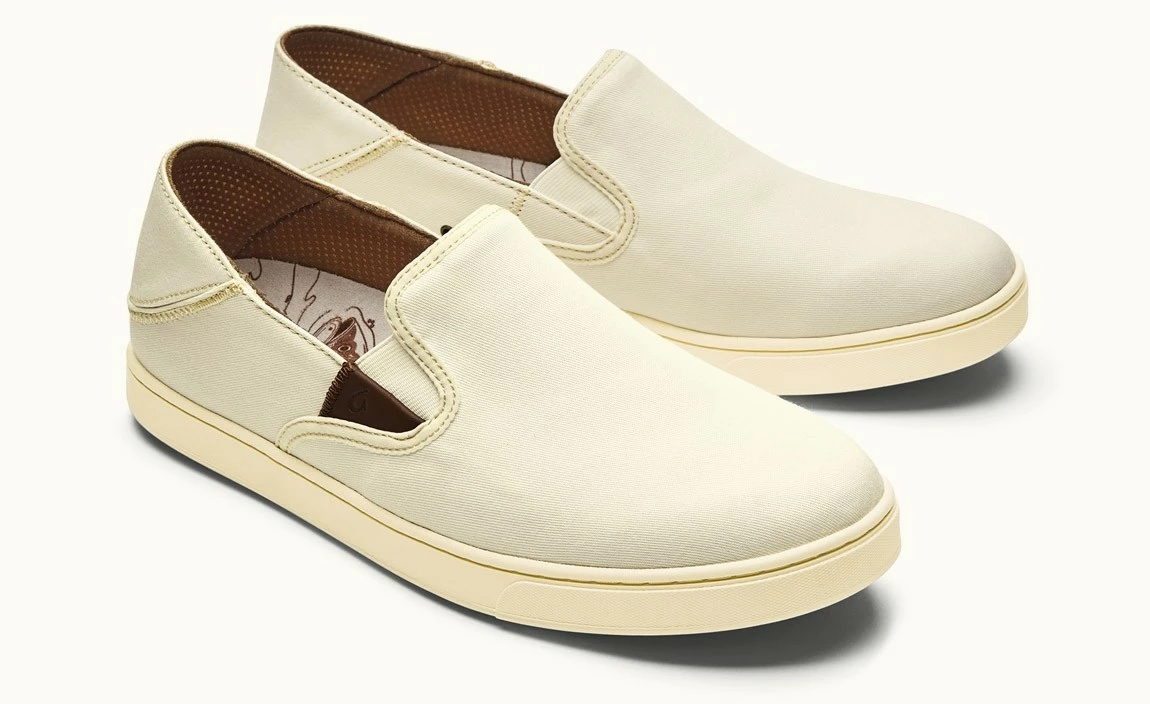
I've tried using the eraser tool but I know there has to be a better way. I would like to know other peoples' approach so I can improve. Thanks.

Also..... Here is my terrible attempt by using Eraser:

    This topic has been closed for replies.
    Correct answer davescm

    Hi

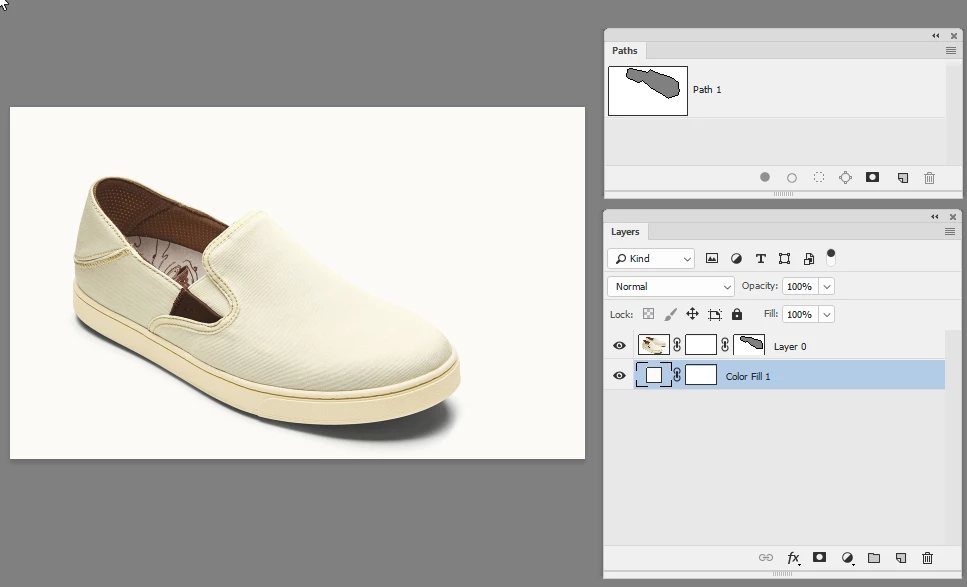
    The pen tool every time for those edges.

    Draw with Pen tools in Photoshop

    You only need to be accurate where it touches the bottom shoe as you will use the mask to hide the background shoe and its shadow. Once the path is drawn drawn double click the mask icon in the paths panel to add a vector mask to the shoe layer and add a color fill layer the same colour as the background (which luckily is a nice even colour)

    Dave

    4 replies

    JonathanArias
    Legend
    June 5, 2018

    the best way to approach how to do something in photoshop is to ask "What is the least destructive way of doing something". You don't want ever us the eraser tool for something like this because the eraser tool is final, destructive. you want to mask. you can use the quick selection tool and with the refine edge dialog you can polish your selection. Always use masks, dynamic effects and smart objects, this way everything is super editable for you and others.

    Semaphoric
    Community Expert
    Community Expert
    June 5, 2018

    Another vote for the Pen tool. I would make a Vector Mask for the front shoe:


    I used a temporary Levels layer and dragged the shadows way to the right to find where the shadow of the sole ends, to keep the shadow from having a hard edge. Onect the Path is complete, I then hid the Levels.

    If you cut the shoe along the bottom of the sole, you could isolate the shoe from the shadow. You could then add a duplicate layer that clips to the shadows, and set its Blending Mode to Multiply, then linking the two layers. You can then drag a copy of these to a background of your choice:


    Community Expert
    June 5, 2018

    I agree with Davecm.  Use the Pen tool.  You can add anchor points and adjust it to perfectly surround what you want to isolate

    davescm
    Community Expert
    davescmCommunity ExpertCorrect answer
    Community Expert
    June 5, 2018

    Hi

    The pen tool every time for those edges.

    Draw with Pen tools in Photoshop

    You only need to be accurate where it touches the bottom shoe as you will use the mask to hide the background shoe and its shadow. Once the path is drawn drawn double click the mask icon in the paths panel to add a vector mask to the shoe layer and add a color fill layer the same colour as the background (which luckily is a nice even colour)

    Dave