
henkiewenkie
Participating Frequently
May 6, 2019
Answered

I can't make a translucent shadow darker

  • May 6, 2019
  • 3 replies
  • 1618 views

I made a packaging box in a 3d programme, and rendered it out with a transparent background. So it's only the box and it's drop shadow which is translucent.

When I import the image I'm Photoshop I want to make the shadow less intens, and then export the image again as a tiff with transparency.. So my client can use it to compose it on their own background

But... When I use curves to darken the shadow.. It doesn't darken the shadow.. Nothing happens. Unless I put a white background behind everything.. Then the shadows are affected by the curve...

But this is useless to me because I need to export it without a background

So my question is... How can I darken the translucent shadow properly?

I'm using the latest Photoshop on Windows 64
    This topic has been closed for replies.
    Correct answer sharp_hands16B8

    The Curves is attempting to adjust the tone, not the level of Opacity that was originally rendered.

    If you hold Command and Click on your Layer Thumbnail it should select the product and the shadow. The opacity of the shadow will only be partially selected. Now press the add Layer Mask button on that layer.

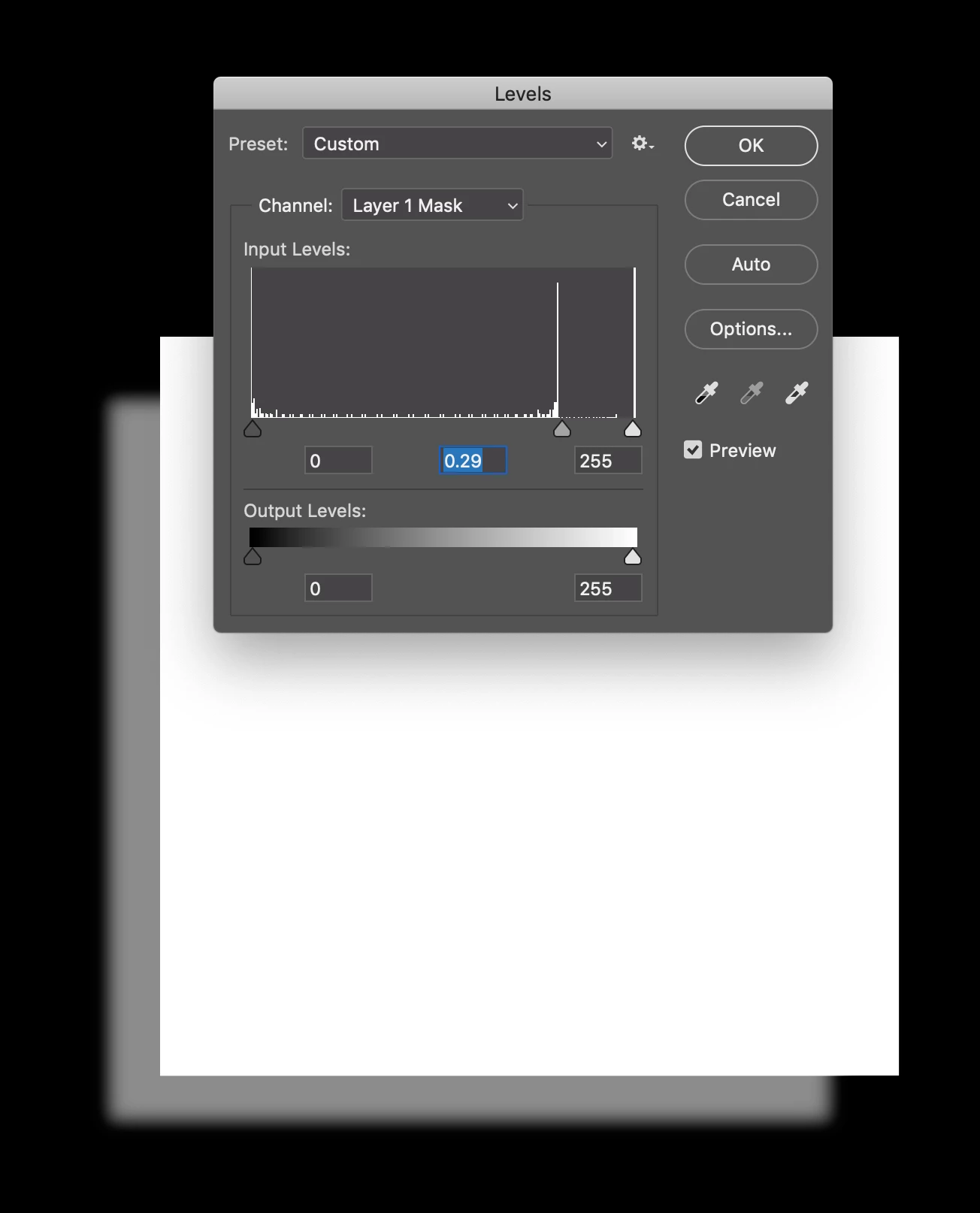
    If you now hold Option and click on the Layer Mask you will see the solid white pixels are your product render, and the shadow with transparency should be a different shade of gray and not solid like the product.

    With your Layer Mask selected, go to Image > Adjustments > Levels. Slide the middle slider to the left or right, and it will shift the tone of the shadow in your product shot. Adjusting the tone here will affect the level of transparency in the shadow because it's a Layer Mask and not the tones of the actual image pixels. DO NOT slide the outer sliders, that will increase the contrast of the mask which could cause you a different type of problem.

    3 replies

    sharp_hands16B8
    Community Expert
    sharp_hands16B8Community ExpertCorrect answer
    Community Expert
    May 6, 2019

    The Curves is attempting to adjust the tone, not the level of Opacity that was originally rendered.

    If you hold Command and Click on your Layer Thumbnail it should select the product and the shadow. The opacity of the shadow will only be partially selected. Now press the add Layer Mask button on that layer.

    If you now hold Option and click on the Layer Mask you will see the solid white pixels are your product render, and the shadow with transparency should be a different shade of gray and not solid like the product.

    With your Layer Mask selected, go to Image > Adjustments > Levels. Slide the middle slider to the left or right, and it will shift the tone of the shadow in your product shot. Adjusting the tone here will affect the level of transparency in the shadow because it's a Layer Mask and not the tones of the actual image pixels. DO NOT slide the outer sliders, that will increase the contrast of the mask which could cause you a different type of problem.

    henkiewenkie
    Participating Frequently
    May 7, 2019

    Thank you for your reply (to all)

    This was what I was looking for. I didnt know you could apply levels to an individual mask so this should work

    However, it seems like this a destructive way of altering the intensity of the shadows

    Is there a way to do this non-destructive? Or should I just keep a copy of the original file as a backup to revert to if necessary?

    And just to make sure.. if I wanted to adjust intensity of shadows if this had a solid background.. I could just apply curves/levels and mask it out right?

    And as a follow up question.. how would I blur the shadow to make it look softer? Just apply  a guassian blur and mask it out?

    thanks!

    davescm
    Community Expert
    Community Expert
    May 6, 2019

    Hi

    Try duplicating the layer (Ctrl+J) then masking the duplicate so only the shadow is revealed. Set the duplicate to multiply blend mode. You can use opacity to control how much the duplicate affects the original.

    Dave

    joanH
    Inspiring
    May 6, 2019

    Dave,

    Can't a copy of the box be put on another file-level and drop shadowed all over again and start with the two things that are for keeps for the client? Then only the drop shadow is changing? Just asking.

    JH

    davescm
    Community Expert
    Community Expert
    May 6, 2019

    Hi Joan - I read from the original post that the translucent shadow was generated in a 3D application not as a Photoshop drop shadow.

    Dave

    joanH
    Inspiring
    May 6, 2019

    Hello henkiewenkie. To darken the translucent shadow -

    If you have a weak drop shadow, go out and select layer style - drop shadow and select the % of opacity % for the drop shadow - adjust until you are happy with it.  Try all of the sliders under the drop shadow information. Become familiar with all of them and each thing they make happen.

    Happy drop shadowing. Best JH