Thanks for uploading a sample. It confirms what I thought: There is a stray mark on the scan background that causes Crop and Straighten Photos to get confused identifying multiple frames. It is not obvious when the area around the canvas is gray or black, but when the surround color is changed to white (by right-clicking it), the paper shadow on the scan becomes easy to see. The shadow, which is of course along two whole edges of the overall scan, is what confuses Crop and Straighten Photos.
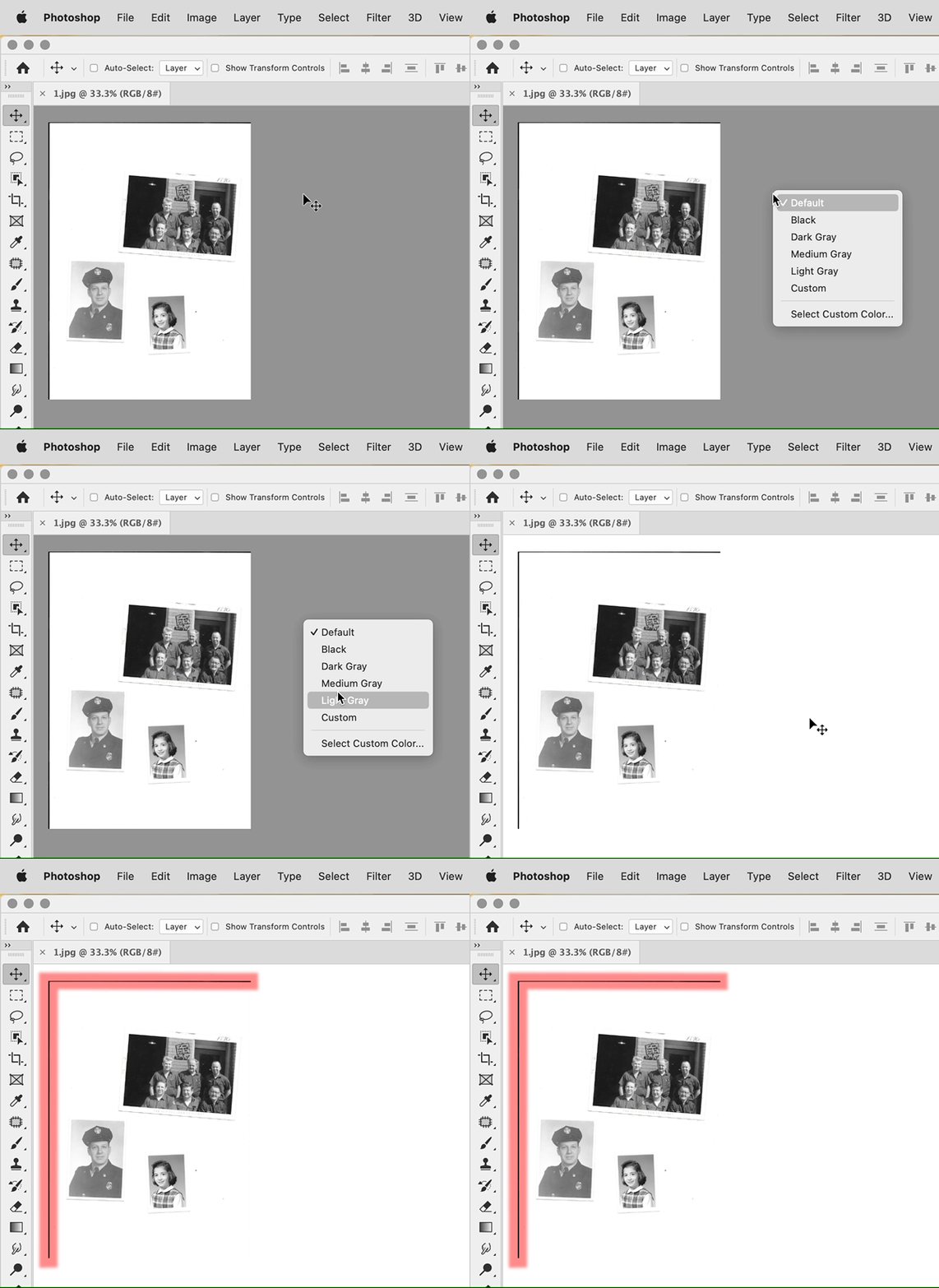
The shadow is a natural consequence of using a flatbed scanner with one undiffused light source, my Canon scanner does it too. It’s likely that this shadow will be on all scans. Fortunately, that means it should be possible to batch-crop all your scans in bulk. Create a Photoshop action that uses the Image > Canvas Size command to drop several pixels off the left and top edges. A good way to do this is to select the Relative option, and enter -20 pixels (adjust as needed) for Width and Height, anchored at the bottom right corner. Test this on a small set of images before running it on many.
This is also a reason I try to keep prints slightly away from the edge around the scanner glass, to leave a little margin in case I need to crop edges while making sure I don’t crop any actual images.
After cropping out the shadow, Crop and Straighten Photos worked as you expect: It split it up into three photos.


 AdChoices