Orped
Participant
August 30, 2018
Answered

I Need Help With The Color Replacement Tool

  • August 30, 2018
  • 5 replies
  • 422 views

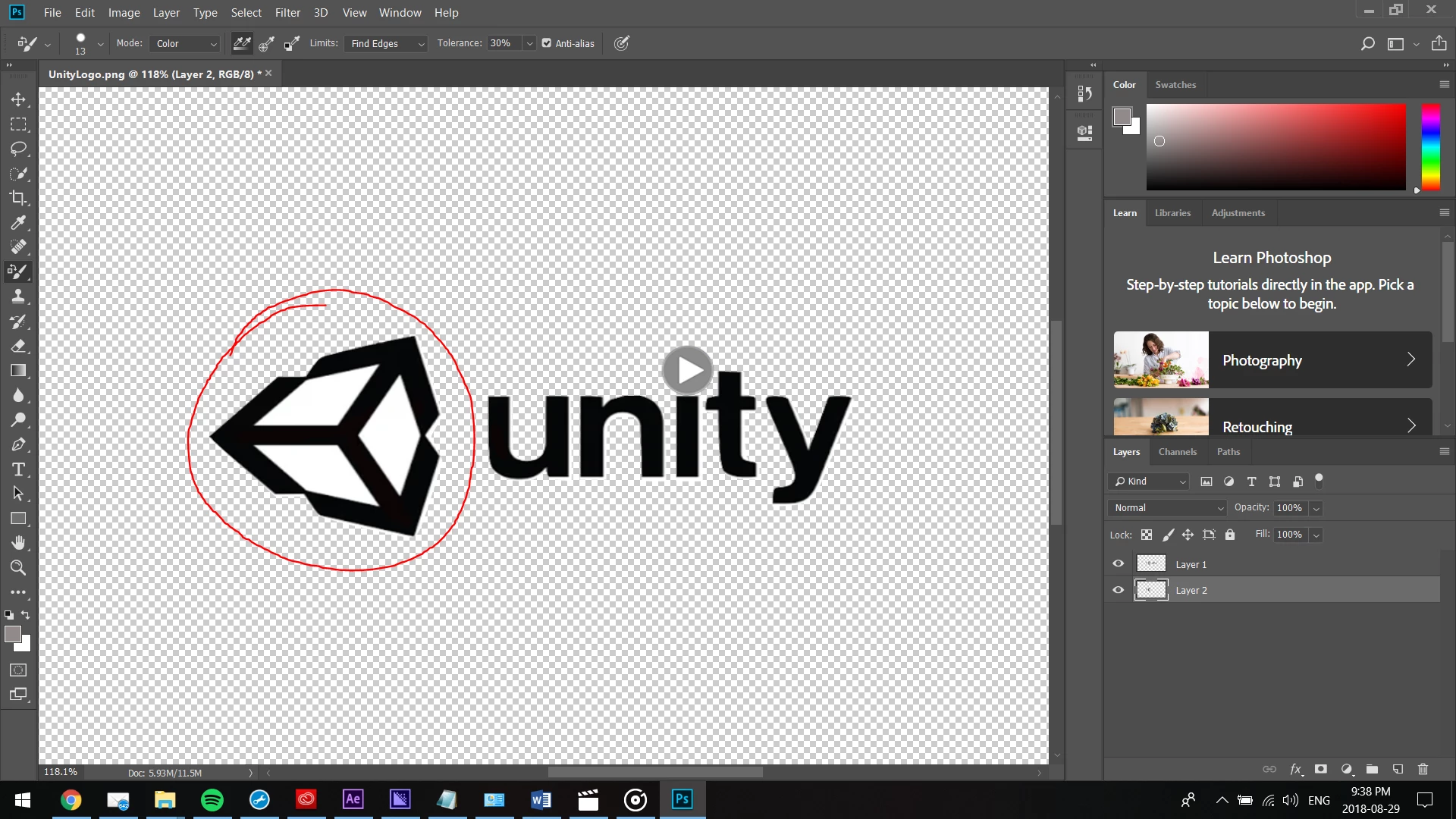
Hey Photoshop community! Below is the picture I am trying to edit. What is circled in red is what I am trying to change the color of. I started by selecting the color replacement tool and then selecting color picker and I chose the grey play button as the color I would like to use. I made sure the mode was "Color" and Limits was "Fined edges". When trying to color in the black space nothing happens at all. I tried using the lasso tool and circling only the box that's circled in red. Again to no avail it doesn't seem to color in. Is there an easier way to change what's circled in red to be grey? Thanks,

- Seth
This topic has been closed for replies.
Correct answer nicholasd27567981

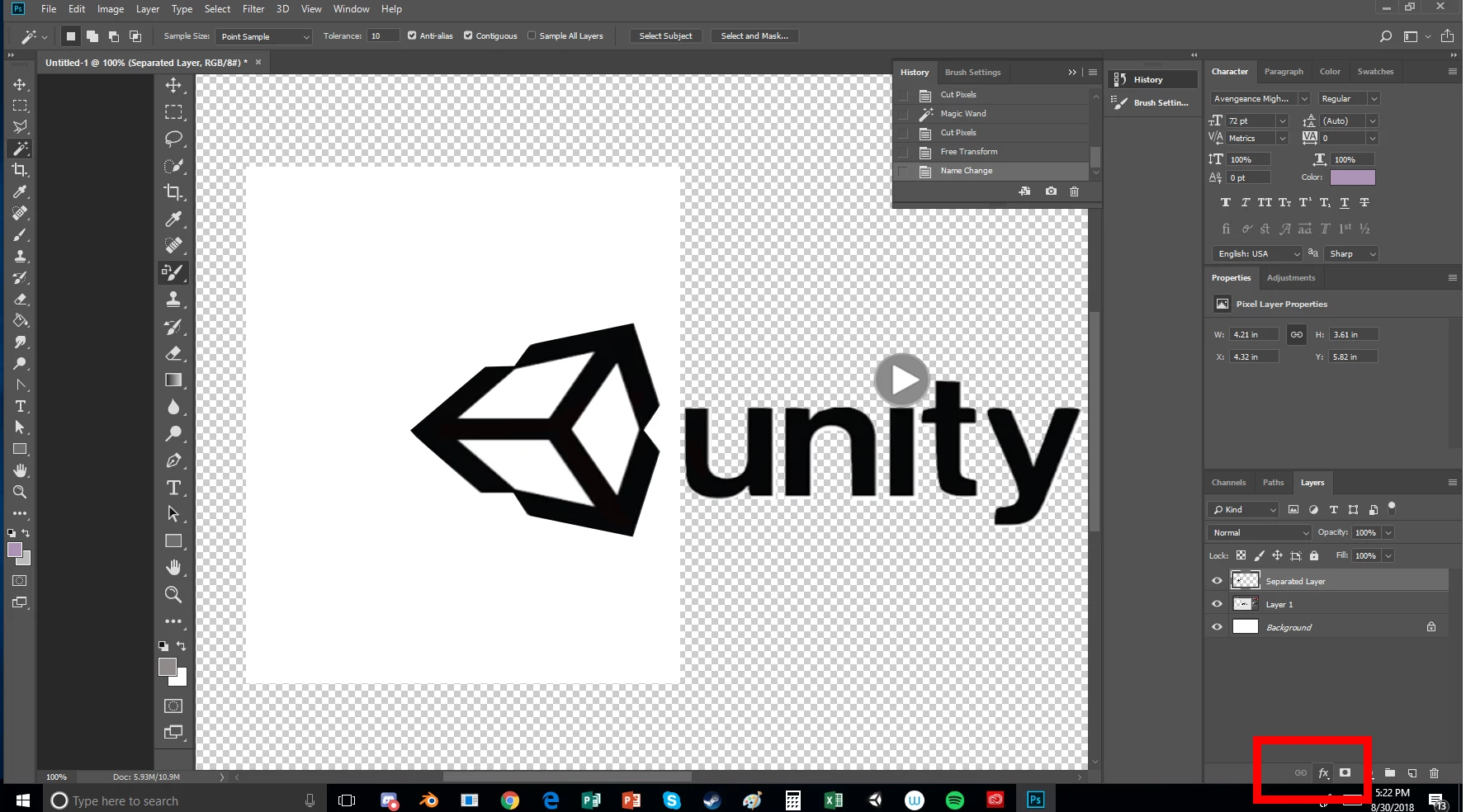
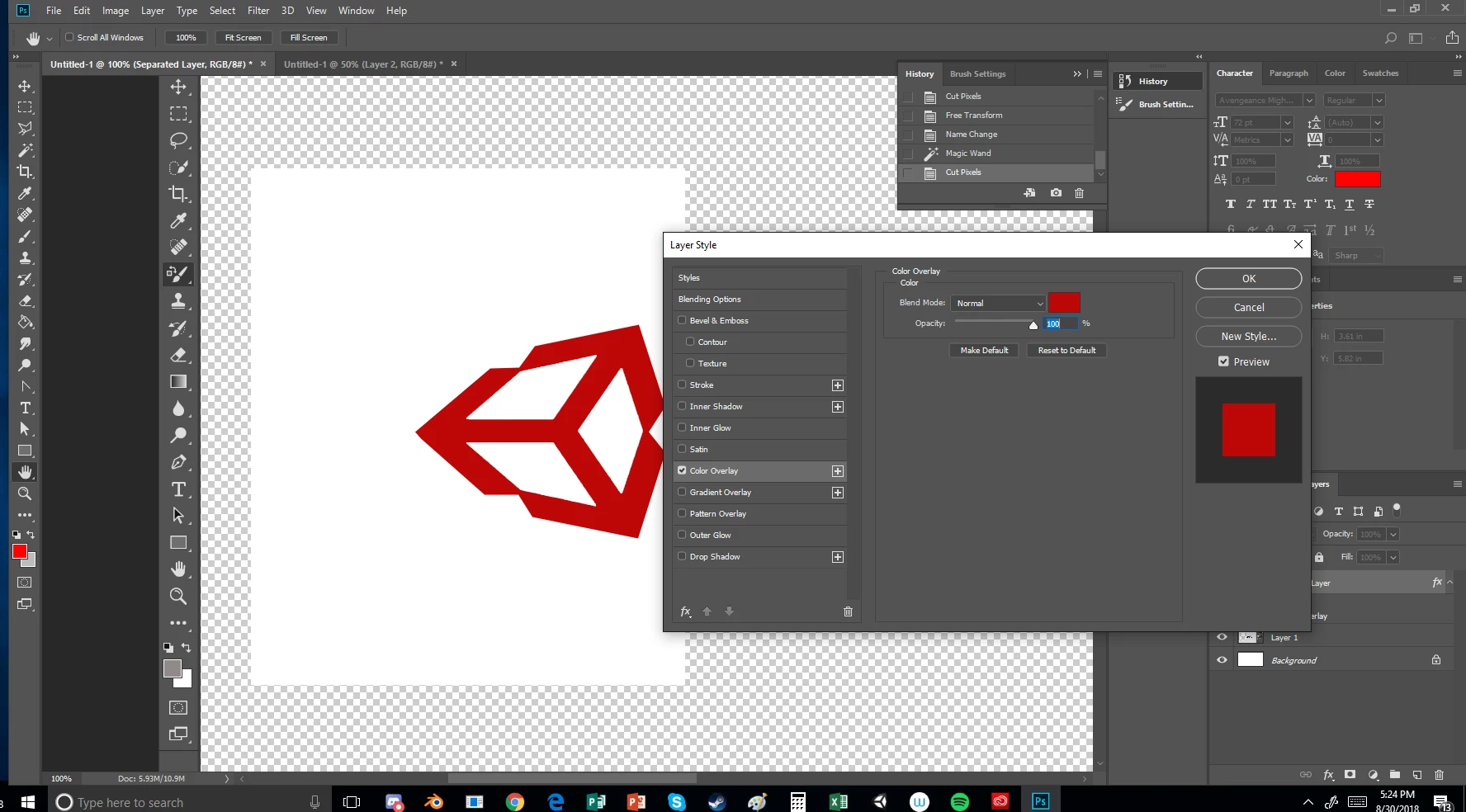
There are two options i would recommend. The first and easiest in my opinion for that shape would actually be to separate it from the rest of the Unity logo. Then once that shape is on a new layer, simply use the color overlay "FX" option on the layers. From here just select your desired color.

The other option is the slightly more complicated one where, as other people have stated, you change the black to a grey, then use the color replacement, hue/saturation, or Color balance tools.

5 replies

Trevor.Dennis
Community Expert
Community Expert
August 30, 2018

It seems to me that even if you only need this as a one off, it would be worth the time it took to make it as a vector shape.  Apart from then being infinitely scaleable, it would also be easy to change the colour.  The image below is a PNG file with transparent background, which means you need to right click and save — as opposed to copy — to keep its transparency.   Note also that this is not a perfect copy of the original shape, as that was not symmetric, whereas this is. 

nicholasd27567981
nicholasd27567981Correct answer
Participant
August 30, 2018

There are two options i would recommend. The first and easiest in my opinion for that shape would actually be to separate it from the rest of the Unity logo. Then once that shape is on a new layer, simply use the color overlay "FX" option on the layers. From here just select your desired color.

The other option is the slightly more complicated one where, as other people have stated, you change the black to a grey, then use the color replacement, hue/saturation, or Color balance tools.

Norman Sanders
Legend
August 30, 2018

There is a white drop-shadow type effect adjacent to the object and white within the black object that can be maintained with an RGB Curve adjustment.  Trevor's red reads 231 51 35. I used that for the red. Color match is precise and the white remains 255

c.pfaffenbichler
Community Expert
Community Expert
August 30, 2018

The Color Replacement Tool is, in my opinion, worthless for serious work in Photoshop and the sooner you stop even trying to use it the better.

To colorise truly black objects in RGB images one can simply add a Sold Color Layer and set it to the Blend Mode Screen (and if necessary add a Layer Mask(.

Trevor.Dennis
Community Expert
Community Expert
August 30, 2018

Black and white do not take colour, which does make sense when you think about it.  Grey, on the other hand, takes colour  very well, so first step is to turn the black to grey.  I have  used  a Levels adjustment layer, and moved the output black slider to the halfway point, but you can do the same thing with curves.  Note I have clipped the levels layer to your object layer. 

Having made the blacks grey, I can now use a Hue/Saturation layer set to Colorize.  Wherever you position the hue slider determins the colour.  Note that I have moved the saturation slider to maximum. 

Is that making sense and doing what you need?