
christineavatar
Legend
December 26, 2020
Answered

I need to remove a white background from some white paper

  • December 26, 2020
  • 5 replies
  • 492 views

I have done most of what I can but the problem is that when I identify the top of the paper is just to close in shade from the bg. Is there a way to make the Quick slection tool more sensitive so that it can leave one shade of white alone?
This topic has been closed for replies.
Correct answer JJMack

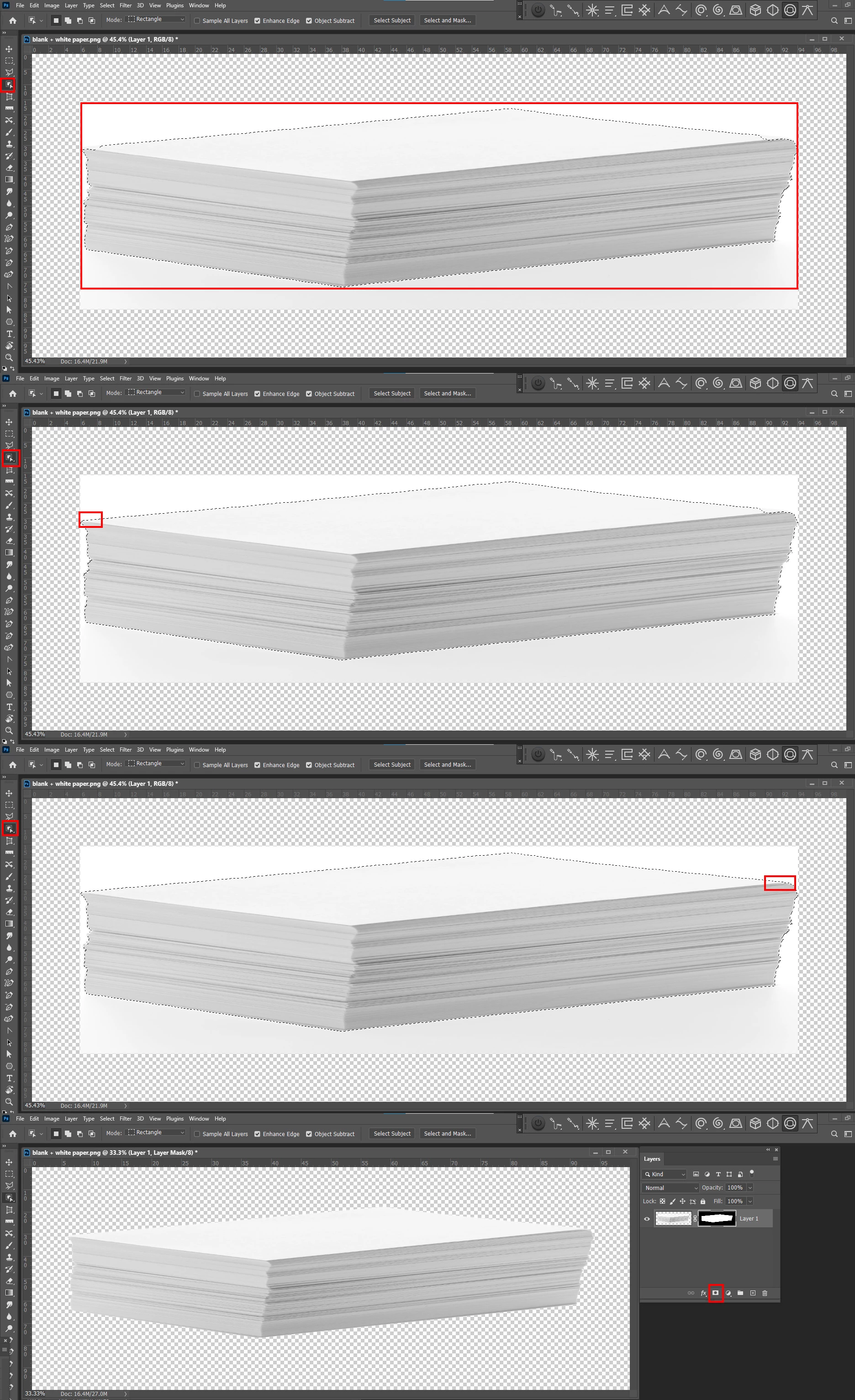
Perfectly removing a white background simple automation  But your paper is white you will need to add its white back in.


For your Paper stack.  Select Object followed by Shift Select Object,  Shift Select Object  and add layer mask works well.


5 replies

christineavatar
Legend
December 27, 2020

Thank you JJMack, that was just what I was looking for.

Norman Sanders
Legend
December 27, 2020


In this alternate solution a mask is made and applied to the object.

Fig 1. Original Image. Make a duplicate layer

Fig 2. Apply Curve to get greater separation between top sheet and background.

Fig 3. Image > Adjust > Invert. Choose Magic Wand to select top sheet.

Fig 4. Fill with White.  Choose Curves Highlight eyedropper and click where indicated. Note some residual detail remains.

Fig 5. Choose brush sett to Overlay white to eliminate detail.

Fig 6. Select white, inverse the Selection and fill with black.

Fig 7. Apply it as a mask on the bottom layer original image. Turn off top layer. 

christineavatar
Legend
December 26, 2020

It is a very simple scene.

christineavatar
Legend
December 26, 2020

I need just the paper, not the background. I have already jerry-rigged an answer but it would have been much better is I had been able to just remove the background without 'erasing' it with the lasso tool.

Michael Bullo
Community Expert
Community Expert
December 26, 2020

What if you temporarily increased the contrast within your scene? Start by adding something like a curves adjustment layer and create a curve that maximises the contrast between your subject and background. Enable the 'Sample All Layers" option for the Quick Selection Tool that can be found within the Options bar running along the top of Photoshop. Having created the selection you can now turn off the visibility or throw away the temporary adjustment layer.

JJMack
Community Expert
JJMackCommunity ExpertCorrect answer
Community Expert
December 27, 2020

Perfectly removing a white background simple automation  But your paper is white you will need to add its white back in.


For your Paper stack.  Select Object followed by Shift Select Object,  Shift Select Object  and add layer mask works well.


JJMack
D Fosse
Community Expert
Community Expert
December 26, 2020

Pleas post a screenshot so we can see what you're talking about.