dmiraie
Inspiring
March 19, 2019
Question

Illustration advice ..?

  • March 19, 2019
  • 6 replies
  • 1731 views

Hi,, photoshop/illustration noob here!

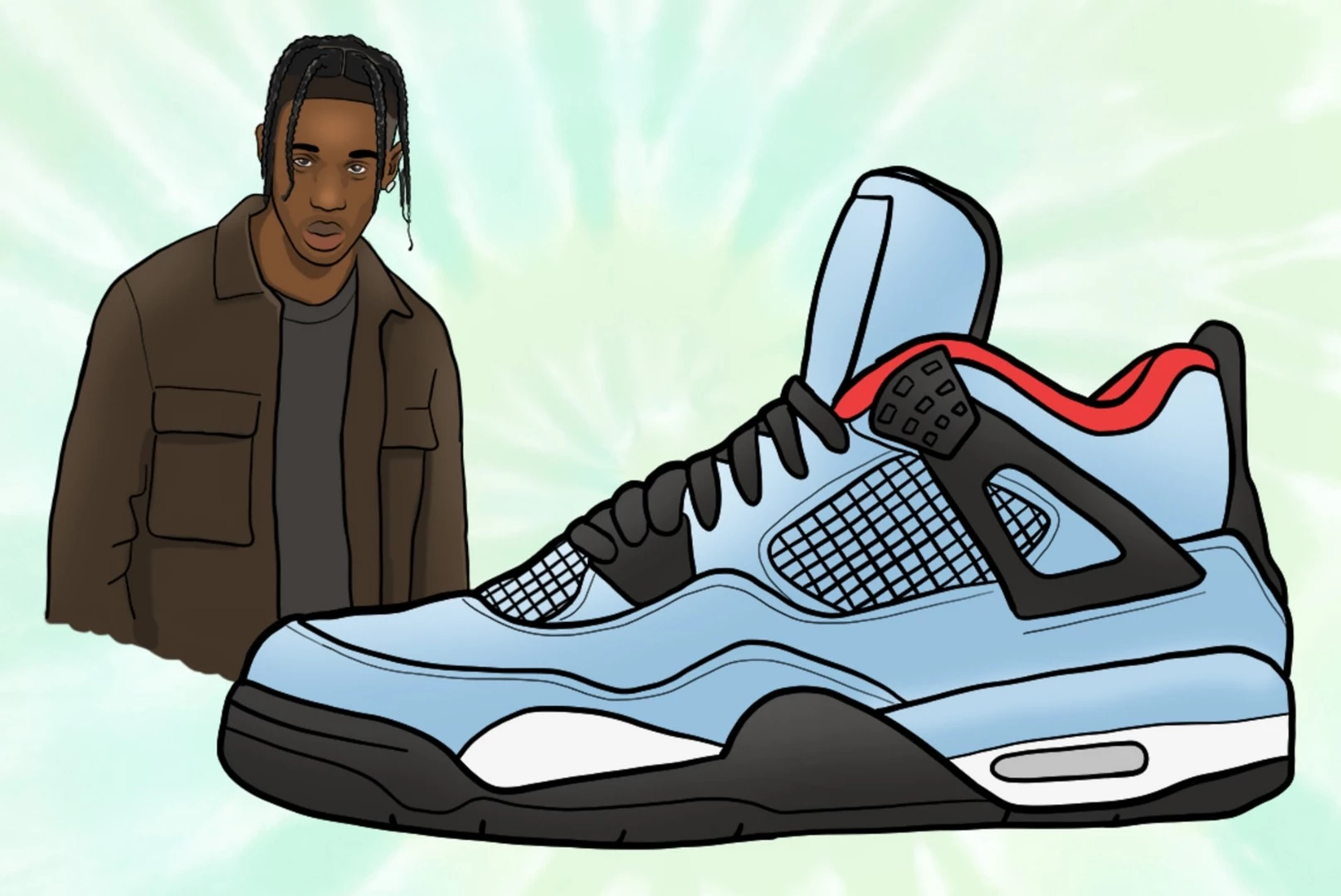
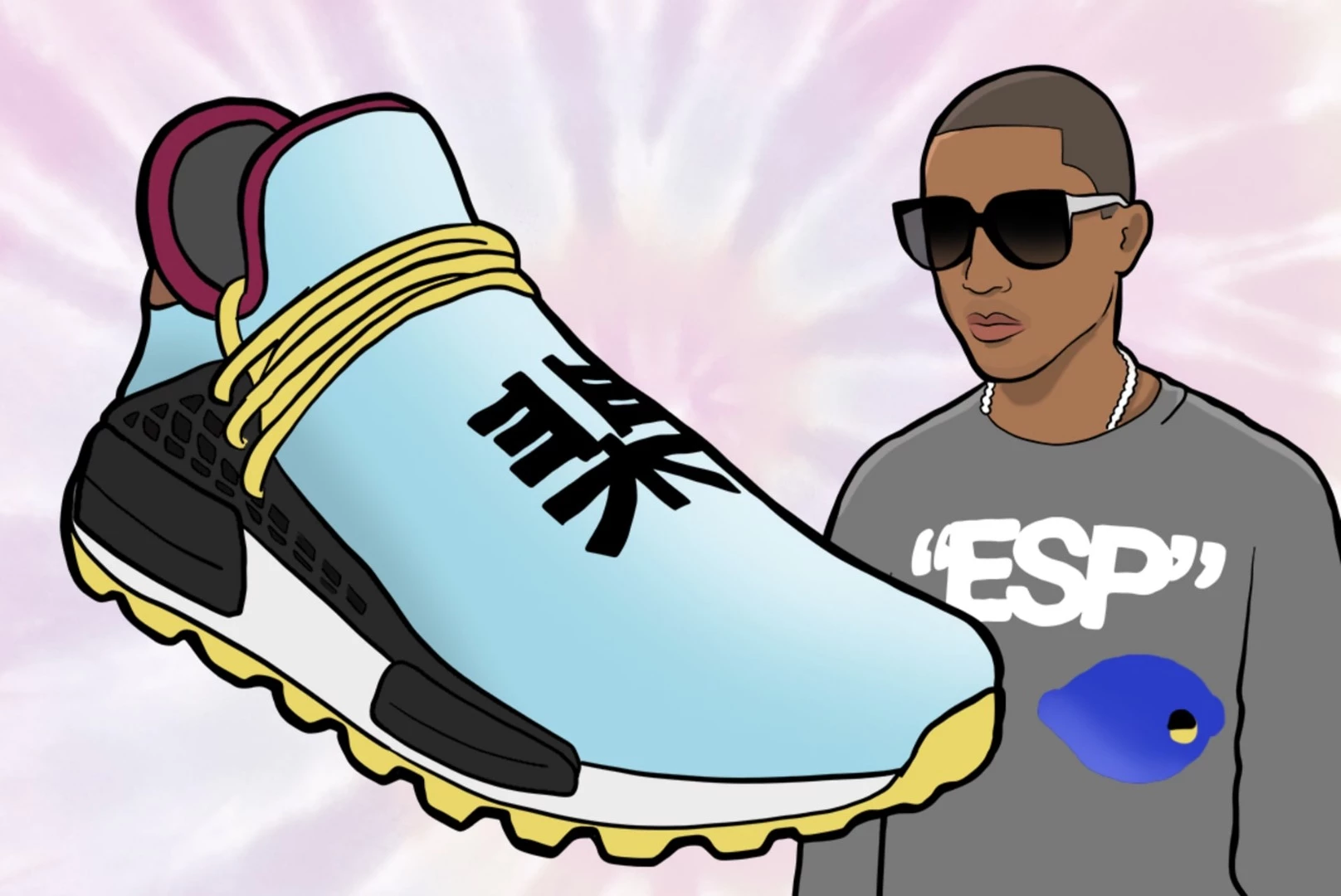
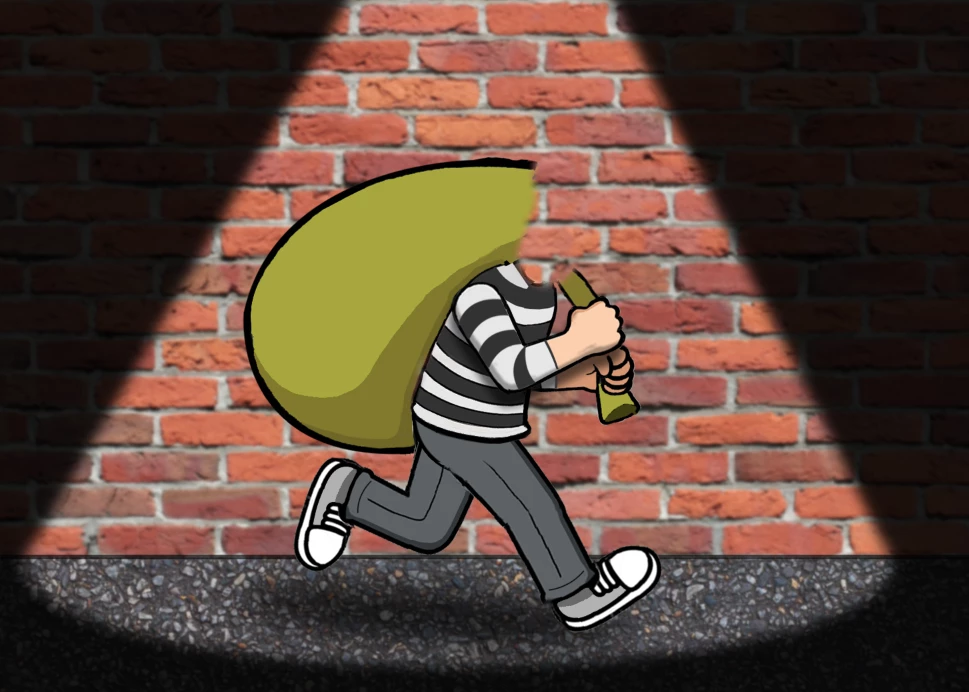
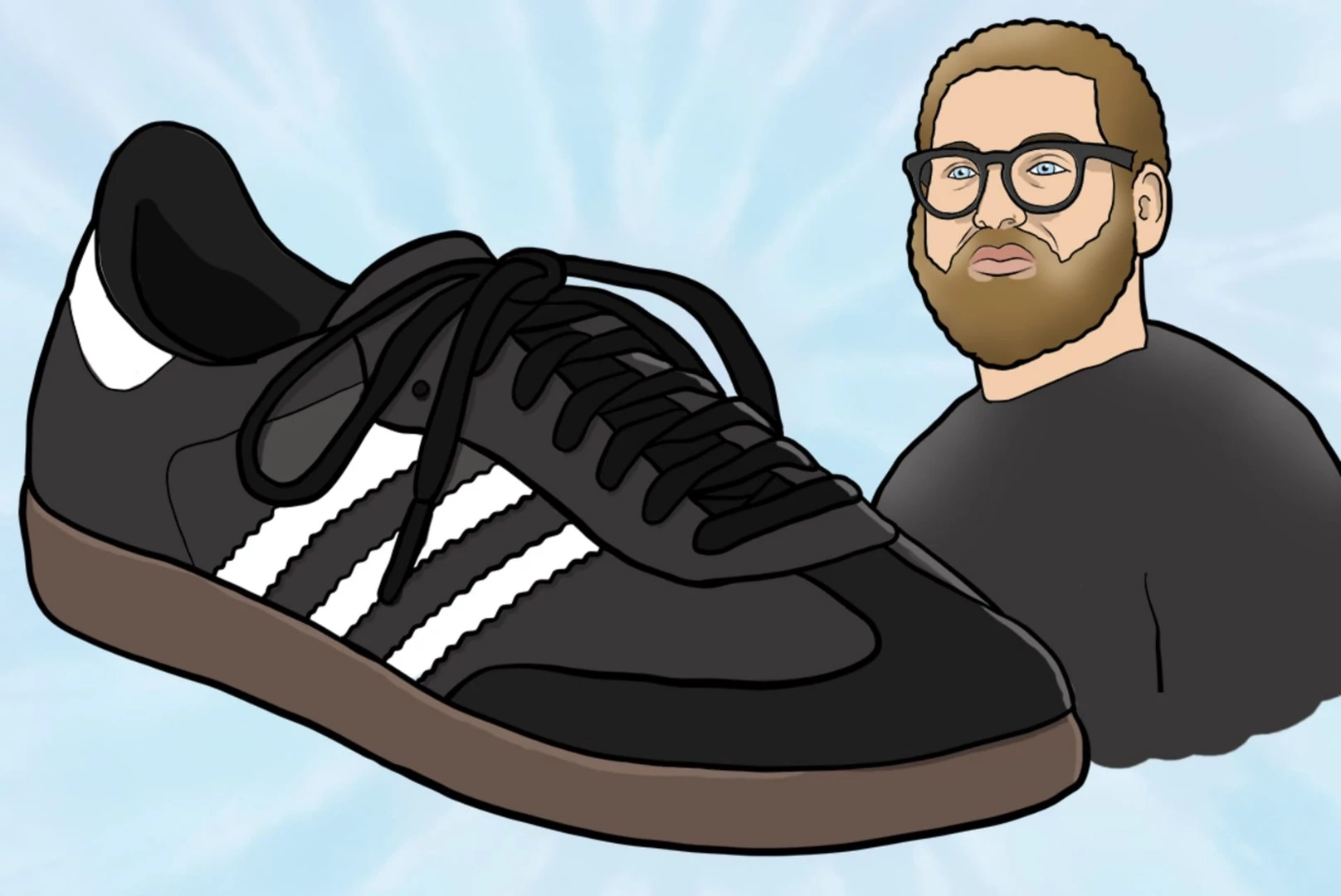
In regards to stuff like shadows/highlights/gradients/textures etc, I'd like to make this bland/flat-looking figure (the first image) look a bit more interesting/stylistic (like the images below it), but I don't really know where (or how) to start.. Can anybody give me advice on what to put where? Thnx!
This topic has been closed for replies.

6 replies

KShinabery212
Community Expert
Community Expert
March 20, 2019

First... Consider Illustrator instead.

Then when creating graphics thing of a graffiti artist that somewhat works in reverse.

First draw your line art (this will be your top layer).  Make sure all lines are expanded after. Lock it.

Second duplicate that layer (this will be your bottom layer).  Select all the lines in this layer... and make them clear.  Then go to Object and Make Live Paint.  Fill in the shapes for your base colors.

Now all layers in between these two layers will be your shading and highlights.

I do this all the time.  You can see tons of examples in my Adobe Portfolio!

Kenneth Shinabery - Digital Artwork & Character Design

Let's connect on LinkedIn. https://www.linkedin.com/in/kshinabery/
Eugenio.NYC
Participating Frequently
March 20, 2019

In my opinion, use dodge and burn and respect the light source

Regards

E

Derek Cross
Community Expert
Community Expert
March 20, 2019

If you’re going to use these two tools, I’d suggest you create a 50% grey layer above the image to use dodge and burn non-destructively.

Trevor.Dennis
Community Expert
Community Expert
March 20, 2019

https://forums.adobe.com/people/Derek+Cross  wrote

If you’re going to use these two tools, I’d suggest you create a 50% grey layer above the image to use dodge and burn non-destructively.

Derek, out of interest, are you are photographer?  The non destructive approach to dodge and burn is useful for working on photographs, but not so good for illustration.  Dodge & Burn's ability to target tonal range gives you a different effect and control, but only when applied directly.  The example below shows, from left to right, the Burn tool set to Shadows, Midtones and Highlights, and then the Burn tool set to Shadows, Midtones and Highlights.  You could simulate this non destructively using blend modes, but only locally.   The advantage of  using D&B directly is that you target where the effect is strongest, and how much it affects saturation

I missed this trick for a long time before learning the truth of it from Bert Monroy's tutorials on how he made his Times Square, and Amsterdam Mist illustrations.  People tend to talk about the Times Square illustration when discussing Bert, but the later illustration  is so much better.  It's not until you zoom right into the image that it  starts to look less like a photograph, and even then it looks like a photograph that has had a Topaz or similar effect applied.   Amazing stuff, and all the more so for being explained in Bert's Lynda.com  tuts.

Simmer1
Community Expert
Community Expert
March 19, 2019

Hi,

Here is a tutorial that might help you gain the look your after: Tutorial: Basic Photoshop/Drawing + Kirby Tutorial [PS CS6] - YouTube

Sim

Nancy OShea
Community Expert
Community Expert
March 19, 2019

Illustrator is a better tool for this type of work than Photoshop.

Illustrator tutorials | Learn how to use Illustrator CC

Nancy O'Shea— Product User & Community Expert
Leslie Moak Murray
Community Expert
Community Expert
March 19, 2019

His look to me like they might be done in Illustrator, but if it's Photoshop, I think he's applying an inner glow and inner shadow to achieve some of the effects.

dmiraie
dmiraieAuthor
Inspiring
March 19, 2019

What about them looks like they were done in Illustrator (instead of Photoshop)?  thnx

Leslie Moak Murray
Community Expert
Community Expert
March 19, 2019

Well I should specify that I don't work in AI, but to my eye, vectors have more of a smooth look with a thicker and more uniform line. However, just because it looks like a vector to me doesn't mean it is one haha!

Your illustration looks good. For the shadow on his bag, you can make it more subtle by adjusting the transparency; however, having said that, the look you have can also be a good one depending on what you're going for. Also, FYI he appears to have two right feet. You can still duplicate and flip the right shoe you've already drawn, but there should be slight adjustments made to make it look like the left foot. You can do this by indicating the arch of the foot, which would show on the inward-facing foot.

Like this:

Derek Cross
Community Expert
Community Expert
March 19, 2019

If you created these images, you're no noob!

dmiraie
dmiraieAuthor
Inspiring
March 19, 2019

I only semi-created the first image; the rest of the images (by artist Marcus Allen) are the ones I'd like to imitate