Nashrambler
Participating Frequently
December 27, 2017
Answered

Image on PS different color and Sat when I upload to my website

  • December 27, 2017
  • 5 replies
  • 1168 views

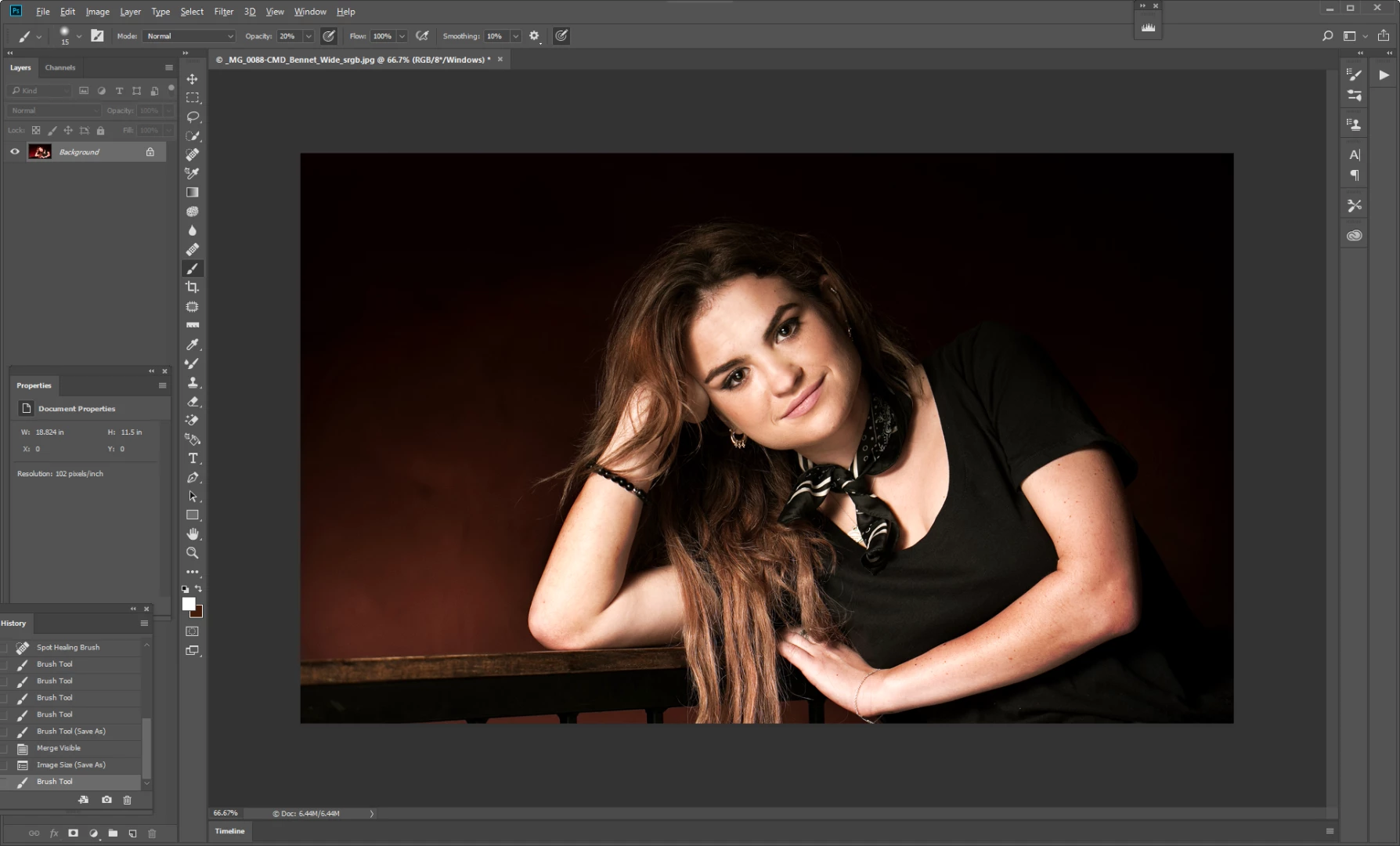
Since switching to PS CC desktop, I have had increasing problems with color and saturation of my photo images when I upload them to my site. They reproduce as redder and otherwise more desecrated than they were in Photoshop. But now they are showing up that way when I click on the Image resize and they are a different color in the preview box! Editing in srgb from a dng out of Lightroom. I was editing in Adobe rgb but my web host said that was the issue. It was not. This happens no matter which platform I use.

I can't add new pictures to my site until this is fixed. When I add these to Facebook as a test, they reproduce correctly.

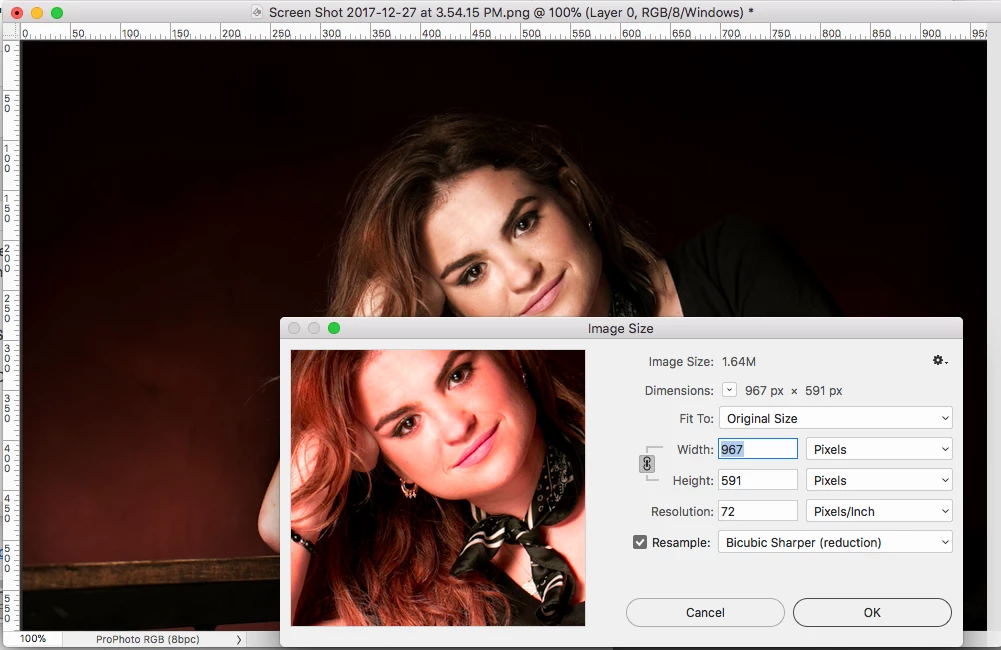
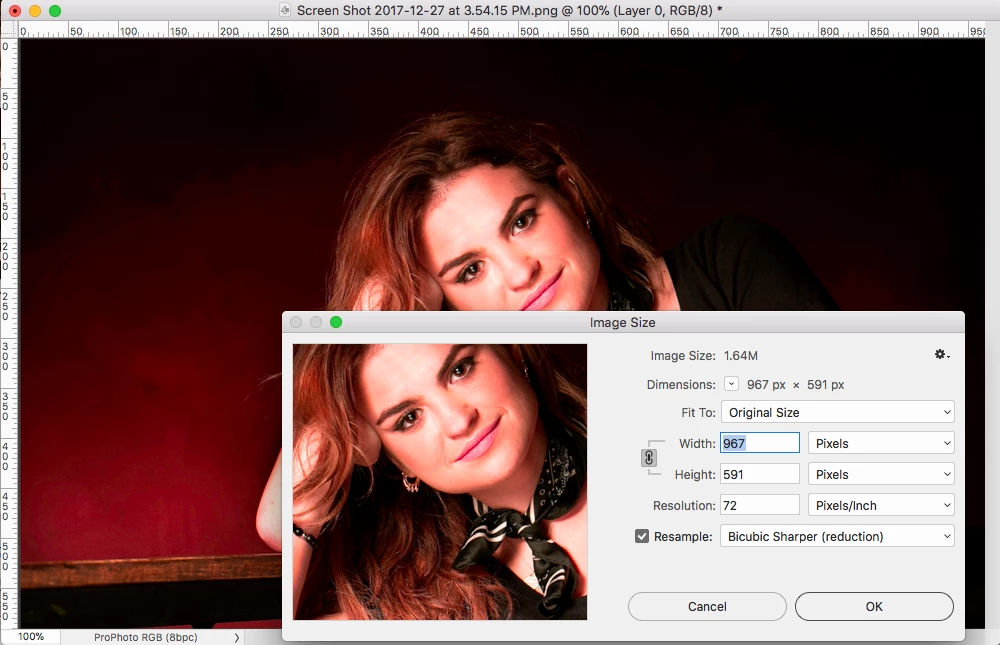
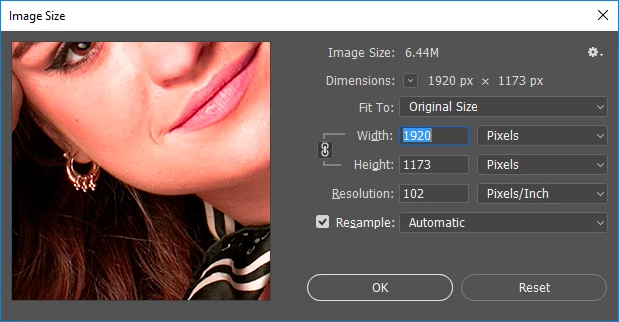
SS below show the way the image looks at the same time in PS. The Image Size window was copied from the full size window below it.

Any help is highly appreciated.

thank you,

Rob

Rob Lindsay Pictures

Shot with Canon 6D to CR2 file.
This topic has been closed for replies.
Correct answer rob day

Looking at your document's title bar I can see you have Proof Colors turned on and the poof setup is set to the Windows profile (Internet Standard RGB (sRGB)), which explains why the Image Size preview color doesn't match the document color. The the third item in parenthesis after the title is the proof setup profile and not the actual document profile.

I can replicate your problem by using a custom Proof Setup profile that is different than the document's assigned profile.

Here in the lower left corner popup menu I've chosen Document Profile and you can see the actual assigned profile is ProPhoto RGB. I've set my Proof Setup profile to Internet Standard RGB (sRGB), which is showing what the color would look like on an sRGB device:

If I turn off Proof Colors I can see what the actual profiled color looks like and the Image Size preview and the doc color now match:

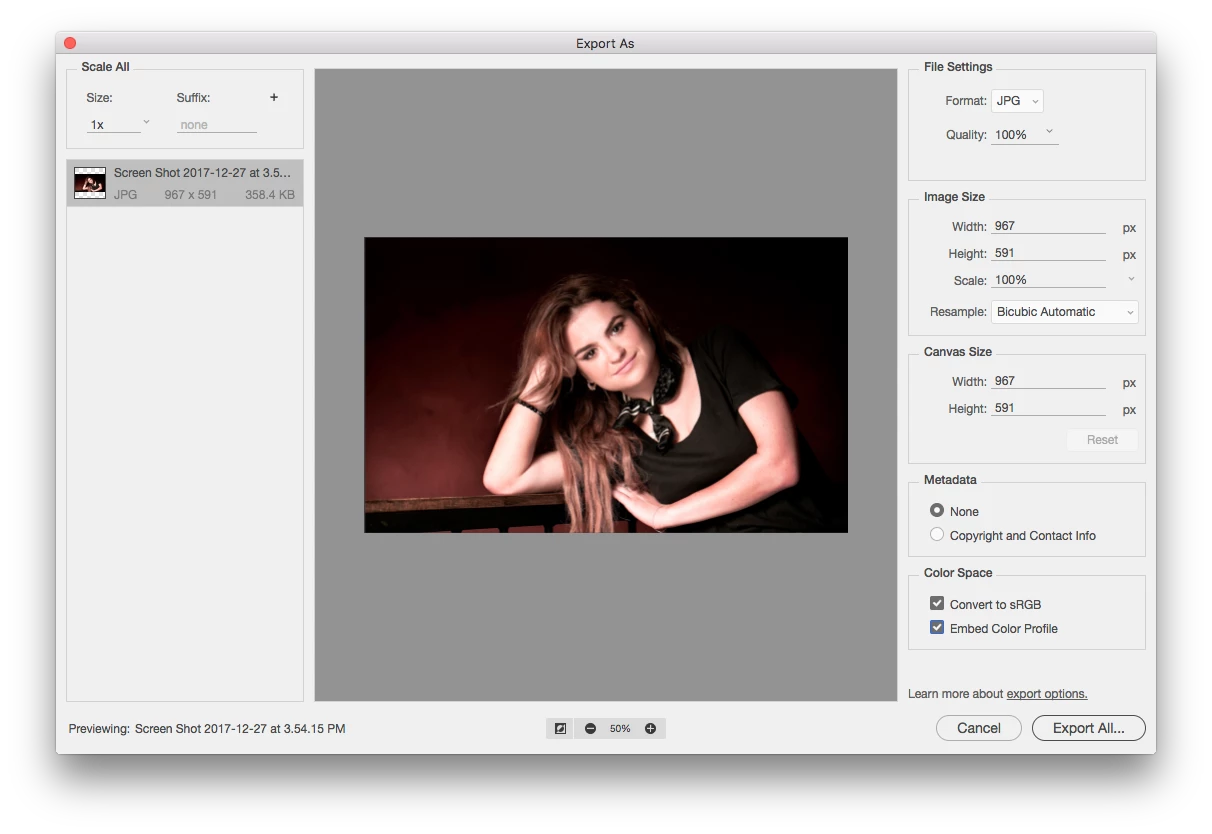
If you don't want to use sRGB as your document editing space then turn off proof setup and when you export the JPEG for web check Convert to sRGB:

5 replies

Nashrambler
Participating Frequently
December 29, 2017

Thanks, Martin. Done and done.

Rob

rob day
Community Expert
Community Expert
December 29, 2017

Apologies if this is obvious to everyone, but Proof Colors lets you simulate of a future conversion or reassignment—it does not change the document.

This is a ProPhoto doc filled with 210|0|0

I can setup a Custom Proof Condition that simulates either an sRGB profile reassignment, where the numbers stay the same and the appearance changes (Preserve RGB Numbers checked), or a conversion to sRGB where the numbers change and a new profile is assigned, which in most cases preserves the color appearance.

Assigning sRGB simulation

Converting to sRGB simulation

When you choose Internet Standard RGB (sRGB) from the Proof Setup drop down there's no option to simulate a conversion—it only shows what would happen if you assigned sRGB, which is creating Rob's unexpected result.

D Fosse
Community Expert
Community Expert
December 29, 2017

Yes, that's a good illustration. And simulate is exactly what Proof does.

And to continue with the obvious - or maybe not: Proofing to sRGB is entirely pointless on a standard gamut display. It's already proofed to sRGB - that's all it can display.

Martin_Bns
Inspiring
December 28, 2017

Seems like a color management issue. When you export for web, be sure to export in sRgb.
If your starting image is in Adobe Rgb or Pro Photo color profile, you will get these problems if you do not manage them correctly.

Be sure to check the Proof color menu and assign the sRgb color profile to your file.

Cheers,
Martin

D Fosse
Community Expert
Community Expert
December 29, 2017

Martin_Bns  wrote

Be sure to check the Proof color menu and assign the sRgb color profile to your file.

Er...what we've been saying all along is to turn off proof and then stay as far away from the Proof menu as possible. And you don't assign sRGB, you convert to it.

Nashrambler
Participating Frequently
December 28, 2017

Thank you both for your time and help! I've always saved a master in PSD, but now I will use the Save For Web option to create an srgb file for my site.

You have saved me from long headaches!

Yours,

Rob Lindsay

rob day
Community Expert
rob dayCommunity ExpertCorrect answer
Community Expert
December 27, 2017

Looking at your document's title bar I can see you have Proof Colors turned on and the poof setup is set to the Windows profile (Internet Standard RGB (sRGB)), which explains why the Image Size preview color doesn't match the document color. The the third item in parenthesis after the title is the proof setup profile and not the actual document profile.

I can replicate your problem by using a custom Proof Setup profile that is different than the document's assigned profile.

Here in the lower left corner popup menu I've chosen Document Profile and you can see the actual assigned profile is ProPhoto RGB. I've set my Proof Setup profile to Internet Standard RGB (sRGB), which is showing what the color would look like on an sRGB device:

If I turn off Proof Colors I can see what the actual profiled color looks like and the Image Size preview and the doc color now match:

If you don't want to use sRGB as your document editing space then turn off proof setup and when you export the JPEG for web check Convert to sRGB:

D Fosse
Community Expert
Community Expert
December 27, 2017

Ah, good catch, Rob.

The only time you need to turn on proof, is to check for gamut clipping in print. Otherwise, keep it off.

Nashrambler
Participating Frequently
December 27, 2017

Thank you Mr Fosse for your help. I still can't understand where the ProPhoto Profile came from, tho, and what I can do to remove it from the files and my workflow. could it have been attached in Lightroom?

Your help is still needed .

Thanks!

D Fosse
Community Expert
Community Expert
December 27, 2017

I suspect you have two separate things going on here. If there's a color shift in the preview, something's wrong. It reminds me of a very erratic bug that's been reported from time to time. I can't recall what became of it - but it only affects the preview, not the file.

The other thing is that web files should be prepared so that they display correctly even without color management. That means you cannot use Adobe RGB. Web files have to be sRGB.

The reason for this is that an average, standard monitor is pretty close to sRGB natively. This means an sRGB file will display roughly right as-is. There is no need for color management to remap from the document color space into the monitor color space.

If those two color spaces are very different, such remapping is necessary, otherwise the colors will be all wrong. That happens if a)the file is not sRGB, or b)the monitor is very different from sRGB. The latter applies with so-called wide gamut monitors.

So we also need to know which monitor you're using - make and model.

Nashrambler
Participating Frequently
December 27, 2017

D Fosse: Thanks for your response. I am editing on a LaCie 324, about 10 yrs old. I have not calibrated it in a while but the images are consistent across my other platforms and this monitor.

I went to my trusty old PS/CS book from Scott Kelby and found the problem: for some reason, PSCC came with color workspace set at RGBColormatch. That was killing any kind of color match I needed, ironically. Once set to Adobe RGB as he insisted, all was right again on my screen and when the reedited file was posted to my site.

Scott was adamant that srg-b is a limitation for shooters. I'd like to know what others here use. I've been editing in Adobe rgb since 2005 and had no issues until this. And this was with RGB Colormatch.

D Fosse
Community Expert
Community Expert
December 28, 2017

Nashrambler  wrote

Scott was adamant that srg-b is a limitation for shooters.

I'm so tired of reading stuff like this. It's like telling people learning to drive that they need a Ferrari because everything else is "a limitation". You shouldn't use ProPhoto until you know what you're doing and why precisely you need it.

The same goes for Adobe RGB, and Colormatch RGB never had any traction in the first place. I don't know of anyone who has ever used or considered it.

There is nothing wrong with sRGB. It is extremely well specified for what it's intended to do - which is to define the color space of an average monitor. Granted, the spec was written for CRT and not LCD, but still. There is plenty enough colors inside sRGB for almost any practical purpose. With a standard monitor sRGB is all you ever see - so ask yourself if it isn't "colorful" enough.

Good color has nothing to do with absolute saturation. It's about color relationships, colors working together.

The big advantage of sRGB is precisely that it more or less matches monitor RGB, which means that it will display correctly even without color management. This is important if you don't know where your file will end up, what application it will ultimately be displayed in.

ProPhoto is used for headroom - to avoid premature gamut clipping while working. But you need to know how to handle it, or, like the Ferrari, you'll end up in the ditch.