
Inspiring
October 3, 2024
Question

Images are oversatured in new install

  • October 3, 2024
  • 2 replies
  • 322 views

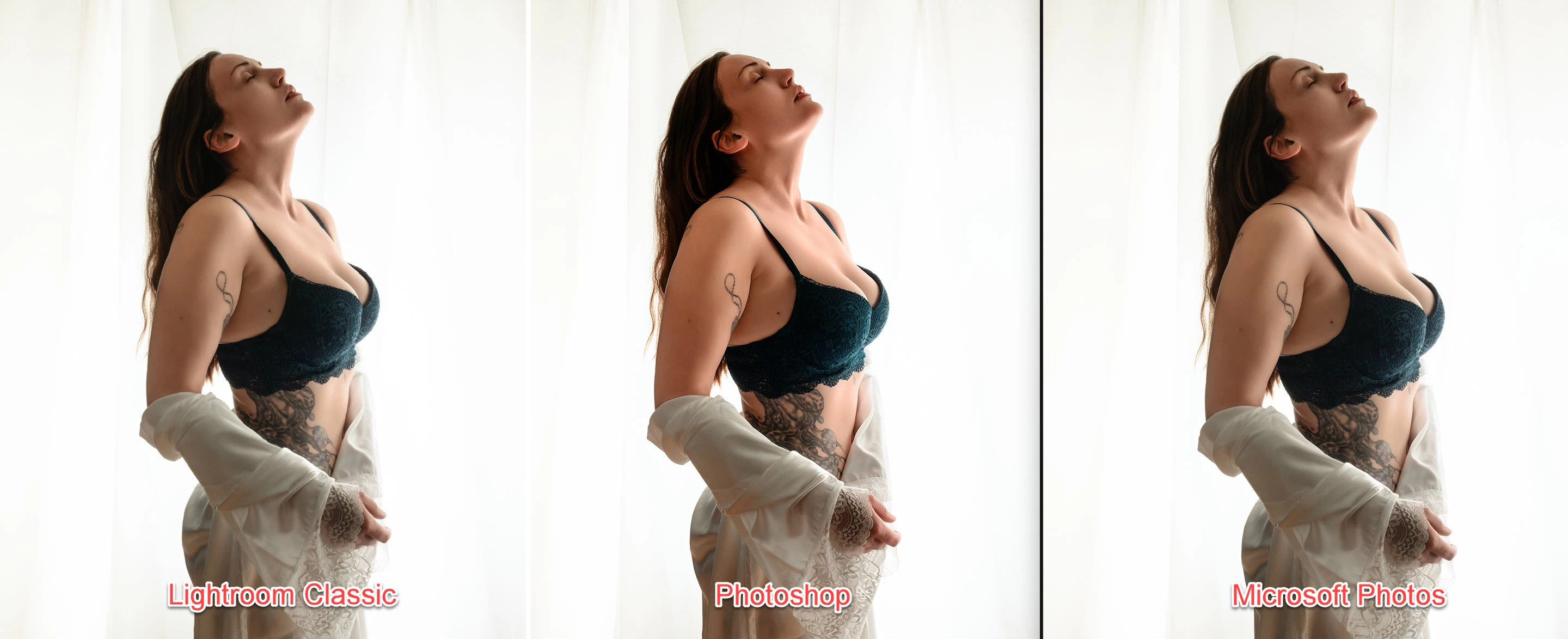
I just reformatted and installed Photoshop.  Now it's displaying images oversaturated.  The images have sRGB embedded and display correctly in all other apps (see below).  I've tried changing the profiles and it makes no difference.  I also tried different proofing settings and still zero change.


What am I missing?  My entire computer is essentially new now and this is the first time using Ps.
 

This topic has been closed for replies.

2 replies

D Fosse
Community Expert
Community Expert
October 9, 2024

This is a defective / broken / incorrect monitor profile.


Are you using a calibrator to make your profile and if so which one?

NB, colourmanagement
Community Expert
Community Expert
October 9, 2024

@displaced7 did you change your monitor display screen? What make is it?

In any case, first thing I'd look at is the monitor display profile, a corrupted display profile can influence different applications in different ways. Microsoft Windows Photos app wasn’t always colour managed, so at one time it didn't read the image file's ICC profile. 

@Per Berntsen wrote in 2022: I discovered that the Photos app was color managed in November last year. The version number at the time was 2021.21090.10008.0. (current version is 2022.30100.19004.0)

I only use Photos for reference when answering questions (it's useless as an image viewer), so I can't say exactly when it became color managed, but most likely in 2021.

I assume that all Windows 10 and 11 users have a color managed version.


I suggest also that you re-try your test with a known test image, please go here and download this Adobe RGB testimage: https://www.colourmanagement.net/index.php/downloads_listing/


I hope this helps neil barstow, colourmanagement net - adobe forum volunteer - co-author: 'getting colour right' google me "neil barstow colourmanagement" for lots of free articles on colour management Help others by clicking "Correct Answer" if the question is answered. Found the answer elsewhere? Share it here. "Upvote" is for useful posts.


NB, colourmanagement
Community Expert
Community Expert
October 9, 2024

@displaced7 more on display profile issues on Windows


Here's something to try

It'll only take a few minutes and is good troubleshooting.


At least once a week on this forum we read about this, or very similar issues of appearance differing between colour managed applications.

Of course you must not expect accurate colour with programs such as early versions of Windows "Photos”*, because in those early versions colour management is not implemented, so, such programs are incapable of providing accurate image display.

*Windows "Photos” does do colour management now and has for a while, but beware early versions and other apps that are non colour management compliant.


Unfortunately, with Microsoft hardware: Windows updates, Graphics Card updates and Display manufacturers have a frustratingly growing reputation for automatically installing useless (corrupted) monitor display profiles.

I CAN happen with Macs but with far less likelihood, it seems.]


The issue can affect different application programs in different ways, some not at all, some very badly.


The poor monitor display profile issue is hidden by some applications, specifically those that do not use colour management, such as Microsoft Windows "Photos".


Photoshop is correct, it’s the industry standard for viewing images, in my experience it's revealing an issue with the Monitor Display profile rather than causing it. Whatever you do, don't ignore it. As the issue isn’t caused by Photoshop, please don’t change your Photoshop ‘color settings’ to try fix it.


To find out if the monitor display profile is the issue, I recommend you to try temporarily setting the monitor profile for your own monitor display under “Device” in your Windows ‘color management’ control panel to “sRGB IEC61966-2.1”. (If you have a wide gamut monitor display (check the spec online) it’s better to try ‘AdobeRGB1998” here instead as it more closely approximates the display characteristics).


Click ‘Start’, type color in the search box,

then click Color Management.


[or Press the Windows key + R, type colorcpl in the box and press Enter]


In the Devices tab, ensure that your monitor is selected in the Device field.


You can click to ADD to add “sRGB IEC61966-2.1” (or AdobeRGB1998) if not already listed there.

Again - IF you have a wide gamut display I suggest trying “AdobeRGB1998”


Once it’s selected, be sure to check “Use my settings for this device” up top.

And click on “set as Default Profile - bottom right

Screenshot of Color Management Control Panel


Quit and relaunch Photoshop after the control panel change, to ensure the new settings are applied.


Depending on the characteristics of your monitor display and your requirements, using sRGB or Adobe RGB here may be good enough - but no display perfectly matches either, so a custom calibration is a superior approach.


If this change to the Monitor Display profile temporarily fixes the appearance issue, it is recommended that you should now calibrate and profile the monitor properly using a calibration sensor like the i1display pro, which will create and install its own custom monitor profile. The software should install its profile correctly so there should be no need to manually set the control panel once you are doing this right.


I hope this helps

neil barstow, colourmanagement net  - adobe forum volunteer - co-author: 'getting colour right'

google me "neil barstow colourmanagement" for lots of free articles on colour management

Help others by clicking "Correct Answer" if the question is answered.