Participant
February 14, 2019
Answered

Images in photoshop and Lightroom displayed darker

  • February 14, 2019
  • 1 reply
  • 2810 views

Hello, been having issues with the color profile in both Photoshop and Lightroom.  Until now been using the Monitor RGB color profile, but then the exported images as sRGB are way too light or if just saved, darker on other devices, such as my Phone.

So, trying to use the standard Europe Web/Internet2 profile with sRGB, BUT the values are way too dark when viewing in Photoshop and Lightroom. When exported or viewed outside Photoshop, values are correct. What is wrong? I have watched a bunch of tutorials and played with the settings, but can't find where the issue lies. I can't turn up the brightness on my laptop as a solution, because then everything else will be overblown. The issue is only on the images opened in Pgotoshop/Lightroom. 

Please help, Ed.
This topic has been closed for replies.
Correct answer D Fosse

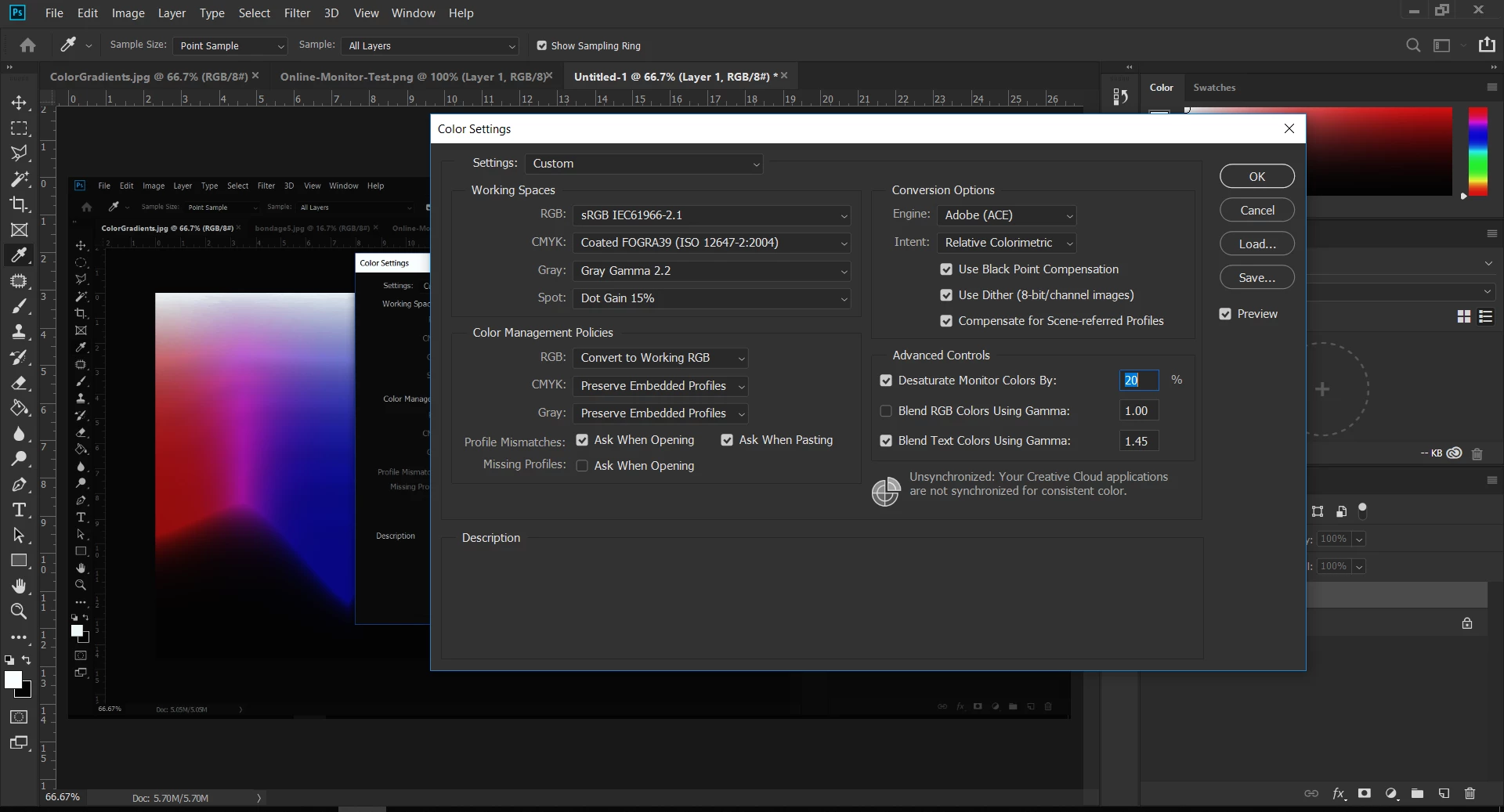
First of all, reset all Color Settings to defaults. That's not where the problem is. You do this by picking one of the "general purpose" presets. You should never change anything here without knowing what you're doing. It fixes nothing, but has the potential for total disaster that you can't back out from.

Above all, policies should always be "Preserve Embedded Profiles", nothing else. And never touch "Monitor Color", ever. IMO these options should just be removed - they serve no useful purpose and are just there for legacy reasons.

Now. This looks like a corrupt monitor profile. That will only affect color managed applications that actually use the profile, like Photoshop. But even so a corrupt profile can also affect different color managed applications differently.

An application is either color managed or not. It matters which application, which specific photo viewer you're using. If it isn't color managed, it's not using your monitor profile at all, so it won't be affected by a corrupt profile.

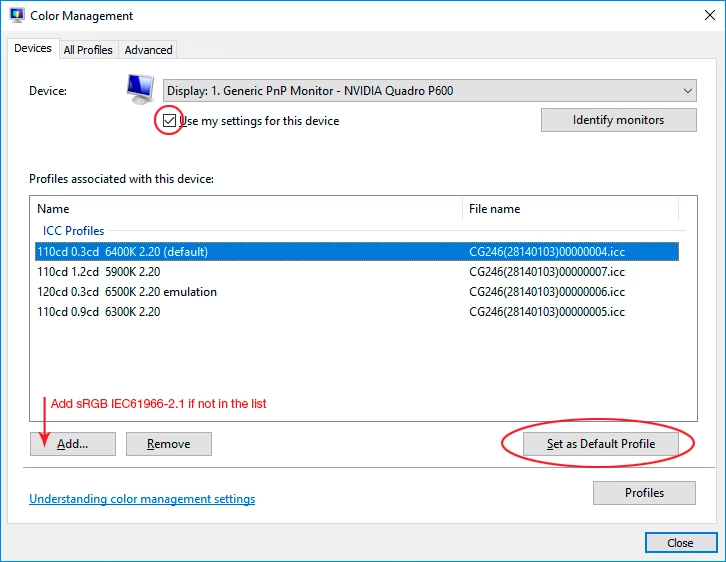
The proper way to fix this is using a calibrator to make a new profile. But if you don't have one, replace your current bad profile with sRGB IEC61966-2.1 (Adobe RGB if your monitor is wide gamut). Relaunch Photoshop when done, it needs to load the new profile at application startup:

1 reply

D Fosse
Community Expert
D FosseCommunity ExpertCorrect answer
Community Expert
February 14, 2019

First of all, reset all Color Settings to defaults. That's not where the problem is. You do this by picking one of the "general purpose" presets. You should never change anything here without knowing what you're doing. It fixes nothing, but has the potential for total disaster that you can't back out from.

Above all, policies should always be "Preserve Embedded Profiles", nothing else. And never touch "Monitor Color", ever. IMO these options should just be removed - they serve no useful purpose and are just there for legacy reasons.

Now. This looks like a corrupt monitor profile. That will only affect color managed applications that actually use the profile, like Photoshop. But even so a corrupt profile can also affect different color managed applications differently.

An application is either color managed or not. It matters which application, which specific photo viewer you're using. If it isn't color managed, it's not using your monitor profile at all, so it won't be affected by a corrupt profile.

The proper way to fix this is using a calibrator to make a new profile. But if you don't have one, replace your current bad profile with sRGB IEC61966-2.1 (Adobe RGB if your monitor is wide gamut). Relaunch Photoshop when done, it needs to load the new profile at application startup:

EDUAAuthor
Participant
February 14, 2019

Thank you very much for the help. Creating a sRGB profile in Color Management solved the issue. Now the values look correct in Photoshop main window, export and on other devices as-well.

D Fosse
Community Expert
Community Expert
February 14, 2019

You're welcome. What probably happened was that you got a bad profile from the display manufacturer, distributed through Windows Update. That happens a lot.

sRGB is usually close enough for most people. It's generic and not entirely correct, though, and if you care about accurate color you need a calibrator. This measures your display and makes a profile based on its actual response.