Participant
June 24, 2018
Answered

Images look darker when I export from Photoshop ?

  • June 24, 2018
  • 3 replies
  • 23283 views

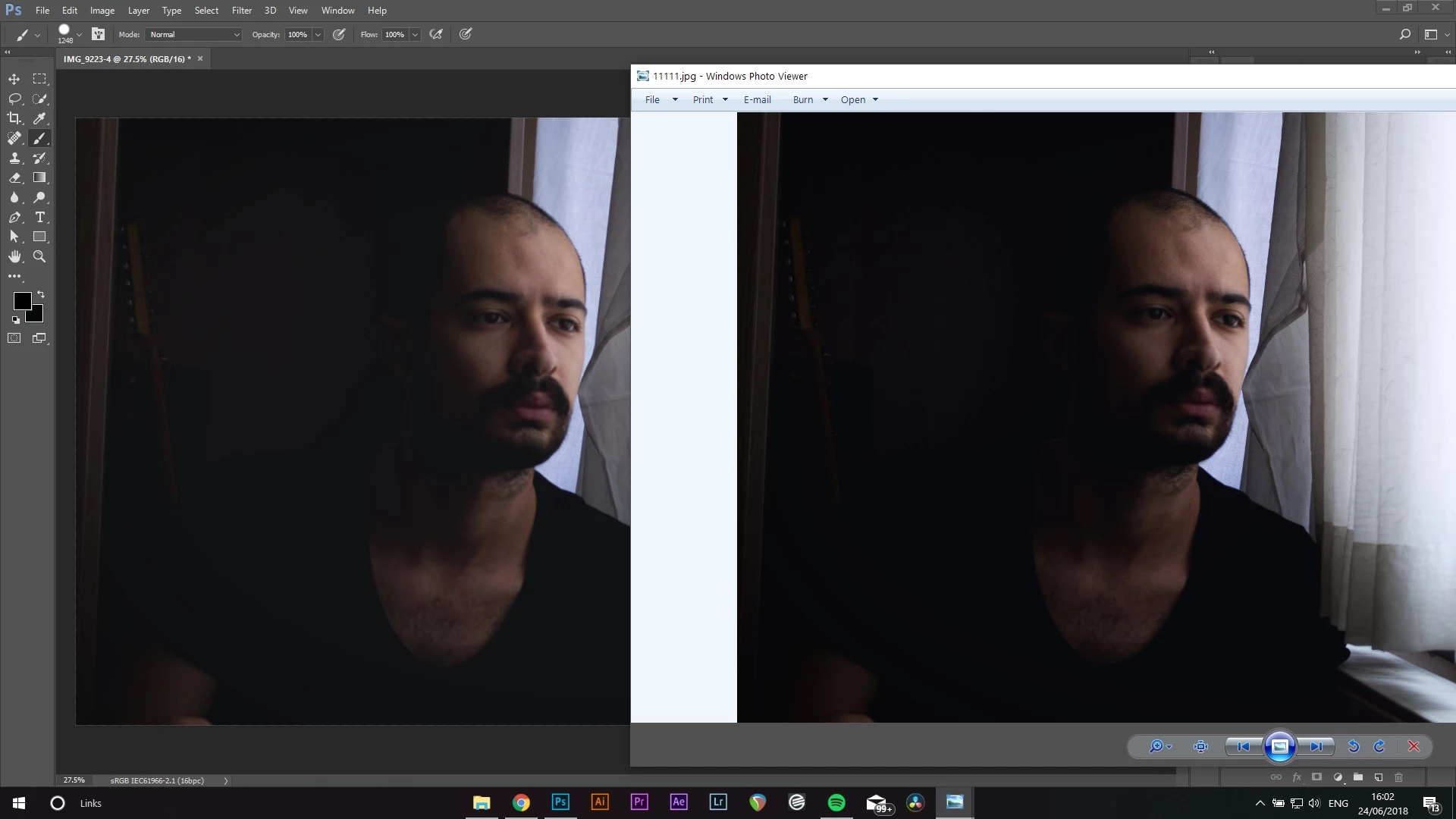
This is the difference.

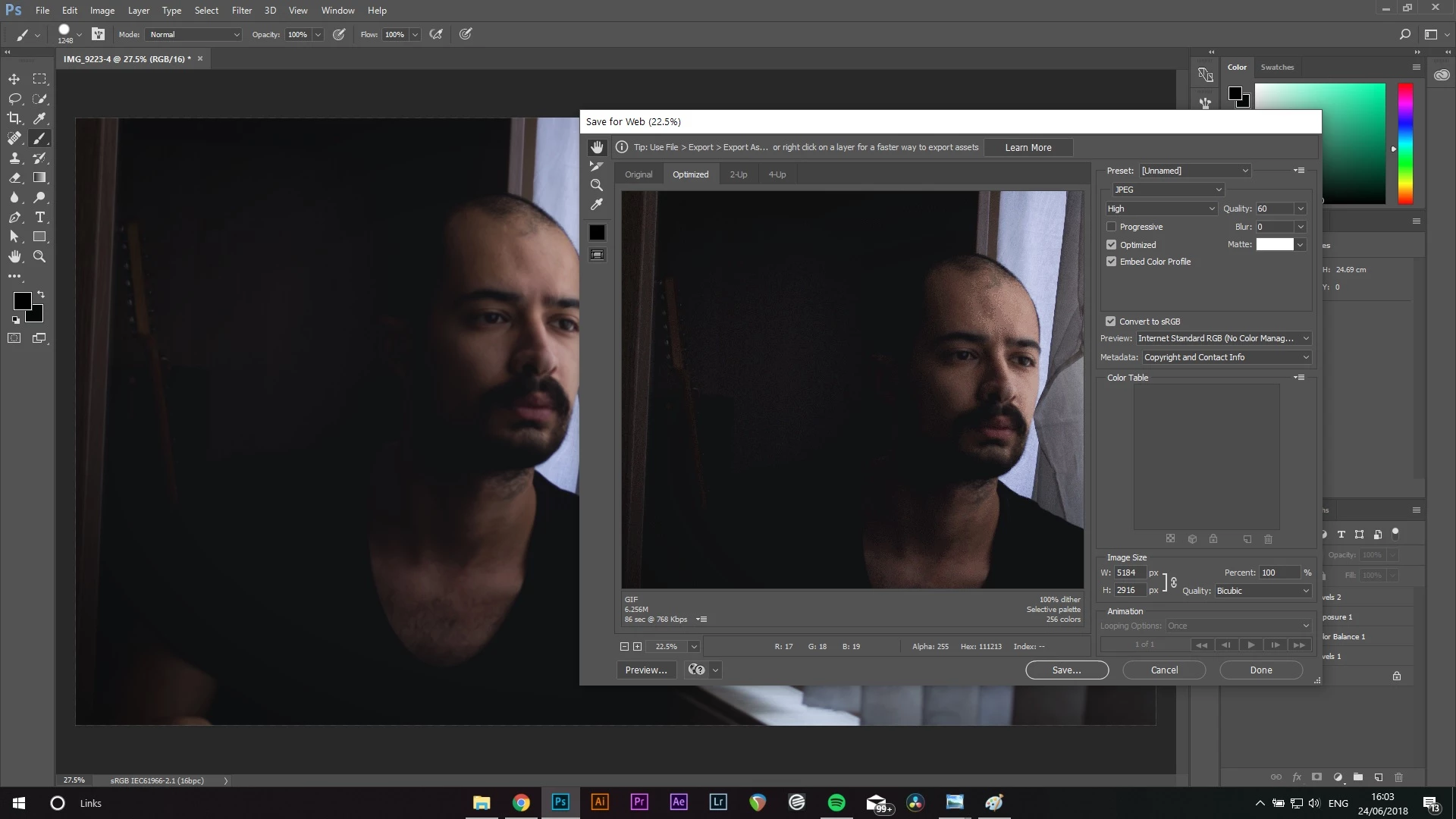
This is my export settings

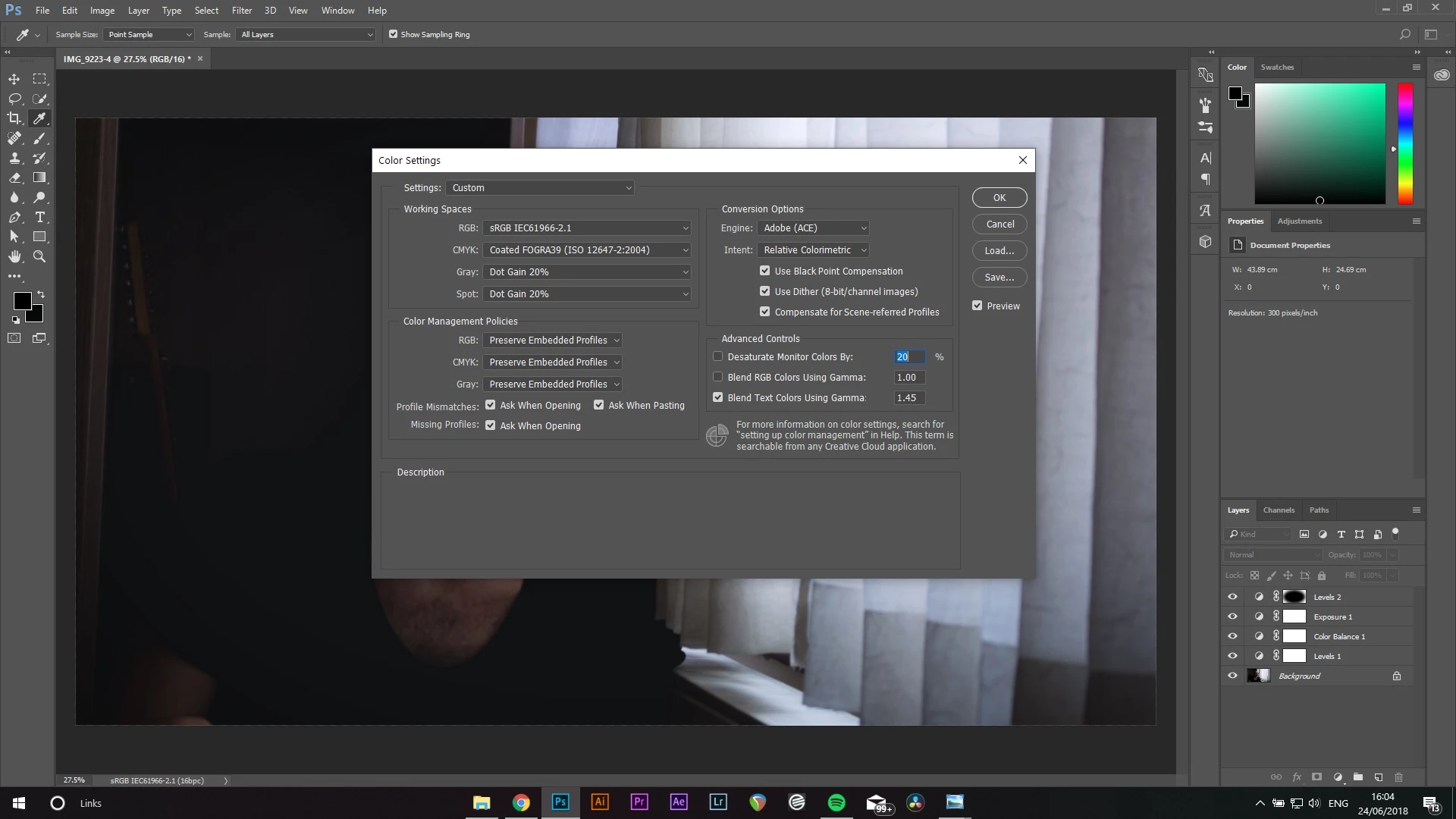
And this is my color settings

I couldn't figure out why this is happening. Also my monitor color space is also sRGB, so I think it matches with photoshop.

Correct answer D Fosse

First of all, set Save For Web preview to "use document profile". This will display the image with proper color management, which will always be identical to Photoshop (always color managed). The "internet standard" setting is a totally useless hybrid setting that doesn't tell you anything useful.

Windows Photo Viewer (the Windows 7 app) is color managed and should always be identical to Photoshop. This in contrast to the Windows 10 "Photos" app, which is not color managed and will never display correctly.

This indicates a problem with your monitor profile, because a broken or defective profile can often affect color managed applications differently.

The Photoshop version looks correct and the Photo Viewer version wrong. It has abruptly clipped shadows while Photoshop maintains shadow separation.

My guess is that you got a bad monitor profile from the manufacturer, distributed through Windows Update. This happens a lot.

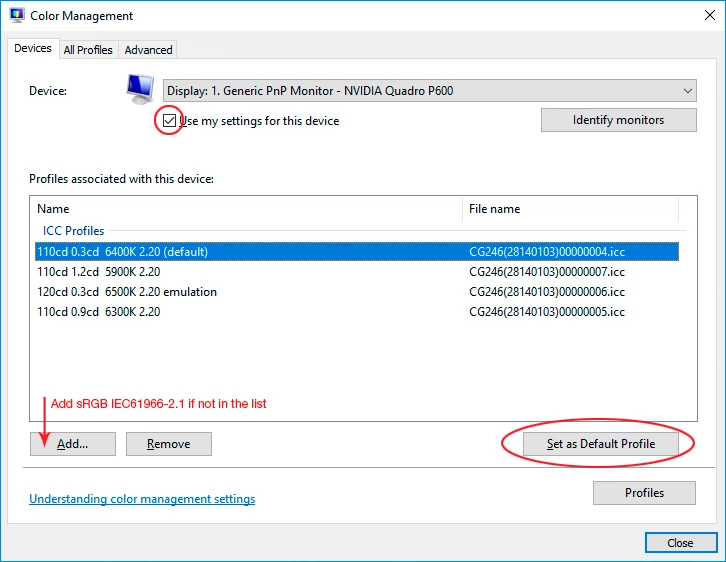
If you don't have a calibrator to make a new profile, use sRGB IEC61966-2.1 until you do. Set this up in Windows Color Management > Devices, and relaunch Photoshop when done - it needs to load the new profile at startup:

3 replies

Participant
October 1, 2022

I had this issue and I found it was a layer with an exposure edit that had a clipping mask. I hid that layer because I wasn't using it. The exposure, despite having a clipping mask, was applying to the entire image during export for some reason. It only showed during the export process and in the resulting image though, in photoshop's workspace this bug did not show up.

Participant
October 14, 2022

ah lifesaver! i had the exact same issue. An exposure layer clipped to a non-visible layer was exerting its effect on export only. Hid the exposure layer and the export was perfect. thanks so much! 

Participant
November 24, 2020

I had the same problem and solved differently. In my case, it was just a matter of setting the color depth in the Photoshop project to 8bit from the beginning. When i imported images to process, i have set color depth to 32bit so when i exported the jpegs they looked darker after the drop to 8bit. I have created new PSD and set color depth to 8bit, which solved it !

st-ati
Known Participant
September 11, 2021

So, I faced the same problem.

The reason of this issue is that, PS is not able to export JPG or PNG images with proper gamma curve. Or the browsers are not able to handle Adobe color tags.

Meanwhile Bridge is able to display the embaded JPG of PNG data and pure JPG data in the same way, any of Browser are not able to do this.


Solution: use a different application to embed color tags. Or wait till one of Adobe engeniers finally put on his/her glasses.

st-ati
Known Participant
September 11, 2021

JPG of PNG JPG of PSD or DNG

D Fosse
Community Expert
D FosseCommunity ExpertCorrect answer
Community Expert
June 24, 2018

First of all, set Save For Web preview to "use document profile". This will display the image with proper color management, which will always be identical to Photoshop (always color managed). The "internet standard" setting is a totally useless hybrid setting that doesn't tell you anything useful.

Windows Photo Viewer (the Windows 7 app) is color managed and should always be identical to Photoshop. This in contrast to the Windows 10 "Photos" app, which is not color managed and will never display correctly.

This indicates a problem with your monitor profile, because a broken or defective profile can often affect color managed applications differently.

The Photoshop version looks correct and the Photo Viewer version wrong. It has abruptly clipped shadows while Photoshop maintains shadow separation.

My guess is that you got a bad monitor profile from the manufacturer, distributed through Windows Update. This happens a lot.

If you don't have a calibrator to make a new profile, use sRGB IEC61966-2.1 until you do. Set this up in Windows Color Management > Devices, and relaunch Photoshop when done - it needs to load the new profile at startup:
Participant
June 28, 2021

Followed your steps, did not solve the problem.