
Participating Frequently
December 16, 2018
Answered

images pixelating when moving between adobe photoshop/indesign/illustrator

  • December 16, 2018
  • 2 replies
  • 1018 views

I'm working on an 8x8in doc on photoshop and want to move to indesign, when I copy and paste or when I open in indesign the size is much much larger, I also have the problem when transferring eg a logo from illustrator to photoshop(i ended up doin it as a shape to get it not to pixelate). So my question is how to I open my 8x8 photoshop image in my 8x8 indesign doc without it changing size (in this case getting much larger)?

Thanks

sorry I should say i understand how to transform scale but it is pixelating which is the problem (I've even found this with smart objects)
    This topic has been closed for replies.
    Correct answer Bojan Živković11378569

    It is not clear to me what is actual problem. In InDesign you should place 8x8 inches without any problem. Why you are seeing much larger image in InDesign? What are the steps when you are placing image?

    Press Ctrl + D to place image then drag to draw shape or placeholder in which InDesign will place image. You can also use fitting options to fit image to frame (and vice versa).

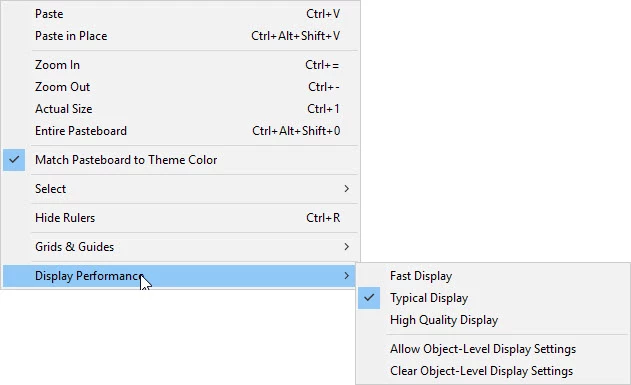
    Most likely you are viewing with Fast or Typical display settings. Right click and check what is set for Display Performance, probably that's the reason to see pixelated images.

    2 replies

    Per Berntsen
    Community Expert
    Community Expert
    December 16, 2018

    First of all, don't paste images into InDesign. Use File > Place. (and InDesign cannot open image files)

    After placing the file, go to the Links panel, (Window > Links), highlight the image, and check dimensions and effective ppi.

    InDesign will show you the actual (physical) size of the document at 100% view.

    Photoshop is a pixel editor, and will at 100% view display one image pixel with one screen pixel.

    Participating Frequently
    December 17, 2018

    above is original

    and below is indesign after placed

    Participating Frequently
    December 17, 2018

    You are seeing the images pixelated in InDesign because you set Display Performance to Typical Display. Set it to High Quality Display. This is what Bojan said in the very beginning of this thread by the way...


    Thanks I re read that before I had mis read it as 'you need to be in typical' - this has improved a lot so I'll print and check it thank you so much. still not sure about bringing in the logo as the high quality hasn't affected this. But i can tackle that another day:)

    Bojan Živković11378569
    Community Expert
    Community Expert
    December 16, 2018

    It is not clear to me what is actual problem. In InDesign you should place 8x8 inches without any problem. Why you are seeing much larger image in InDesign? What are the steps when you are placing image?

    Press Ctrl + D to place image then drag to draw shape or placeholder in which InDesign will place image. You can also use fitting options to fit image to frame (and vice versa).

    Most likely you are viewing with Fast or Typical display settings. Right click and check what is set for Display Performance, probably that's the reason to see pixelated images.

    Participating Frequently
    December 17, 2018

    Thank you for your reply,  it was on typical display, I was either copying or dragging from the finder, placing (it was much larger) so here I can see I have a problem, then i can scale down but still the problem was when I placed the file so its still pixelated.