I think it’s OK to use Photoshop for this. The best way to do it, which would be more similar to how InDesign and Illustrator would do it, is to add the images as Smart Objects using the File > Place Embedded or Place Linked commands.
As Smart Objects, the images would preserve their original resolution. But…the effective resolution of the images is limited by the pixel dimensions of the Photoshop document. If you added high resolution photos but the A4 document is set to 50 ppi, then the effective resolution is 50 ppi regardless of content. If you want the A4 document to print at 300 ppi, then it must be set to 300 ppi in Image > Image Size.
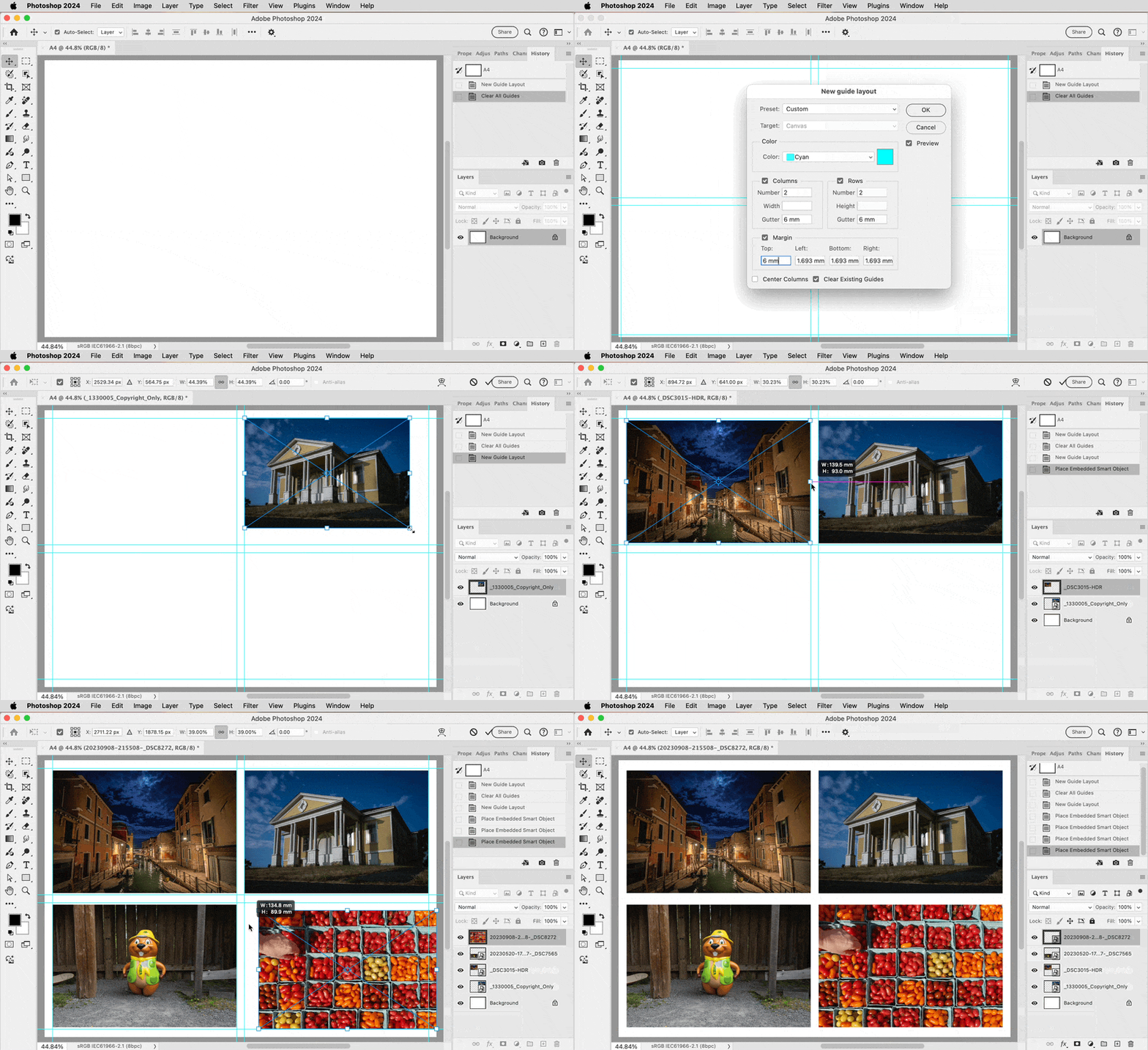
After the document size and resolution are set properly for your final output, your document could be finished in less than one minute (The demo below is sped up.) The steps shown in the demo below are:
1. Create a guide layout (optional, but makes fitting much faster).
2. Add images and fit each to the layout.
Image edges can snap to the guide layout. I dragged four images from the desktop (or Adobe Bridge), and dropped them on the canvas. Photoshop lets me position and size each one in turn; when done I commit that image (click the Commit check mark up in the options bar, or press the Enter/Return key) and Photoshop places the next image I dragged until all are done. Instead of drag/drop, you can choose File > Place Embedded or Place Linked and select multiple images to place.
So when you are familiar with step 2, it can be as quick as select images, drag, drop, position/resize, hit Enter, do next image until all are done.
There are more advanced methods. For example, use the Frame tool to add four properly sized placeholder frames in advance. Then all you have to do is place an image into each frame. Or, if the limitations of the Frame tool are too frustrating, you can create a layout using vector masks or clipping masks as placeholders.
But it is true that if you need to get into it that deeply in Photoshop, now you are doing layout tasks that are much easier and faster to do in InDesign. Because even the quick method I showed in Photoshop is slower and involves more manual steps than if I was laying it out in InDesign. The more pages you have to do, the more you don’t want to use Photoshop for this.


 AdChoices