Participant
May 29, 2023
Answered

Improved Gradients Not Exporting Properly

  • May 29, 2023
  • 24 replies
  • 21111 views

I'm running into an issue with the Improved Gradients when exporting a jpg through the export panel when using multiple gradients and artboards.
The preview and the exported image is not reflective of the gradient in the actual photoshop file.

Correct answer jane-e


@brettparton wrote:

Are there any suggested work arounds or a way to set the gradient into a legacy mode in the meantime?


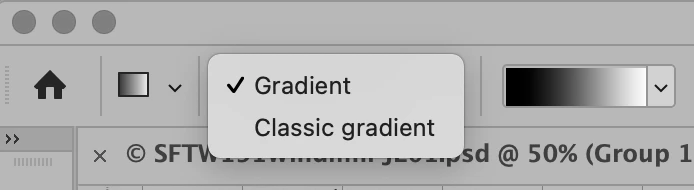
Yes, you can set the Gradient tool to legacy mode in the options bar. Select "Classic Gradient" instead of "Gradient".


Jane


24 replies

Jools808080
Known Participant
January 15, 2024

This bug report shouldn't be marked as "resolved" since the "correct answer" is the answer to a follow-up question about a workaround. This bug is NOT RESOLVED. Maybe we should cllectively jsut open a new bug report. This is getting ridiculous.

Participant
December 6, 2023

Hi, you can try clicking on any layer on the artboard and Cmd+Option+Alt+E (MAC). This combines all the elements in one layer and then you can right click and export that particular layer only. This fixed the issue for me.

Participant
November 28, 2023

In order for the gradient to export as seen on screen I had to confirm that checkbox "Align with layer" was checked within the gradient settings. On the export as dialog box, I had to make sure "Convert to sRGB" was checked as well. 

Known Participant
October 17, 2023

I've been fighting with this bug for so long that I actually found a "solution". You have to manually create a mask for every gradient layer with the same size as the artboard. Don't trust the auto generated masks that are created when you create a new gradient layer, you have to delete them and then create a new mask yourself.

Participant
October 17, 2023

I've been using the classic gradient mode that @jane-e suggested.
It sets the gradient tool back to the way it was before the improved gradients were released and I haven't had problem using gradients since with multiple artboards.

You can do it selecting the gradient tool going to the gradient tool top bar and from the drop down select "classic gradient" instead of "gradient"

It's not exactly a fix as the improved gradients still is broken with multiple artboard but it does allow you to default back to how gradients worked before and seems to not have any issues with multiple artboards.

Trevor.Dennis
Community Expert
Community Expert
October 18, 2023

The problem then, is that you are missing out on a significantly improved Gradient tool.  Like so many upgrades, a lot of us find them a pain at first, but would hate to have to go back to the old way once you get used to them.  Appart from that, changing the mask for each gradient layer is a long winded soloution.  Adding a copy merged layer to the top of the stack as a last step is fast and easy (Shift Ctrl Alt E).  In fact it's what I usually do with most of the images I create anyway, as they will be uploaded to a web page, so I need a raster layer that contains the combined layers.

Participant
October 16, 2023

Still an issue, need a fix for this basic functionality ASAP

Trevor.Dennis
Community Expert
Community Expert
October 16, 2023

Mikko, have you tried the latest beta version 25.2

I've tested it with Export to PNG and it looks exactly like it did in Photoshop.

Meanwhile, and trick for when Photoshop gets in a tiz — it can happen when flattening layers — is to add a Copy Merged layer to the top of the stack. (Shift Ctrl Alt E)

Participant
October 2, 2023

Running into the same issue. Several workarounds have been typed here, but mine has been duplicating (optional, really) and converting all the layers into a smart object. Don't know why but this is working. Hope this gets fixed soon.

fkid
Participating Frequently
September 25, 2023

When is this issue going to be fixed?
Asking for someone who's paying for a monthly subscription and would like to perform do very basic tasks in photoshop.

jayf88
Participant
August 24, 2023

Double-click the gradient thumbnail in the layers panel and select the 'Align with layer' option.

Participating Frequently
August 30, 2023

This "Align with layer" setting fixes the gradient export until I move the gradient where I have to go in and change the setting again.


At least I can still update the gradients and get them to export correctly. I'll have to be very careful to make sure all my exports have the gradients updating correctly

Participant
August 15, 2023

I have the same issue and I just created 40 different ads.

Participant
July 28, 2023

I've ran into this issue as well and my workaround is to rasterize the gradient and add some noise. The 'Classic' gradient workaround didn't work for me so hopefully Adobe resolve this soon.
