Participant
November 29, 2018
Answered

Incorrect text character being displayed

  • November 29, 2018
  • 6 replies
  • 19161 views

I am seeing a strange behavior that I can't explain.  When typing text, if I type an apostrophe (') a greater than sign (>) appears instead.  If I type (>), the screen displays (>), just like it should.  It does this for every font.  If I go to Type==>Panels==>Glyphs and double-click on ('), I get the same behavior.

Two things of note:

  1. I have PS running on two machines and this occurs on only one of them, so I'm ruling out a software bug in PS.

  2. If I do the same test in Word or Excel, the problem does not exist.

I'm guessing there is some sort of character mapping algorithm that is messed up, but I can't find a reference to such a function.

Ideas (short of uninstall/re-install)?

Oh, BTW, my environment is: latest version of PS CC running on Win10 Pro.

--Ernie

Correct answer Jimmy Papas

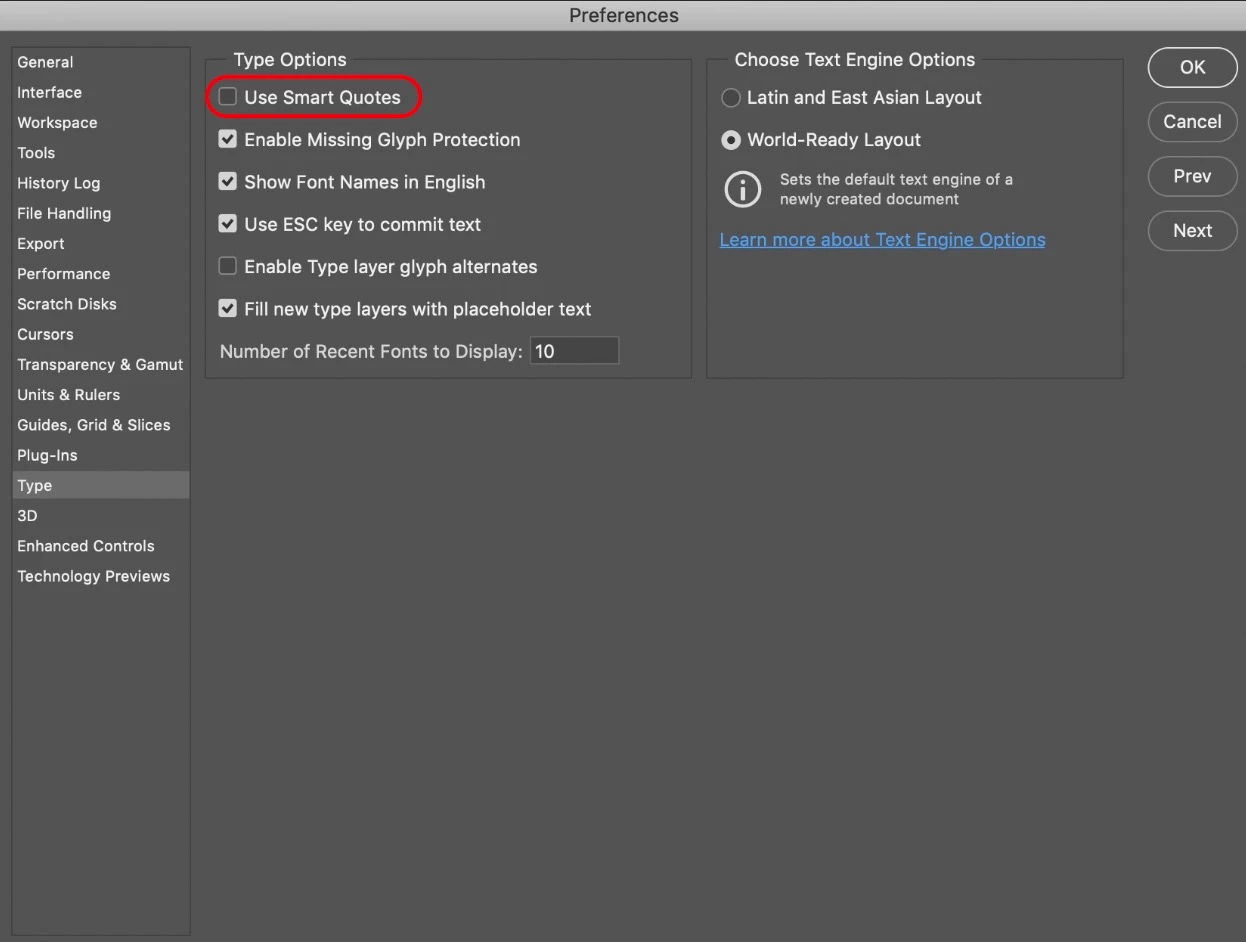
In Photoshop, go to: Preferences > Type, and untick “Use Smart Quotes”.


6 replies

Jimmy Papas
Jimmy PapasCorrect answer
Inspiring
January 29, 2021

In Photoshop, go to: Preferences > Type, and untick “Use Smart Quotes”.


Participant
October 1, 2022

I found another soluction. 

open paragraph panel (Alt + Ctrl + T), go to options and select "Roman Hanging Punctuation"


Participant
January 22, 2021

I've been having the exact same problem - seemed to come out of nowhere, and I'm on a deadline!!!

Participant
March 16, 2021

Has been answered above

quote

I've been having the exact same problem - seemed to come out of nowhere, and I'm on a deadline!!!


By @Mathew5FCB


Participant
January 5, 2021

Hi,


I'm wondering if you ever had this problem resolved. I'm having the same issue right now and can't seem to figure out what went wrong or how to fix it.  

HSDA
Participating Frequently
April 2, 2020

In Edit>Prefrences>type disable smart Quotes.
I had the same problem and this solved for me.

Jimmy Papas
Inspiring
July 6, 2020

Worked for me thanks.


D Fosse
Community Expert
Community Expert
November 29, 2018

Check your keyboard input language settings. Sometimes it changes for no apparent reason, and then you may get some incorrect characters like you describe. Happens to me occasionally, and then a quick glance at the taskbar reveals the problem.

Unless you have an all-English setup with no other language or region involved.

Trevor.Dennis
Community Expert
Community Expert
November 29, 2018

So many keyboards.  So many different character maps.  This page has made me feel arrogant for assuming that my 'US' layout was a sort of world standard, but the 'greater than', and 'lesser than' characters are on the other side of the keyboard on about half of these.

International Keyboards Mapping

D Fosse
Community Expert
Community Expert
November 29, 2018

Yeah. Some of the standard PS shortcuts don't work at all here, like the square brackets.

And sometimes the other shortcuts don't take at all in Photoshop, just no reaction. Funnily enough, there's one that always works, and that's ctrl+alt+shift+K, which brings up the keyboard shortcut dialog. Dismiss that with Enter, and all the other shortcuts come back to life.

I can't explain this, but I suspect that too is related to using a Norwegian keyboard with English Photoshop and English Windows. It must be, since I have it in two machines, but no one else seems to have this problem.

gener7
Community Expert
Community Expert
November 29, 2018

Reset Type Tool  First select the Type Tool and right-click on its icon at the top.

and Reset Character Panel