Known Participant
August 2, 2017
Answered

Increase Photoshop CC Toolbar size in Mac OS Sierra ?

  • August 2, 2017
  • 1 reply
  • 2293 views

My failing eyesight is having problems distinguishing the tiny icons in the toolbar (I’m using a 5k iMac).

Anyone know how this can be fixed ? There’s nothing in Preferences, but I can’t believe Adobe would leave it untweakable.

I’m aware there’s a fix for Windows, but can find nothing for Mac OS.

This topic has been closed for replies.
Correct answer Garry Bradley

Hi Jack

The hi-res 5K Mac screens do make everything in Photoshop smaller if not sharper and it's not something that's been addressed (yet) for Macs. My problem is seeing the path on an image, it's a tiny hairsbreadth and the tolerance value around the path points for selection must be only a pixel. Using my Wacom Intros Pro they're really difficult to select.

I've discovered a clumsy workaround using the Mac Finders Zoom preferences feature however. If you go to Accessibility then click on 'Use keyboard shortcuts to zoom' and Zoom Style > Picture in Picture. Click More options and resized the box bigger or leave it as it is.
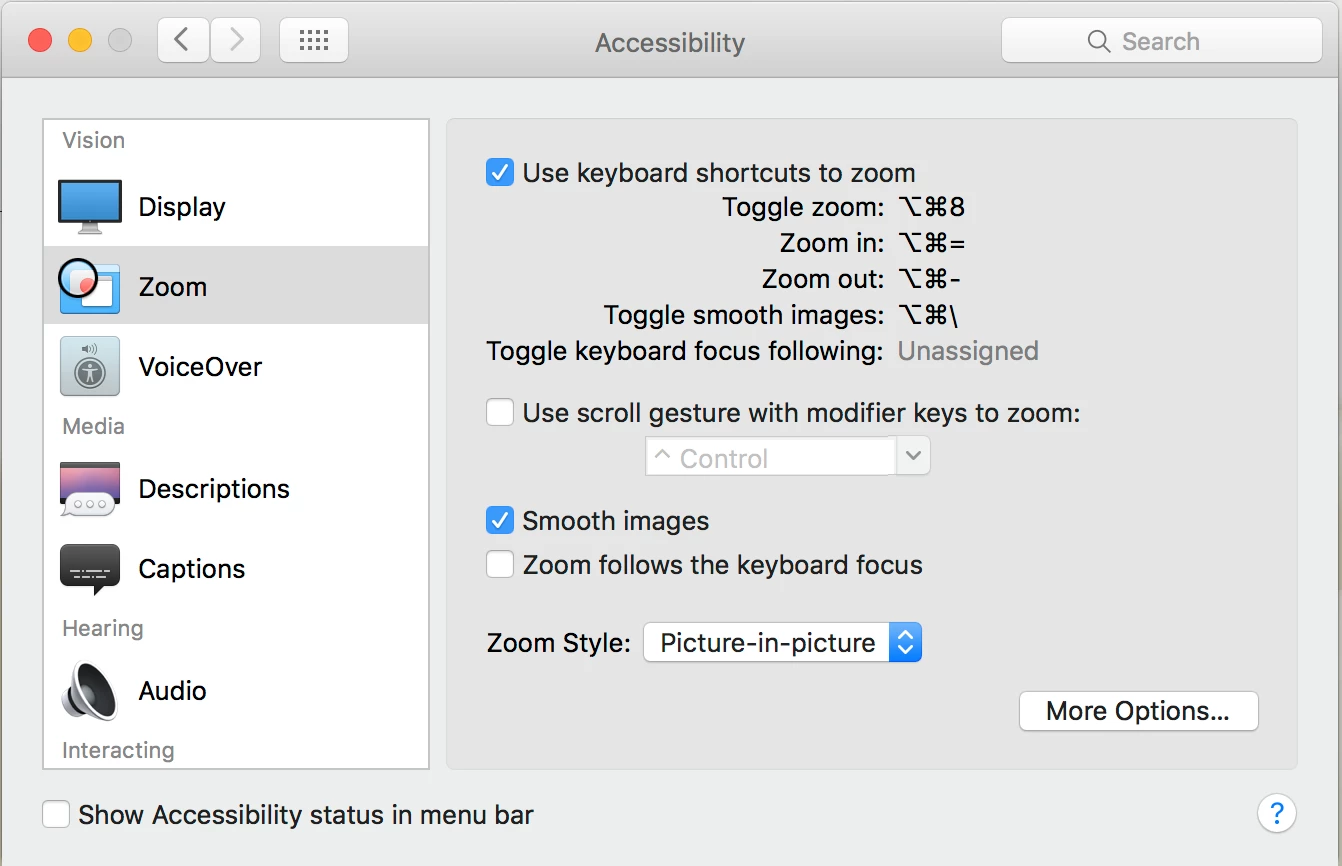
Now when you're in Photoshop when you activate Toggle Zoom with Command/Opt 8 you'll get a box that follows the cursor around. Command Option +/- makes the zoom level in the box increase or decrease. Unfortunately it's doesn't make tolerances around a point any better it's just a system wide zoom to see things better.

Until Photoshop has a feature to help cursor size and tolerances for clicking around points on hi-res screens, there's not much you can do unfortunately.

Hope this helps a bit.

1 reply

Garry Bradley
Garry BradleyCorrect answer
Inspiring
August 2, 2017

Hi Jack

The hi-res 5K Mac screens do make everything in Photoshop smaller if not sharper and it's not something that's been addressed (yet) for Macs. My problem is seeing the path on an image, it's a tiny hairsbreadth and the tolerance value around the path points for selection must be only a pixel. Using my Wacom Intros Pro they're really difficult to select.

I've discovered a clumsy workaround using the Mac Finders Zoom preferences feature however. If you go to Accessibility then click on 'Use keyboard shortcuts to zoom' and Zoom Style > Picture in Picture. Click More options and resized the box bigger or leave it as it is.
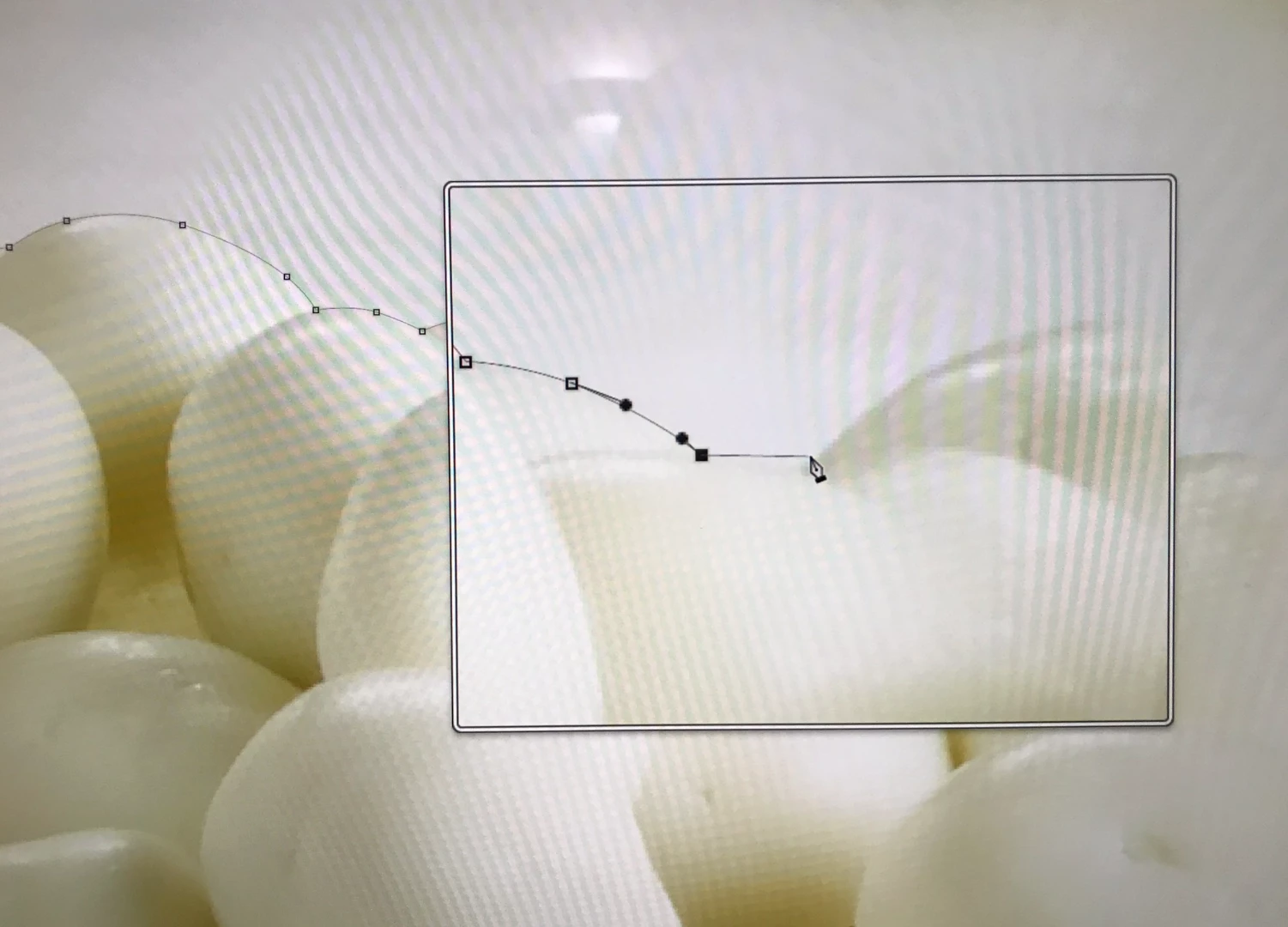
Now when you're in Photoshop when you activate Toggle Zoom with Command/Opt 8 you'll get a box that follows the cursor around. Command Option +/- makes the zoom level in the box increase or decrease. Unfortunately it's doesn't make tolerances around a point any better it's just a system wide zoom to see things better.

Until Photoshop has a feature to help cursor size and tolerances for clicking around points on hi-res screens, there's not much you can do unfortunately.

Hope this helps a bit.

Known Participant
August 2, 2017

Hi Gary

Many thanks for this – it’s a useful workaround.

I’ve had such problems trying to make accurate selections that I now prefer to use the Magic Wand tool on very low tolerance, then refine the selection in Select and Mask. I’ll try utilising your trick and have another go with Magnetic Lasso.

I suppose another method might be System Preferences > Displays > Scale though this means a lot of zooming in and out.

Odd that Adobe haven’t addressed this. Didn’t previous version of PS have a small /medium /large option for the Toolbar ?

Thanks again

Jack

Awesome_fact157F
Participant
September 13, 2018

Need to ask how do you increase the size of the toolbar icons?