
Insane Color Management Issues Photoshop CC + DisplayCal
I've been researching this for tens of hours, but something is severely wrong.
Goal
My ultimate goal is to have calibrated and consistent colors across all hardware and software on my Windows 10 machine. This includes a calibrated monitor using an i1 Display Pro + DisplayCal, correct color management in Photoshop, and all images should appear with correct colors across Windows, browsers, and Photoshop. I don't want the situation where an image imported into Photoshop doesn't look anywhere remotely near the original or an image exported from Photoshop doesn't look anywhere remotely near the preview.
Alas, these are the issues I've been having.
Specs & Versions
Windows 10 Pro 64-bit 10.0.17763
Adobe Creative Cloud 4.8.1.435
Adobe Photoshop CC 20.0.4
DisplayCal 3.8.1
ArgyllCMS 2.1.1
i1 Display Pro
ImageGlass 6.0.12.29 (Color-Managed Image Viewer)
QuickLook 3.6.4 (Another Color-Managed Image Viewer)
Firefox Nightly 64-bit 68.0a1
Google Chrome Canary 76.0.3799.0
Monitor Profile: VG248 #1 2019-05-19 18-16 D7500 2.2 VF-S XYZLUT+MTX.icm
Symptoms
I've been having various issues with color in PS for a while now, but now I've identified that it's not because of the way I'm viewing the images or the way my monitor is calibrated. It has to be something with PS.
Sometimes opening images or PS documents yields a document preview that looks awful and doesn't represent the original file at all. Other times the preview is perfect, but the exported file doesn't represent the preview in PS at all. I can't seem to find a combination that keeps the colors correct and consistent.
I've conducted a few practical tests and listed the results below. I created a standard rainbow gradient on a new 1000x1000px RGB file, compared the preview to a reference, and compared the exported PNG to the preview. Restarting PS after changing settings.
| RGB Working Space | PS Preview | Exported File | Export Size |
|---|---|---|---|
| sRGB IEC61966-2.1 | Awful preview (Not accurate) | Correct Colors (accurate) | Small file size |
| Monitor Profile | Perfect Preview (Accurate) | Totally Wrong Colors (How?) | Huge file size from embedded profile |
Screenshots
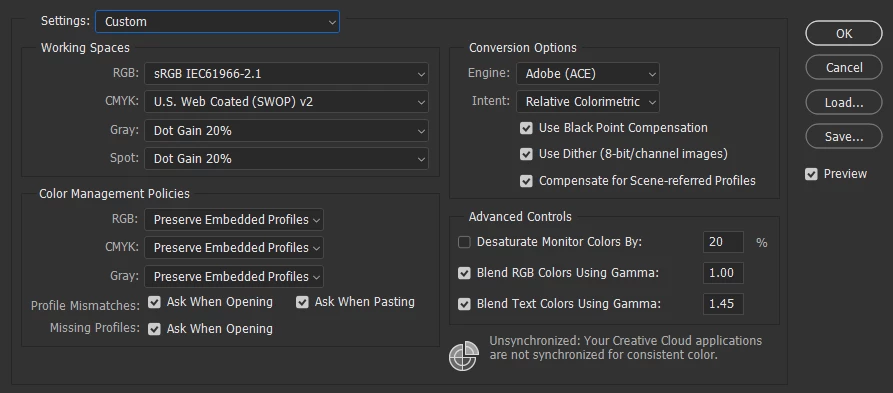
Here are my Color Settings for the most part. I've been playing around with different Working Spaces and RGB Policies. I would like to keep everything else.
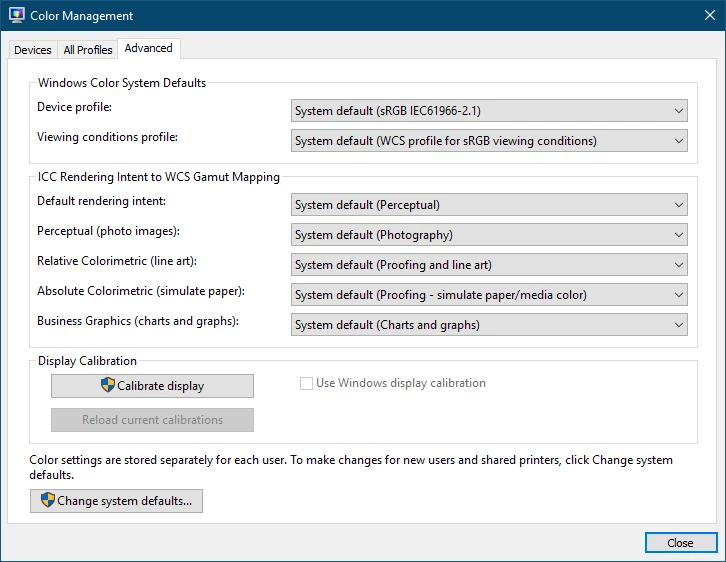
Here are the Color Management settings in Windows. I'm letting the DisplayCal app load the profile automatically.
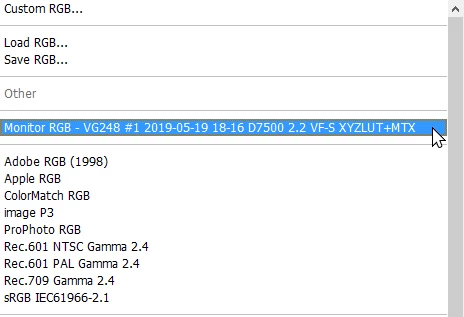
The monitor profile is recognized in Photoshop
Color-Managed Viewers
Both ImageGlass and QuickLook are color-managed and load embedded color profiles. I tested this with the WhackedRGB test images. Also - to a lesser degree - both Firefox and Chrome can load color profiles embedded in images, but images with missing profiles can still be problematic. The stock image-viewer in Windows is NOT color-managed.
Things I've tried
- Restarted
- Re-calibrated display using DisplayCal
- Dumping profile, embedding, and converting profiles with varying degrees of failure
- Re-installed PS
- Changed some settings in DisplayCal
- Using the Proof Colors with the Proof Setup on Monitor RGB fixes the wonky preview with the sRGB Working Space; however, this is not a permanent solution.
What it could be
I have a feeling that DisplayCal or Argyll updated in such a way that PS can't automatically load the display profile and display a proper preview. Or perhaps PS is having a hard time with the .icm file compared to a regular .icc?
Being able to import, preview, and export images with consistent and accurate colors in Photoshop must be possible. Something must be broken here and I don't know exactly what. If you have any suggestions for things you'd like me to try, I'll be watching this thread. Don't hesitate to ask if you need any more information either.
Many other people have run into issues similar to this with varying effectiveness of solutions. Let's get this solved for good.
 AdChoices