
Inspiring
November 3, 2021
Question

Intersect selection – to multiple segments?

  • November 3, 2021
  • 1 reply
  • 1782 views

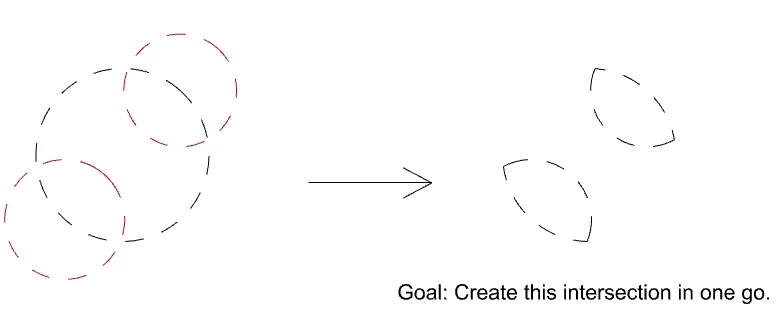
I often have to reduce an existing larger selection to several sub-selections. Say I have already isolated a subject from the background (with a Layer Mask) and want to recolour just the boots. Ctrl-Clicking the mask  and using Intersect Selection with the Lasso works well, but it lets me intersect the selection just once. To select the second boot, I need to Ctrl-Click the Layer-Mask again and repeat.

Before doing so, however, I need to save the selection for the first boot (in its own Layer Mask or Alpha Channel). This step is a bit cumbersome – it would be great if one could intersect a selection several times, in one go. Is there maybe a secret option I have missed?
This topic has been closed for replies.

1 reply

Chris 486
Community Expert
Community Expert
November 3, 2021

Hi Polyxo!


You could use the "Subtract from selection" option for you selection and deselect the yellow area I have highlighted in your example below. That will make it a single step. Will that work for your other photos?

polyxoAuthor
Inspiring
November 3, 2021

Thanks for your input, Chris! That's the problem with simplification 🙂 I'm talking of cases where Boolean Intersection is the smarter approach.

In my visual sample, the larger circle was the input shape. It's faster and less complex to draw two smaller circles (instead of that yellow double concave shape) to get the desired result. In my other sample of a person and recolouring only the boots it is also faster to select just the small area you are interested in.

What you suggest is definitely possible, but I'm looking for a more straightforward solution.

Chris 486
Community Expert
Community Expert
November 3, 2021

With shapes, maybe this will work? 

Create the shapes (red) you want to intersect with your original shape (blue). Make sure they are on a single shape layer.

select your original shape layer ( blue) and change the shape with the "intersect shape areas" in the shape tool properties.

Make sure that you arrange your intersecting layer (red) underneath your orignal shape layer (blue). 

merge the two layers to get your original shape to intersect in a single shape layer.

Hopefully there is at least a piece in here that will help speed up your process.