Participant
May 30, 2017
Answered

Is there a way to change the color of the path in Photoshop CS6?

  • May 30, 2017
  • 2 replies
  • 26153 views

I work on outlining dark grey or black & white images, and it is often times hard to see the path when creating it. You can change path colors in Illustrator, why not in Photoshop?!

I am not interested in adding a stroke or filling the path. I want the physical path to be a bright color, like in Illustrator.

Thanks!

This topic has been closed for replies.
Correct answer davescm

You can't - not even in CC2017 - although many have asked for it. We are stuck with black on light image areas and white on dark image areas.

There is a bit of  a workaround but it only appears after each section you draw so far from ideal :

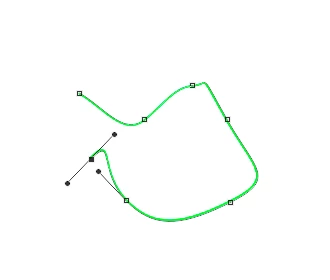
1. Set your pen tool to shape and in the options give the shape no fill and a coloured stroke

2. Draw your path which will appear as a shape layer with a stroke

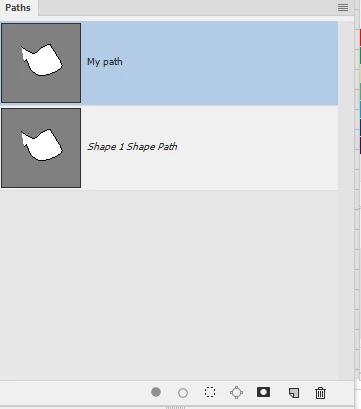
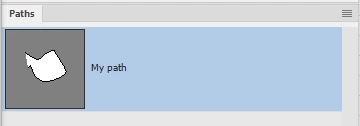
3. Go to the path panel double click the shape path and in the save dialogue that appears give it a new name

4. Delete the shape layer

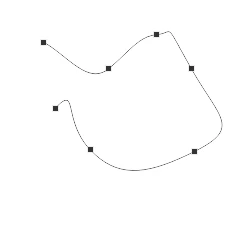
You are now left with the path that you have drawn

The other thing you can do is add a temp adjustment layer to reduce or increase contrast of the image whilst you draw the path.

Dave

2 replies

JULIAN_NYC
Participant
April 5, 2018

You can change the working path color here...

Kukurykus
Legend
April 5, 2018

I noticed in some earlier CC 2018 that my paths are blue. I thought that is defualt - like in CS6 where that was black which I used for many years. So in which version of Photoshop coloring path option was added? Isn't it awkward experienced ACP's missed that and had to use workarounds. Possibly that information was not announced (was it?), while people forced by their habits were fine with them enough

davescm
Community Expert
Community Expert
April 5, 2018

Kukurykus  wrote

Isn't it awkward experienced ACP's missed that and had to use workarounds.

Not awkward at all - look at the date on those posts. The ability to edit path color and thickness did not exist then, it came in with CC2018

Dave

davescm
Community Expert
davescmCommunity ExpertCorrect answer
Community Expert
May 30, 2017

You can't - not even in CC2017 - although many have asked for it. We are stuck with black on light image areas and white on dark image areas.

There is a bit of  a workaround but it only appears after each section you draw so far from ideal :

1. Set your pen tool to shape and in the options give the shape no fill and a coloured stroke

2. Draw your path which will appear as a shape layer with a stroke

3. Go to the path panel double click the shape path and in the save dialogue that appears give it a new name

4. Delete the shape layer

You are now left with the path that you have drawn

The other thing you can do is add a temp adjustment layer to reduce or increase contrast of the image whilst you draw the path.

Dave

Trevor.Dennis
Community Expert
Community Expert
May 31, 2017

That's an interesting approach Dave.   Apparently the reason we have been stuck with difficult to see paths in Photoshop is something to do with the way Macs use blend modes.  This is something Chris Cox told us a years ago.

When I have to lay a path against a busy background, I fill a layer at the top of the stack with black, and set its opacity to around the 50% mark.