
Participant
February 20, 2017
Answered

Issues Exporting Render Video Photoshop CC 2017

  • February 20, 2017
  • 3 replies
  • 2274 views

I have upgraded to a new laptop, and have purchased/subscribed to Photoshop CC. On my old laptop, I had been using Photoshop Cs5 Extended. I use Photoshop primarily to Export Render Videos (actually to make gifs) after applying Topaz Clean filters, and in order to save those types of gifs you have to first export them as render videos. If you go to export a Topaz filtered gif via Save For Web your Photoshop will crash. So, Export Render Video it is.

I had always been able to export perfect render videos using Cs5 on my old laptop. These were the settings:
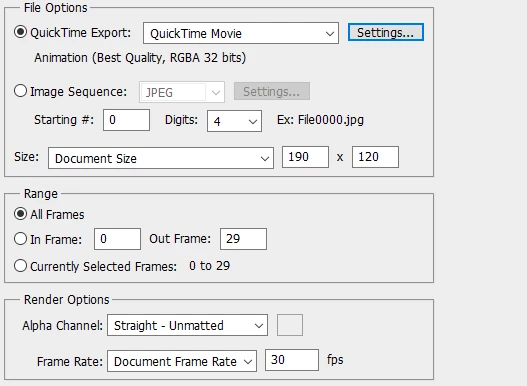
Unfortunately, with my 2017 Photoshop CC, I no longer have these export options. Instead, I have the following:
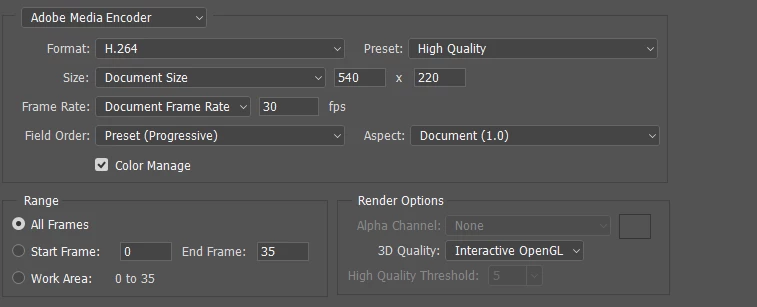
If I export a video in my current PS CC 2017, it does not properly preserve my sharpness + topaz lab filters. It's slightly blurry, and the sharpness is different than if I were to have exported it from my Cs5 Extended version of PS. I tried downloading QuickTime onto my new laptop to see if I could then use Quicktime Movie as an export option instead of Adobe Media Encoder, but downloading QuickTime made my PS malfunction to the point I couldn't open it, and I had to uninstall QuickTime, and Photoshop. (Then reinstall, of course.)

All I need is to be able to export from PS CC 2017 as I had been able to export from Cs5 Extended. What is it in the Adobe Media Encoder that is making the Topaz filters + sharpness go wonky? How can I fix this?

Thanks for your help and support.

This topic has been closed for replies.
Correct answer Mylenium

There's nothing wonky. H.264 is simply a compressed format Similar to JPEG. Simply use an image sequence.

Mylenium

3 replies

javajo1191
Participant
April 19, 2017

There is no "Render video" option.

JJMack
Community Expert
Community Expert
April 19, 2017

What is that above zoomify?

JJMack
Mylenium
MyleniumCorrect answer
Legend
February 20, 2017

There's nothing wonky. H.264 is simply a compressed format Similar to JPEG. Simply use an image sequence.

Mylenium

JJMack
Community Expert
Community Expert
February 20, 2017

If you want to save a Gif why are you rendering a quicktime movie.  I use window and windows users were advised to remove Quicktime if they have it installed.  There there are too many security exposure in windows quicktime.  Animated Gif are saved using menu File>export>Save for Web.  Note Gif does not have good color support it only supports 255 or 256 mapped colors.  Depends on if  there is transparency or not. I removed Quicktime.

JJMack
orfaunsAuthor
Participant
February 20, 2017

I understand what you're saying. I do normally use File>Export>Save for Web to save my gifs. However, if you have a Topaz Lab filter on a gif like so:

And click File>Export>Save for Web, Photoshop will crash. The only way to make gifs with Topaz filters is to first export them as render videos, then file>import video frames to layers, and then go file>export>save for web with those imported layers.

I am stuck at the import video frames to layers step, as my imported frames (the render video file) is not retaining the render quality I had on Cs5 using Quicktime. As you said, I can no longer use Quicktime, so how can I get the render video export quality that the Quicktime option had?

Thanks for replying JJMack.