
Participant
September 6, 2017
Answered

It seems when rotating bitmaps the result is often fuzzy, it never used to be like this.

  • September 6, 2017
  • 2 replies
  • 1294 views

I have used Photoshop for many years and up until recently, I could edit a part of a bitmap, rotate it or shrink whatever, then as I press enter to complete, Photoshop would quickly 're-render' that changed item, and make it visually good quality - comparable to the original item before rotation whatever.  However recently this final "re-render" doesn't occur and edited objects are pixilated and blurred.   Unless .. I convert to a smart object first, then rotate etc, then when I finish that PS renders it as good quality again, just as the original behaviour, and so it looks much better.

Basically on any edit/rotate/resize of bitmap I want it to always re-render and produce the best result it can.  Now it doesn't do that unless I convert to smart object first, always, very annoying as it's many 100s of extra steps during working on something..

Did something change in settings or in the way photoshop works?  Or am I missing something?
    This topic has been closed for replies.
    Correct answer c.pfaffenbichler
    I tried all those settings doesn't make much difference to the issue.  I just went through them all again and it doesn't help.

    Did you apply the Transformation or only evaluate the preview?

    2 replies

    c.pfaffenbichler
    Community Expert
    Community Expert
    September 6, 2017

    Your terminology seems confusing; technically any Photoshop RGB image is a bitmap image but in Photoshop terminology »bitmap« also refers to 1-bit bitmap (Image > Mode > Bitmap).

    I suppose that is the heritage of some decision in the early days of Photoshop …

    I convert to smart object first, always, very annoying as it's many 100s of extra steps during working on something

    I have assigned F1 to Convert to Smart Object – it is that important a Photoshop operation in my opinion.

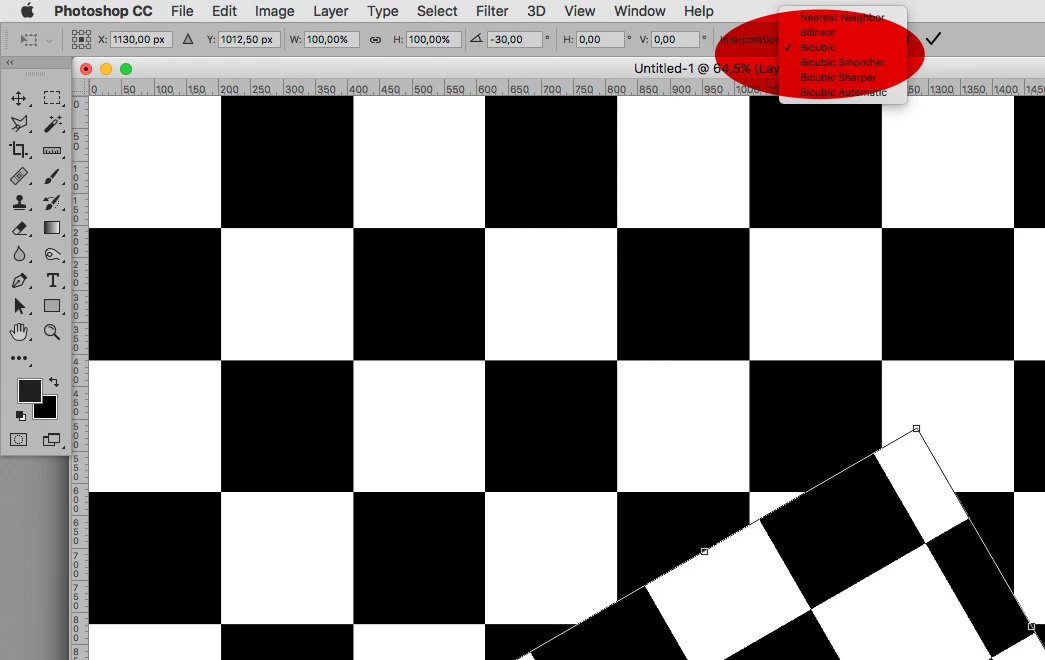
    Another point: One can set the interpolation method for a Transformation of plain pixel layers in the Options Bar – see if it’s set to Nearest Neighbor.

    Participant
    September 6, 2017

    Thanks c.pfaffenbichler  yes sorry I just meant I wasn't using any other special tools, or shapes etc.

    I tried all those settings doesn't make much difference to the issue.  I just went through them all again and it doesn't help.

    "I have assigned F1 to Convert to Smart Object – it is that important a Photoshop operation in my opinion"

    Good idea thanks.

    c.pfaffenbichler
    Community Expert
    c.pfaffenbichlerCommunity ExpertCorrect answer
    Community Expert
    September 6, 2017
    I tried all those settings doesn't make much difference to the issue.  I just went through them all again and it doesn't help.

    Did you apply the Transformation or only evaluate the preview?

    c.pfaffenbichler
    Community Expert
    Community Expert
    September 6, 2017

    What is the Preferences > General > Image Interpolation setting?

    Could you please post screenshots taken at View > 100% and with the pertinent Panels (Layers, Channels, Options Bar, …) visible to illustrate the issue?

    Participant
    September 6, 2017

    Hi, thanks for the reply, here's some screenshots showing the difference method, simply copied an area, pasted, then transform, rotate.  Looks unfinished and more pixelated. 
    Then creating a smart object instead.  After completing looks smoother.

    Preferences > General > Image Interpolation  is set to Bicubic (best for smooth gradients) and also tried all of the others, no real change unless I use smart filter.

    001 start with a vertical white line

    002 Select then transform, rotate

    003 Looks more pixellated

    004 - go back, instead convert to Smart object first

    005- now rotate again

    006- looks much better after completing rotation

    c.pfaffenbichler
    Community Expert
    Community Expert
    September 6, 2017

    You clipped the Options Bar from the screenshots, so it’s impossible to tell the Interpolation setting of the plain Layer’s Transformation.