Participant
January 30, 2019
Answered

Jagged/Pixelated Content

  • January 30, 2019
  • 1 reply
  • 1691 views

Hi,

I am using Adobe Photoshop and all my layers/content whether it is a text or image appears jagged and not smooth.

I've looked at various post answers saying to reset preferences, set your anti-alias, restart your computer, etc. I've done them all and am still unable to find a resolution.

The canvas size is 820px x 320px and resolution was set to 300 ppi. Font is Open Sans and image is an EPS file.

I am a beginner just starting to use this tool so any help would be appreciated..
This topic has been closed for replies.
Correct answer Trevor.Dennis

I have a feeling Sahil meant to say set the zoom ratio to 100% (Ctrl Alt 0) or Ctrl 1.

The EPS aspect concerns me.  Photoshop does not tend to work well with EPS files.

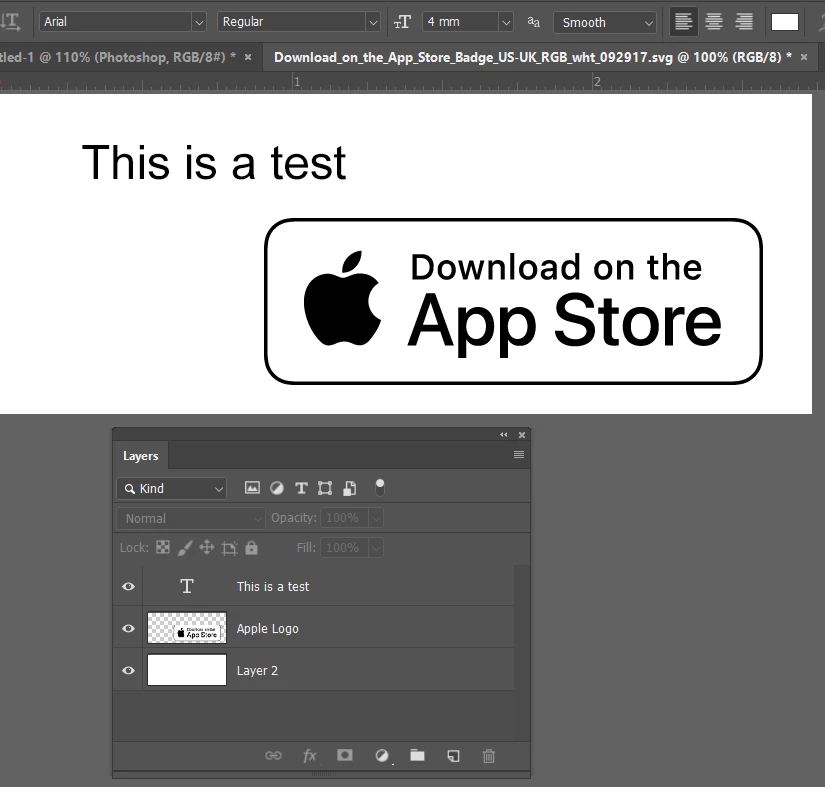
Do you have separate Type layers for 'This is a test'?

If you created the text after opening the EPS file, then its format is no longer relevant.  File formats control how the document is saved, and loaded.  Once in Photoshop any new content is not affected by the file format when opened.

This has the same canvas size and resolution, and the text is set to 4mm.  It is zoomed to 100%

BTW  If anyone is thinking of downloading the Apple graphic, it comes in a bunch of languages and formats. The one above was a 250Mb zip file.  I wondered what the heck was going on watching the file size keep going up!

1 reply

Sahil.Chawla
Adobe Employee
Adobe Employee
January 30, 2019

Hi Chrisc,

If you go to View and choose Fit on Screen, does the images still looked Jagged and Pixelated?

Also, have you created these images yourself or did you get them from somewhere?

Regards,
Sahil

Participant
January 30, 2019

Thanks for the response!

Yes it still has the same appearance when I chose Fit on Screen. The texts are just ones I would enter in, as for the image I showed as a test, I downloaded it from the Apple (Marketing Resources and Identity Guidelines - App Store - Apple Developer ).

Any thoughts?

Inspiring
January 30, 2019

Fit to screen won't give you an accurate look at the text. You should click the "100%" link at the top or double click the magnifying glass. At that point the scale of the image is 100%.

Are you placing the text, rasterizing it, and then scaling it? Or keeping it as a text layer? Once you rasterize text, any scaling is going to make it look distorted.

I would guess the two lines of text in your original post are maybe 18pt and 12pt, if they are 300ppi. What are they actually in your drawing?