
Known Participant
January 22, 2023
Answered

Justify text

  • January 22, 2023
  • 6 replies
  • 3188 views

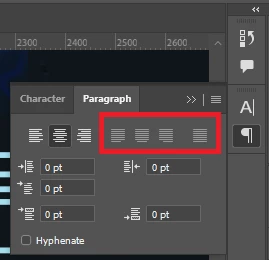
When I click Windows>Paragraph, all Justify icons on the Paragraph dialolog are greyed out. YouTube videos show the icons as active, so I can't justify text. I have selected the text in the layer, selected just the layer, selected only some text within the layer, clicked all the icons visible in the image, and messed with the fields that show the pixels, and nothing makes the Justify icons live. Please help. Thanks


This topic has been closed for replies.
Correct answer Jeff Arola

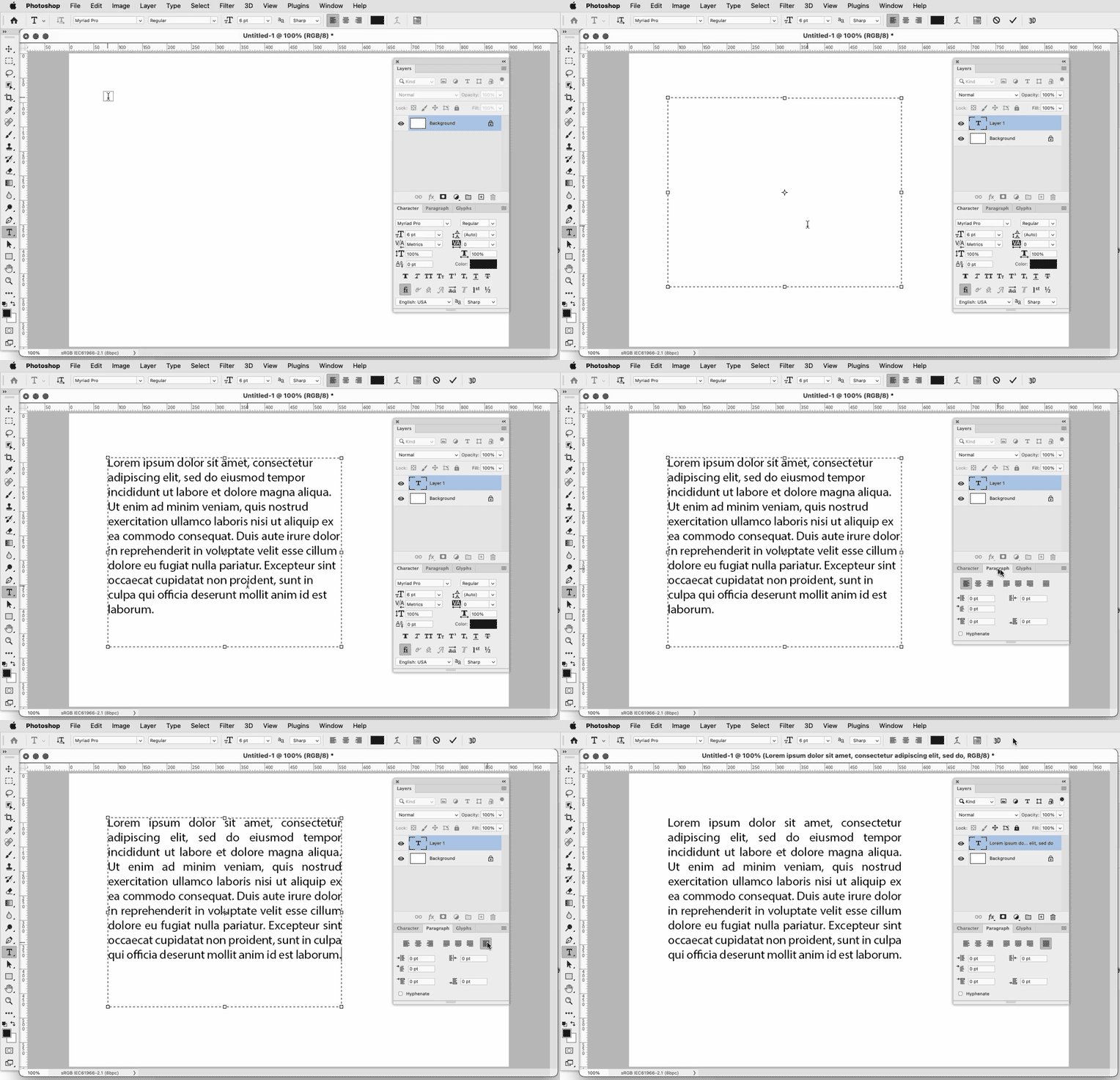
Draw out your text box as below to create paragraph text then type your text.

https://helpx.adobe.com/photoshop/using/add-edit-text.html


6 replies

jane-e
Community Expert
Community Expert
January 22, 2023


Point text is created by clicking an insertion point, then typing. It does not wrap; you need to press Return. Clicking in it looks like this:

Paragraph text is created by dragging with the Type tool, then typing. It creates a frame that can be resized.


To convert from one to the other, use the Move tool, then go to Type menu > Convert to [Point/Paragraph] text.


I suspect you used Point text and pressed Return to start new lines. You'll need to convert to Paragraph text, AND remove the returns.


Optionally, you can retype and create Paragraph text from the beginning as shown by Jeff.


Jane


MGill0524Author
Known Participant
January 22, 2023

I did use returns. I think I'm good to go! Thank you!

jane-e
Community Expert
Community Expert
January 22, 2023

You're welcome, Maureen 🙂


Jane


Jeff Arola
Community Expert
Jeff ArolaCommunity ExpertCorrect answer
Community Expert
January 22, 2023

Draw out your text box as below to create paragraph text then type your text.

https://helpx.adobe.com/photoshop/using/add-edit-text.html


MGill0524Author
Known Participant
January 22, 2023

That worked. I must not have had T selected when I drew the marquee. Thank you!

MGill0524Author
Known Participant
January 22, 2023

I suspect this is a bug in Version 24.1.0. It's not among the fixes in 24.1.1, and they don't list it as a "known" issue, but it smells like a bug. If anyone with 24.1.0 has successfully justified text, please let me know how you did it!!!

Jeff Arola
Community Expert
Community Expert
January 22, 2023

Is your text Paragraph text?

In other words when you created the text did you draw

out a text box and type in that or just start typing in your document?

MGill0524Author
Known Participant
January 22, 2023

I selected an area with the marquee tool, but didn't specifically designate it as a "text box." Again, I couldn't find "text box" in Help, but there were several plug-ins that mention text. Do I need a plug-in to do this?

Community Expert
January 22, 2023

Do you have enabled text wrap options? If it's enabled disabled it maybe it will work

MGill0524Author
Known Participant
January 22, 2023

No, and "wrap text" doesn't seem to come up when I click Help. How do I enable it? Thanks

MGill0524Author
Known Participant
January 22, 2023

PS. The little icon at the top gives me the option to select Justify to display a dialog, but when I click OK, nothing happens.


jane-e
Community Expert
Community Expert
January 22, 2023

@MGill0524 wrote:

PS. The little icon at the top gives me the option to select Justify to display a dialog, but when I click OK, nothing happens.


It doesn't say "Justify", it says "Justification" and is not what you are looking for in your case. If you want to see something happen, you need to change the acceptable spacing limits, then click OK.


You can also change the Auto Leading from the default of 120% to 110% or 130%, for example, but Auto Leading is not a best practice anyway and most people avoid it.


Scroll down in this excerpt from Nigel French's book from Adobe Press to the section on Justification:

https://www.adobepress.com/articles/article.asp?p=2192705


Jane