
Participating Frequently
March 2, 2026
Question

Keeping the shadows unchanged

  • March 2, 2026
  • 3 replies
  • 70 views

Hello everyone

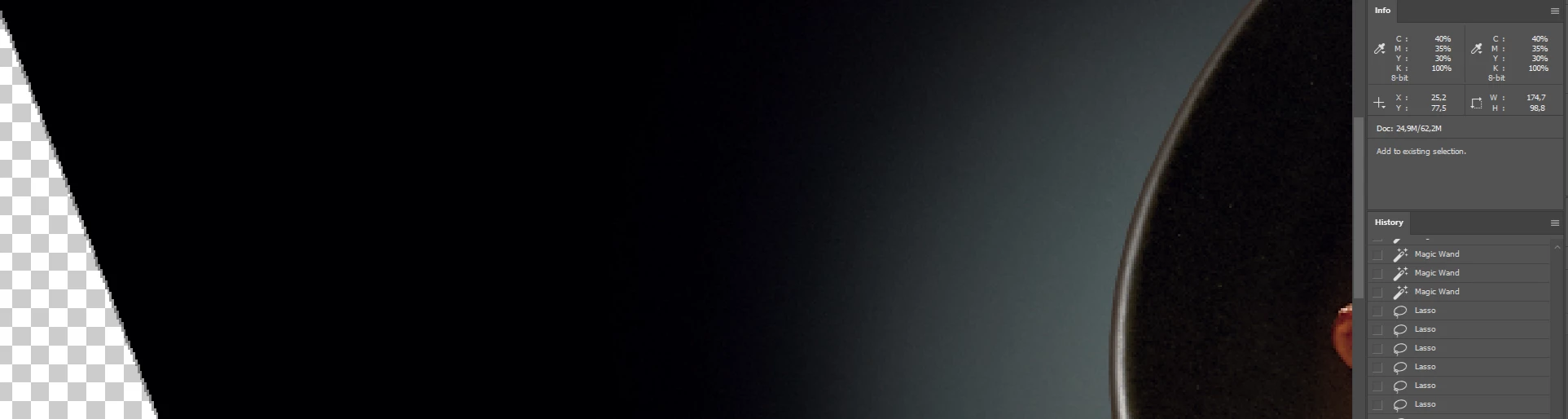
I  want to change the backround color (black) to CMYK 100% but without changing the shadows,so far I tried making one layer CMYK 100%-placing it to the bottom of layers then I selected the shadows and made a clipping mask and tried using color range but the transition between the shadows and backround gets to rough.


In short,how can I make the backrounnd CYMK 100%,keep the shadows as they are and make a smooh transition between them.

 

    3 replies

    Stephen Marsh
    Community Expert
    Community Expert
    March 2, 2026

    @DRAGAN28437974li3z 


    I spent 25+ years in prepress, including specialised retouching and colour correction, so I understand your request, however, I don’t know why you need to do so (K only background but full CMYK colour content elsewhere). Can you explain in more detail? Why? What is the print method (offset, digital toner, inkjet, screen printing etc.)? What print condition is this CMYK file going to be used for? I.E.: GRACoL 2006, Fogra39, PSO Coated v3 etc.


    Do you have an RGB version from before it was converted to your current CMYK profile?


    Do you have a layered file with the background gradient and other content separate?


    I would advise that you work on a copy of the original… 


    One option could be a monochrome channel mixer adjustment to create the K only background.


    Another option, on the copy, convert to Custom CMYK* using Maximum Black Generation with Dot Gain of say 12% or 15% as a test start point. After conversion ASSIGN the proper ICC profile to describe the intended print conditions, such as FOGRA39.icc etc. You may then need to make adjustments as the legacy Custom CMYK engine pre-dates proper ICC profiles and it’s conversion isn’t based on a proper target, it’s a means to an end to get the background transition that you want. This isn’t for the “hero” or main content.
     

    You could also layer a masked foreground using the proper CMYK conversion into the Custom CMYK conversion. This way the foreground is “standard” while the background transition is K only.


    Sometimes you can use the Apply Image command to perform channel operations (CHOPS) using say the green channel from RGB into the K channel of the CMYK conversion and mask, or a K channel from Max GCR to add or remove from other CMYK channels, as well as Selective Color, Channel Mixer, Curves etc. There are many tricks.


    *There are some Heavy GCR ICC profiles for standard conditions, however, there are no freely distributed Maximum GCR ICC profiles that I know of, which leaves legacy Custom CMYK, or other alternatives. This would still require manipulation, however, there may be less “heavy lifting” required.


    P.S. If you can provide a sample image, even if reduced in resolution and with sensitive content redacted, that would help in the evaluation and advice.


    D Fosse
    Community Expert
    Community Expert
    March 2, 2026

    CMYK is based on actual physical inks on actual paper stock, printed on an offset press calibrated to a certain standard. Every CMYK profile characterizes a certain print process according to those parameters. You can never get "absolute" black with 4 inks on paper.


    There is no such thing as 100% CMYK. There is 100% K, which is a rather light charcoal tone.


    Then you have "rich black", which is all 4 inks at the maximum density allowed without getting ink smearing and drying problems. This limit is built into every CMYK profile, and depending, is usually around 280-320% total ink coverage. So, no absolute black.

    Legend
    March 2, 2026

    I’m not sure I follow. The whole document has to be in RGB, CMYK, LAB, whatever. Smart Objects can be in a different colorspace I believe (not sure) but layers don’t have distinct spaces.