
Participant
April 23, 2023
Answered

Lagging square areas appearing while using Brush tool

  • April 23, 2023
  • 2 replies
  • 1046 views

Hello fellas, hope for your help!
A while ago (3-5 days) a sudden problem appeared:
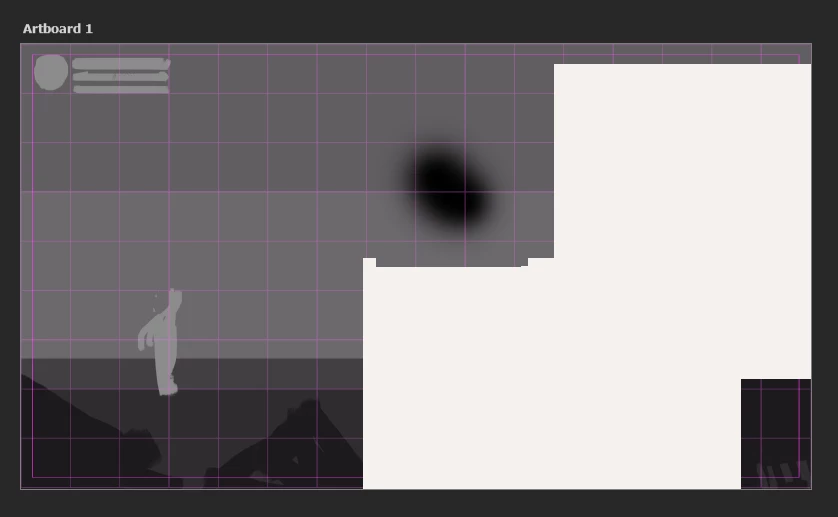
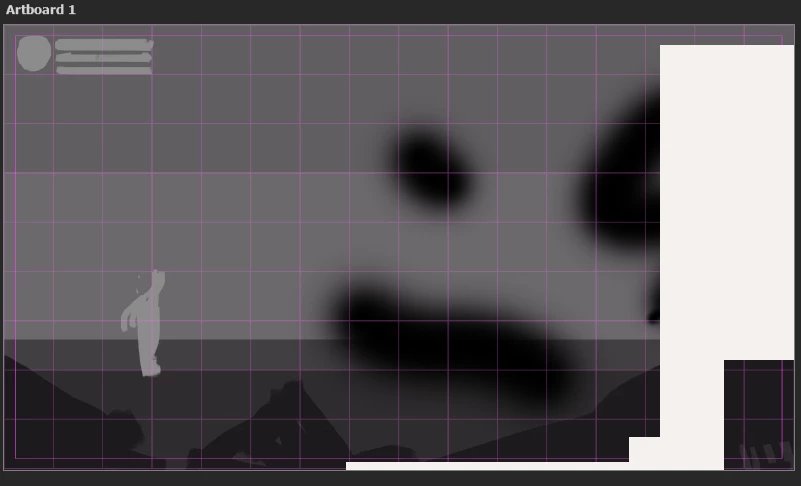
Lagging/glitching areas cover the canvas when using the Brush tool. They change position with new brushstrokes, overlap the view so it is not possible to understand what's going on behind them, and appear/disappear when zooming in/out. 
The areas go crazy with Artboards mostly (what is weird, because previously I worked with Artboards completely fine), but they sometimes appear on regular Canvaces too.

Native canvas in Preferences was already deactivated.

My Graphic processor: Nvidia GeForce GTX 1060 with Max-Q Design 
P.S. I've already performed a clean installation for processor drivers. Didn't work.

Eager for your pieces of advice! Honestly, the problem is really annoying and out of the blue sky, plus it hampers my work routine. So can't wait for any replies! 

This topic has been closed for replies.
Correct answer CShubert

Hi @Ann Turbovets sorry to hear this.


Go to Preferences > Technology Previews... and enable “Older GPU mode (pre 2016)” - Restart Photoshop. Does the problem persist?


It may help if we could see your Photoshop System Info. Launch Photoshop, and select Help >System Info...and copy/paste the text in a reply.  


2 replies

Participant
April 24, 2023

It worked! Thanks, Cory, you're a lifesaver!  

CShubert
Community Manager
CShubertCommunity ManagerCorrect answer
Community Manager
April 24, 2023

Hi @Ann Turbovets sorry to hear this.


Go to Preferences > Technology Previews... and enable “Older GPU mode (pre 2016)” - Restart Photoshop. Does the problem persist?


It may help if we could see your Photoshop System Info. Launch Photoshop, and select Help >System Info...and copy/paste the text in a reply.  


rebeccav73314428
Participant
January 23, 2024

You saved my life too, Cory!!  Thank you SO MUCH for this!!!