Inspiring
October 28, 2018
Answered

Layer Mask Trouble: 3D model

  • October 28, 2018
  • 3 replies
  • 2748 views

Hi. I've just started to get my head around Layer Masks and how they work, but I seem to be having trouble with using one for a particular task. I'm currently working on a specular texture for a 3D model and I'm trying to replicate how the author of a book I'm following has done it. Here's the link to their Photoshop file they've done (Dropbox - jim_textures.psd ) and it's the 'dark_parts' under Specular that I'm trying to do. I think they used a white layer on the left and a black layer mask on the right. I'm probably doing it wrong, but I swear last night I got it working correctly. If I have the diffuse texture visible and try and use the brush with the layer mask selected, paint in white, it shows up in the thumbnail, but I can't get it to show on the canvas where I can see it clearly. Any suggestions?

Thanks.

[Title and tags edited by moderator to include reference to 3D.]

.
This topic has been closed for replies.
Correct answer davescm

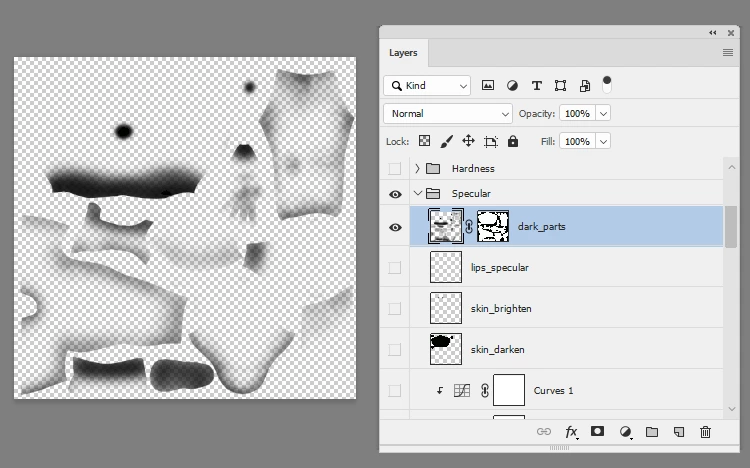
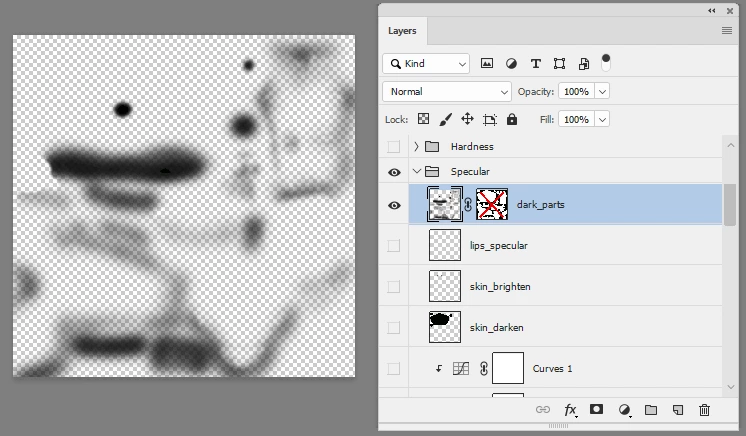
The authors file has brush strokes on an otherwise empty layer.The layer mask is being used as a guide and to prevent overspill from the brush.

With mask disabled:

With mask enabled

So you should start with an empty layer and brush onto the layer not the mask.

Dave

3 replies

Ussnorway7605025
Legend
October 28, 2018

DustyShinigami  wrote

shows up in the thumbnail, but I can't get it to show on the canvas where I can see it clearly. Any suggestions?

yes you can split your workplace in two columns and see the 'paint' in real time as you work... note this takes up more cpu and is not as precise as doing a rendor but it gives you an idea

JJMack
Community Expert
Community Expert
October 28, 2018

I do not edit 3d opjects  However, I have player with Photosho 3D feature.

I would not expect a layer mask would have much to do with a 3d object surfaces textures.   Your PSD mask seem to be map to for your 3d object surfaces. It would hide any paint in the layer that is not within your 3d Objects surfaces.  The paint that woul not be seen in your 3d object in your 3d space.  The actual 3d objects surfaces is the PSD composite image. The layer mask does nothing IMO for your 3d object.  It just make it easy to see where the bounds of your 3d Object surfaces  are in your 2d flat PSD.    

JJMack
Inspiring
October 29, 2018

Okay, I think I understand what you mean. But how did he remove the coloured paint perfectly just to show a white bounding box? It doesn't look like he used any effects etc.

Inspiring
October 29, 2018

Okay, I *think* I'm on to something... I've set up a black layer mask, and with that selected, I've set the Paint Bucket tool to white and I'm clicking all the areas that I can see from my Diffuse layer and they're all showing as white bounding boxes on the layer mask. I take it I'm doing it right...?

jane-e
Community Expert
Community Expert
October 28, 2018

Can you post a screen shot of your image and the Layers panel? Make sure it’s wide enough and tall enough that we can see the masks and necessary layers.

Inspiring
October 28, 2018

Hi. Sure thing.

jane-e
Community Expert
Community Expert
October 28, 2018

Hi Dusty,

Your top layer called Dark Parts is white and your mask is black—hiding what is on the current layer (all white) and revealing what is underneath (the Diffuse layer). If you were to paint with white on the mask, you would only reveal the white of the current layer, which is probably not what you want.

These two images were created by davescm​ and posted in the thread called "Something for the weekend" on the Photoshop forum. Note the layer mask is part black and part white. The white reveals the current layer and the black reveals the part underneath.

What are you trying to accomplish with your mask? And does this explanation help?