
Known Participant
February 16, 2020
Answered

layers

  • February 16, 2020
  • 4 replies
  • 1178 views

Hello community


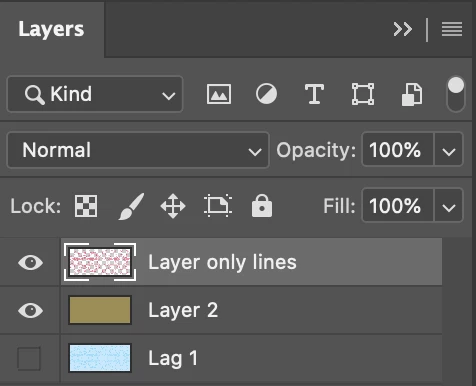
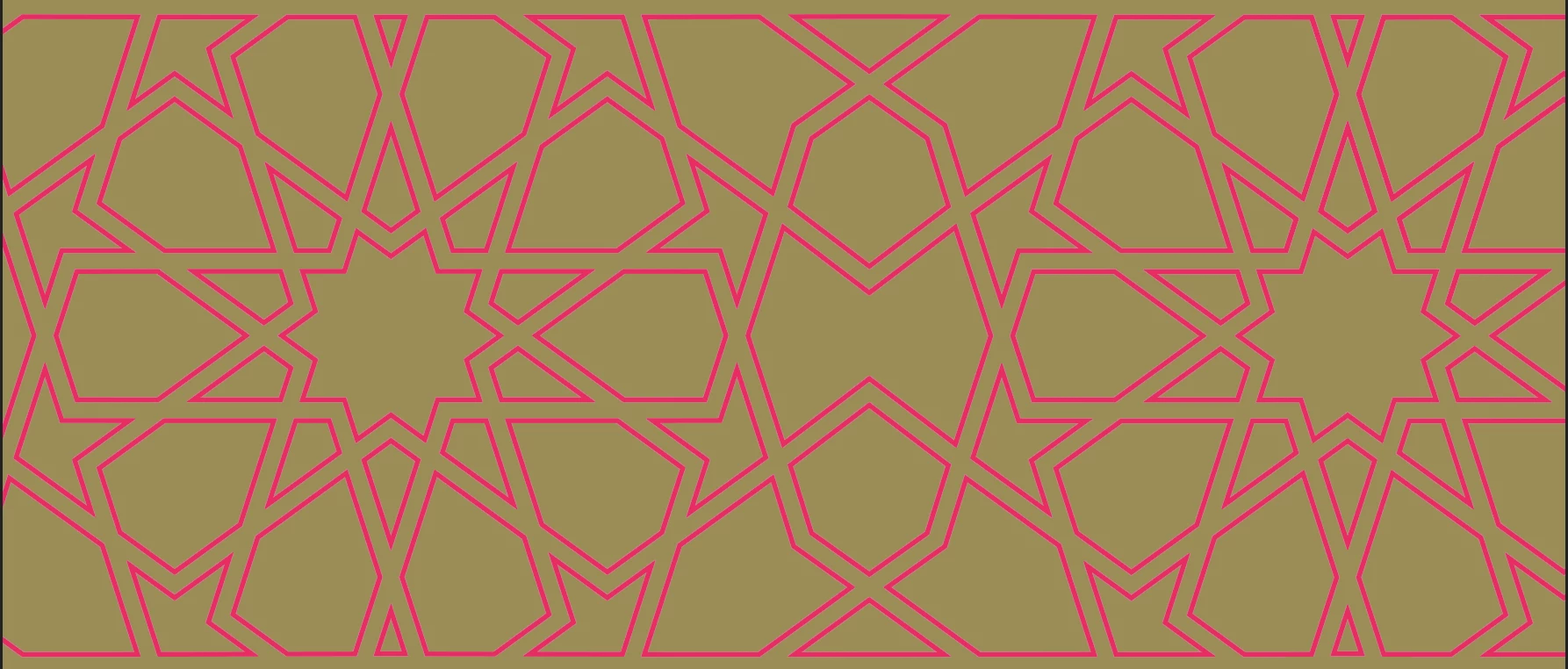
I have tried and asked and followed some guides, but I didn't manage to create two layers of this image attached. I need a layer for the pattern and a layer for the background, so I can change the colors as I want to.
This topic has been closed for replies.
Correct answer Marja de Klerk

Another way to make two layers is:

  • Select the blue lines by clicking on it with the Magic Wand Tool. I used Tolerance 14.
  • Choose Layer > New Layer via Copy

Now the lines are on a new layer and you can adjust the background by filling the background layer with a color. 

You can also adjust the color of the lines: select them and choose Edit > Fill.

4 replies

Marja de Klerk
Inspiring
February 17, 2020

p.s. Beautiful 10 sided pattern!

Marja de Klerk
Marja de KlerkCorrect answer
Inspiring
February 17, 2020

Another way to make two layers is:

  • Select the blue lines by clicking on it with the Magic Wand Tool. I used Tolerance 14.
  • Choose Layer > New Layer via Copy

Now the lines are on a new layer and you can adjust the background by filling the background layer with a color. 

You can also adjust the color of the lines: select them and choose Edit > Fill.

c.pfaffenbichler
Community Expert
Community Expert
February 16, 2020

And you are aware that the pattern is not seamless? 


I would recommend 

• loading Red Channel as Selection (cmd-clicking it)

• Select > Invert (cmd-I)

• Layer >New Fill Layer > Solid Color 

• alt-click the Layer Mask-icon in the Layers Panel

• Image > Adjustments > Curves (cmd-M)

• use the white- and black point pickers to set the »lines« to white and the »areas« to black 


After that you can for example paint on a new Layer below that without affecting the »lines«. 

AppAAuthor
Known Participant
February 17, 2020

I followed the steps, but I didn't manage to solve the problem.


I need to make a layer for the background and a layer for the pattern, so I can change the colors afterwards as I like. Now the image is only one layer, and I tried to make layers with the help of others and we also tried to change the colors, but it just wont change as we want.

c.pfaffenbichler
Community Expert
Community Expert
February 17, 2020

After following the steps did you get something like this? 

Then you can paint or add Layers below that. 

Mylenium
Legend
February 16, 2020

And what exactly did you try? In fact it appears the image already contains botched layered data?


Mylenium

AppAAuthor
Known Participant
February 16, 2020

Hello Mylenium


I can only see one layer in Photoshop. 


The Adobe support asked me to post the issue in this forum. The technician tried himself but could not, and he sent me this guide, but it didn't solve the problem:


https://helpx.adobe.com/uk/photoshop/how-to/background-with-photoshop.html?sdid=DW3G14K9&mv=search&ef_id=EAIaIQobChMIgoqE9s_V5wIVVRyPCh3CTAt2EAAYASAAEgL6MfD_BwE:G:s&s_kwcid=AL!3085!3!349771766550!b!!g!!%2Bchange%20%2Bbackground%20%2Bof%20%2Bphoto%20%2Bin%20%2Bphotoshop#sa_src=web-messaging