jérômeb31571709
Known Participant
May 28, 2018
Answered

Le pointeur du pinceau devient invisible.

  • May 28, 2018
  • 1 reply
  • 731 views

  Bonjour. Lorsque je fais du Dodge and burn le cercle du pinceau qui est parfois gris, parfois blanc devient par moment presque invisible. Existe t'il un réglage pour remédier à ce problème? 

    This topic has been closed for replies.
    Correct answer Norman Sanders

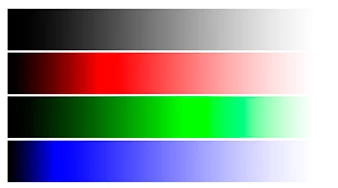
    As a test, download this image and switch to Lab Color Mode. Then choose the Dodge tool.

    As you float the curser horizontally across each bar (do not click and drag) and view the L channel in the Info panel you will see that the brush ring changes from black to white at 50% Luminosity. It is an abrupt change. At no time is it gray or almost invisible.

    Repeat the test with the Burn tool. Same result.

    Reset the Dodge and Burn tools by right-clicking on its symbol the top left of the Options bar above the tools.

    1 reply

    Norman Sanders
    Norman SandersCorrect answer
    Legend
    May 28, 2018

    As a test, download this image and switch to Lab Color Mode. Then choose the Dodge tool.

    As you float the curser horizontally across each bar (do not click and drag) and view the L channel in the Info panel you will see that the brush ring changes from black to white at 50% Luminosity. It is an abrupt change. At no time is it gray or almost invisible.

    Repeat the test with the Burn tool. Same result.

    Reset the Dodge and Burn tools by right-clicking on its symbol the top left of the Options bar above the tools.

    Norman Sanders
    Legend
    May 28, 2018

    Rather than using those tools, consider this non-destructive method:

    There is a dodge and burn technique. one that puts the dodge and burn adjustments on a separate layer where they may be seen at any time and each adjusted or even eliminated, returning the area to its original value – all without corrupting the original image.

    This is how to do it:

    1. Load a file to be retouched and add a blank layer by clicking on the Create a New Layer symbol at the bottom of the Layers panel to the left of the Trash. The blank layer is Layer 1.

    2. Choose Edit > Fill and from the double-arrow options of the Use field, choose 50% gray. Then click OK. The image area will become gray overall.

    3. Change the Blending mode in the Layers panel from Normal to Overlay. The Background image will return although you will be working on Layer 1.

    4. Do not use the Dodge and Burn tools. Choose the Brush tool and adjust its size by tapping either of the square brackets to the right of the P key on the keyboard. To adjust the Brush hardness – a soft edge is best for this -- hold down the Shift key as you continually strike the left the square bracket. Set the Opacity of the Brush in the Options bar at about 10%.

    5. Painting in white will Dodge (lighten) the area, Black will Burn (darken) the area. Strike the D key to place Black as the Foreground color and White as the Background color. To transpose them stroke the X key. Dab or stroke with the Black to slowly add density. To lighten an area, dab or stroke with White. Although the image will reflect the changes, they are being recorded on Layer1 and may be viewed by turning off the eye in the Background layer. Best of all: to undo any tone adjustment and return the area to its original value, simply return that area to 50% by cloning from an adjacent unretouched area in Layer 1.

    jérômeb31571709
    Known Participant
    May 28, 2018

    Now I see. It works fine. Thanks