
patrickd23557319
Participating Frequently
April 26, 2021
Question

Lines appearing in artwork with no reason

  • April 26, 2021
  • 4 replies
  • 3857 views

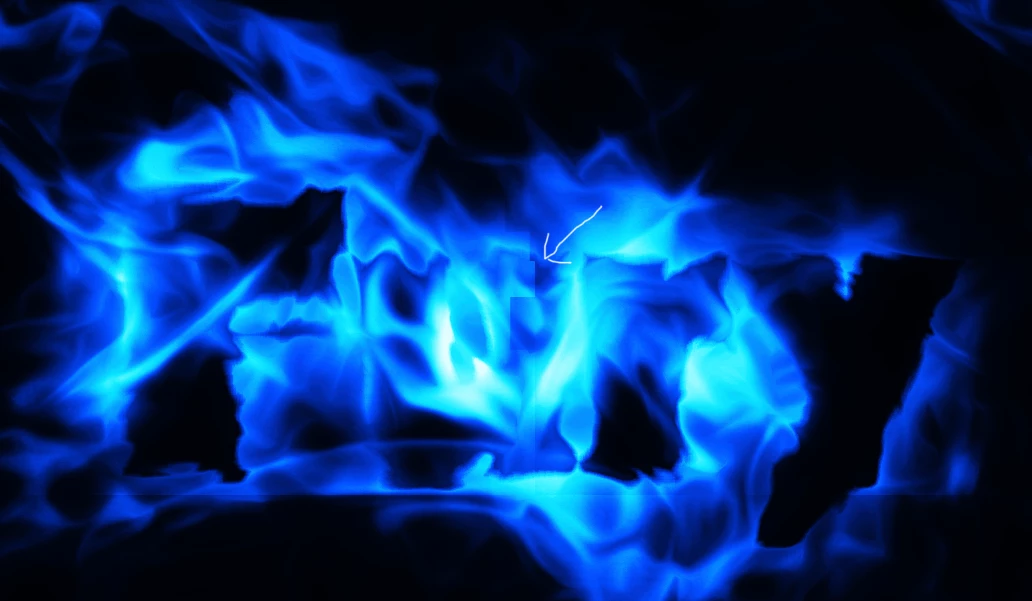
I have lines apearing in artwork with no reason. See screenshot. If I save the image they appear but also when I just zoom in. All layers are filling the whole screen so it can't be edges of layers. Anyone an idea? See screenshot. Also, when I drew the arrow to show it, more squared lines appeared as shown in screenshot.


Zooming out makes it dissapear. Also when I change something like from 8 bit to 16 bit it disappears until I draw a line or zoom in again 😞
 

This topic has been closed for replies.

4 replies

D Fosse
Community Expert
Community Expert
April 26, 2021

I suspect this is layer compositing. No, the initial problems with the new layer compositing engine are apparently not quite fixed yet, and they removed the "legacy compositing" checkbox in preferences too soon.


Can you pinpoint the exact layers causing problems - what type of layers are they? Just turn off layers one by one, and see what happens.


What happens if you flatten the image?


If it is layer compositing, this needs to be reported on the feedback site as a bona fide bug.

patrickd23557319
Participating Frequently
April 26, 2021

Here is the 100% image. You see the line as soon as I zoom in more than 50%.

If I flatten it then the problem is gone!! So I guess it musty be a layer problem. See end result in second screenshot.

If I make a change in any of the layers, the lines disappear. No matter what layer I togle ON/OFF the lines are gone until I zoom in or out again. Less than 50% and the lines are gone again. But exporting.... lines are always there unless I flatten the image.


But even in the preview image the lines show up! I work on a mac mini 2018 with latest Photoshop version. See other screenshots.


Lot's of people in the comunity today! Thanks to all of you!!! I really apreciate it!


Oh and the link to the tutorial is: https://www.youtube.com/watch?v=VVQnQH-Zw9s&t=1s

Did make some changes though but basicly it's the same I guess. The original file it too big to upload here unfortunately. If there are some of you who really have a photoshop fetisch 😛 and really want to get to the bottom of this I could send it over through wetransfer. Just don't put it online anywhere. I'll send it to my brother too, to see if he has the same problem. He has a newer computer.


c.pfaffenbichler
Community Expert
Community Expert
April 26, 2021

Could you please post a screenshot taken at View > 100% with the pertinent Panels (Toolbar, Layers, Channels, Options Bar, …) visible

Trevor.Dennis
Community Expert
Community Expert
April 26, 2021

It's possible I guess, but I've not seen that sort of artefact from video card glitches.  

They usually take the form of large blocks of white or black, or scattered small blocks of colour, or horizontal noise. 


As c.p. has said, we need to see a full res screen shot of your image and layer structure, and a link to this tutorial might help.  We also need to know what Photoshop version and operating system you are using. 

c.pfaffenbichler
Community Expert
Community Expert
April 26, 2021

Could you please post a screenshot taken at View > 100% with the pertinent Panels (Toolbar, Layers, Channels, Options Bar, …) visible? 

Lukas Engqvist
Community Expert
Community Expert
April 26, 2021

I can see what tutorial (from texturelabs) you have been follownig, which is good because it helps me understand the most likely layer structure you have. If you have something that changes with zooming I would guess that it has to do with your GPU, and that your file is OK. If you flatten your image, just to see if it is a zooming issue or if it is renedering blendmodes that causes this.


What is your hardware configuration? Are you on a mac with M1 (this is not fully supported yet). You should be able to dissable the GPU to see if this is where the fault is. I do understand that you normally would want GPU enabled, but the reason you can turn it off is that it is still that turning it of may give you a more precise rendering even if having it enabled makes Photoshop faster/more responsive.

patrickd23557319
Participating Frequently
April 26, 2021

Hi,


Thanks for the reply.


I did indeed do the tutorial from texturelabs. This guy is a master! I could not nearly get it as good looking as his because I had to make my own background with my own smoke brushes if I would want to sell it as a mockup. And this effect only works with a good background. For now this was the best I could do and actually I am not that satisfied but it's ok-ish enough. It has more of a waterish look to it but that's ok because I would not want it to be a copy of his anyway. I think if I play with another font it might look a bit better. Will change the color too.

I tried unchecking the GPU but this had no effect. Flattening the image did the trick though. So do you think it's a setting somewhere in my preferences?