
Inspiring
October 30, 2017
Question

Linked Smart Object (dng from LR Classic CC) Not Updating in Photoshop CC

  • October 30, 2017
  • 4 replies
  • 759 views

HI All,

I'm opening a dng file in LR, clicking on Edit In > Open as SO in photoshop. Once in Photoshop, I click on Convert to a Linked SO and then on Replace with the same file name in the same original location of the dng file. With the files linked and both programs opened, I make changes in LR, but the PS file does not update!

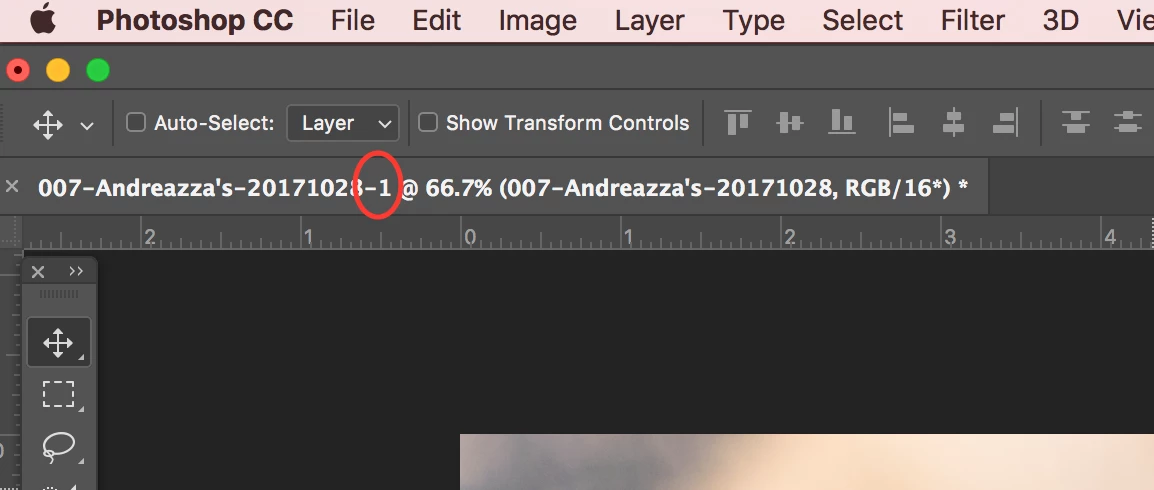
I did observe, that the file name in PS has a "-1" after it. Even after I create the link and told PS to replace with the exact file name (without the -1 at the end), it's adding this "-1" to the file.
I have checked in LR, under Preferences > Metadata > Automatically write changes into XMP (I have tried with it checked and unchecked since I work with dng files and not sure writing to XMP was messing things up). I have also made sure that "Include Develop Settings in metadata inside JPEG, TIFF... is checked.

I have also checked that in LR Preferences > External Editing, I have PSD instead of TIFF.

In PS,in Preferences > General, I have checked Auto Update Open Documents.

I have an iMac (2017), Adobe Creative Cloud with both LR Classic CC and PS CC updated to the latest versions.

Any help would be very appreciated.

This topic has been closed for replies.

4 replies

Inspiring
October 31, 2017

Ok, I've posted this in the LR forum like Warunicorn suggested (Thanks!) and have done several testing and this is the result:

The workflow is not seamless as I've seen on a tutorial video from Chris O'Donnell where he makes changes in LR and it automatically updates in PS, but It's working.

This is happening and what I'm doing to resolve the small annoyances:

1) After linking and replacing the SO (with the exact same name and location) in PS, I have to double click on it to open in ACR and them click OK.

2) This opens a lager canvas than the photo. I have to transform it to fit the canvas. Not a deal breaker, but annoying. Do you  know how to fix this?

3) When making changes in LR, I have to go to Metadata > Update Previews and Metadata. Again, not a deal breaker, but not how I've seen it done and not what I believe Adobe's intention was.

It then updates live in PS.

Chuck Uebele
Community Expert
Community Expert
October 31, 2017

Here's a video that I did showing the steps. Don't know why the video is so low quality. It should be higher. As to the size issue, I was getting that too, then I found that I needed to set the LR file handling resolution preferences to the same as ACR. I had 300 in ACR and 240 in LR. Once I made them the same, I didn't get the size issue - don't know why that happens, it should be just by pixel dimension.

LR SO - YouTube

davescm
Community Expert
Community Expert
October 30, 2017

Hi

The -1 name is the name of the PSD file.

When you open as a smart object in Photoshop, then a copy of the dng raw file is put into the smart object. You can double click to use Camera Raw on the raw file in that smart object. When you save the PSD it saves as a separate file to the original dng file and will appear in the Lightroom catalogue.

If you decide to link the smart object from Photoshop - then you are replacing the contents of the SO with a link to an external file. You can link that back to the original dng. If you do, and make adjustments in Photoshop camera raw,  then when you go to open the file in Lightroom you will get a warning that another program has made adjustments do you want to use those or overwrite from the Lightroom catalogue.

Similarly if you make a change in Lightroom to the dng then open  the PSD in Photoshop the SO will have a warning triangle to let you know the linked contents have been changed.

What does not happen is a live update while both documents are open i.e. change the dng in Lightroom and watch the change in Photoshop.

Personally I stick with the top method - i.e. make my initial adjustments in Lightroom. I then open in Photoshop as an SO and make subsequent adjustments to the RAW file in that PSD using Camera Raw in Photoshop. If I want to adjust again then I open the PSD from Lightroom to Photoshop and click on the SO to use camera raw if the raw file needs further tweaks.

Dave

War Unicorn
Community Expert
Community Expert
October 30, 2017

This is why I love the Bridge/ACR combo so much; it does what I tell it to do when it comes to opening in Photoshop.    (However, it's understandable where some would want the catalog features LR has.) Since I'm not a Lightroom user, I'm not sure what's going on there. If you haven't already, be sure to post this in the Lightroom forum too. There may be someone there who can repro.

If you close the document and reopen, does the "-1" suffix disappear?

Chuck Uebele
Community Expert
Community Expert
October 30, 2017

When you open an image though LR, it tries to keep a reference of that image. Opening a normal image - not a smart object will open and keep the name of the original file, as it might be saved as the same type of image. I'm not sure why smart objects are appended with the -1, but it might be to create a file that won't overwrite an existing file, because the save state will most likely be a PSD. Once you import the image as a SO, you converted it to a linked SO. This actually requires overwriting the original file if you choose the same location and file name as the image you imported. Once you save as a linked file, you should be able to go to LR, make an edit to the DNG, and save the metadata to file, and it should update in PS.

Inspiring
October 30, 2017

I've seen a video where updating the LR file automatically updates the PS file without saving in LR. I tried saving in LR and it asks if I want to replace the metadata, I click replace, but then I loose all the LR edits in PS. Not ideal.

Thanks for your help. I will continue trying to solve this.