
Known Participant
April 24, 2017
Answered

Loading multiple paths as a selection excludes overlaps - which I don't want

  • April 24, 2017
  • 2 replies
  • 1625 views

I have a bunch of separate closed paths (each on its own layer) -- some of which overlap each other. My goal is to cmd-select them all (in the paths menu) and to then click on the "load path as a selection" icon, and to have the selection be the union of all the paths' areas. This works fine, except for with one particular path. If I include this particular path's layer in my alt-selections and then click "load path as a selection," the resulting selection excludes any overlap with this particular layer. This seems to be an issue only with one particular path layer!  All other paths create a selection of the full union of their areas, which is exactly what I want.

I get the same behavior (the excluded overlap) if I click on "fill path with foreground color": any overlap with this particular paths's area doesn't get filled.

It seems like there's something "different" about this particular path layer, but I can't figure out what it is.  Any ideas?

(A work-around is to individually cmd-shift click on each path's thumbnail.  This gets a union.  But I'd much prefer to be able to cmd-select all the layers, and get a union selection from a single click on the "load path as a selection" icon.)

Many thanks!
This topic has been closed for replies.
Correct answer JJMack

Thanks, c.pfaffenbicher.  Unfortunately, I'm getting the "exclude overlapping shapes" behavior for any selections that include my "Path 3" (file here), even though that drop-down is set to "Combine Shapes" when I make the selection. Is there some other setting/control that might be overriding the "Combine Shapes" behavior selection?


Here is you document.

2 replies

ssickelsAuthor
Known Participant
April 26, 2017

Many, many thanks JJMack​ and c.pfaffenbichler​ for their answers!!

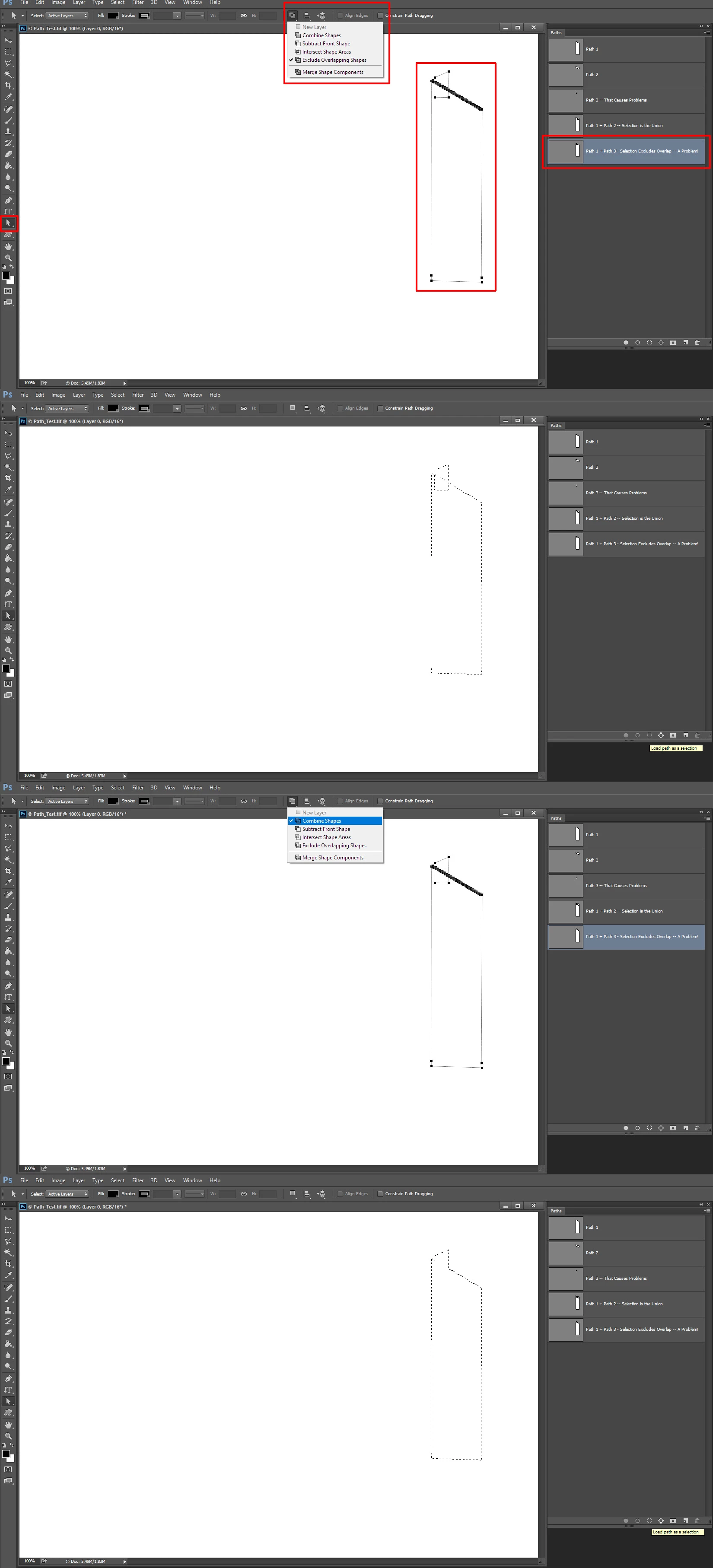
Once paths are combined to a path layer, as they've pointed out, the way the paths combine can be changed by selecting them, and then changing the "path operations" mode to whatever mode is wanted.

What I also discovered is that a single path "remembers" the mode that was active when it was created.  (The active mode can be seen by looking at the little image in the "path operations" drop-down, which depicts how the paths combine.)  So in my case, I had (inadvertently) created my "Path 3" while the "Exclude Overlapping Shapes" mode was active. Then, when that path was combined with any other path (either on another layer, or on the same layer), its overlap with the other paths was excluded.  (I had been experimenting with the path operations modes when I created my file, so a few of my layers -- including "Path 3" -- happened to be created with the "Exclude Overlapping Shapes" mode active.)

The way to "fix" a single layer is the same as noted by JJMack and c.paffenbircher: select the points in the path, and then select the appropriate path operation.  (Which, in my case, is the "Combine Shapes" path operation.)

Thanks again!

JJMack
Community Expert
Community Expert
April 25, 2017

How the close path merge depends on the modes of the sub-paths.  You should see that in the Paths Palette. How it loads as a selection should be the lke the White area in the Path Palette.  However with complex overlapping sub-path with modes the selection may look different that what you may have guessed. It not always easy tp know with the marching ants what is selected and what is excluded.  Here all six paths have the same sub-paths with different sub-path mode settings.

JJMack
ssickelsAuthor
Known Participant
April 25, 2017

Many thanks, JJMack! I'm not sure I understand what you mean by "path modes."  (Yes, I can see that the thumbnails show the different areas that will be selected, but I don't see how you configured them differently.)

I've uploaded my PS file to here. In my case, the paths were all separate, vs. on a single path layer. However, I updated the file with merged copies of the individual subpaths on new path layers, and I do get the different behaviors -- as in your screenshots. If you could take a look at my file and see what's different about "Path 3," I'd really appreciate it! 

c.pfaffenbichler
Community Expert
Community Expert
April 25, 2017

When you select one or more subPathItems you can set the Path Operations in the Options Bar.