
Participant
April 13, 2017
Question

Logo created in photoshop causing print issues

  • April 13, 2017
  • 4 replies
  • 804 views

Hi all,

A job i'm working on came back from the printer with a white box around the logo, the printer asked me to flatten the logo (which is a psd file) but if i flatten it i will lose the navy colour.

(the logo is placed into indesign with no effects added in indesign)

This is how my high res pdf appears and this is how the logo SHOULD look...

this is the printers proof...

This is how the logo looks in photoshop and the layers and channels.
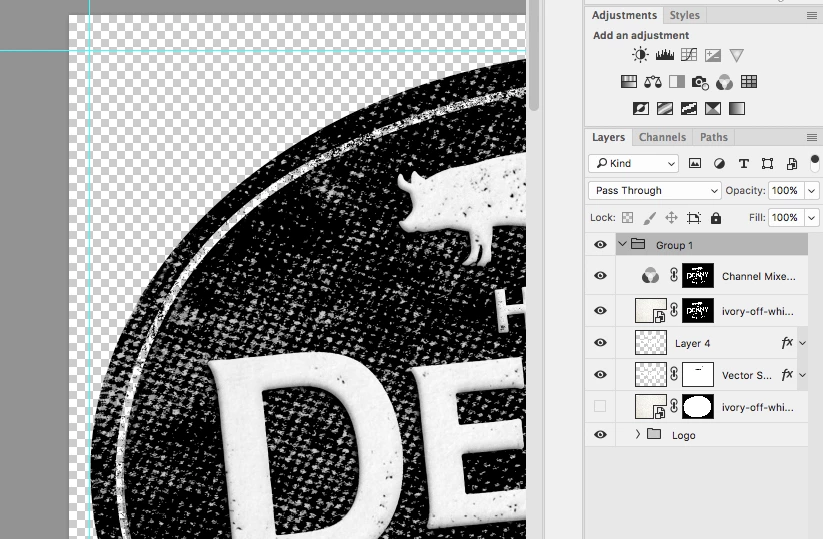
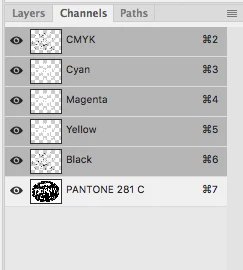
I wouldnt be the best at photoshop so i've no idea how to flatten the logo but keep the navy colour (in cmyk rather then pantone) and transparencies

Any help would be greatly appreciated!

PS. im only showing a sample of the logo to somewhat hide the identity of the client

    This topic has been closed for replies.

    4 replies

    Theresa J
    Community Expert
    Community Expert
    April 13, 2017

    A good printer should be able to take your Photoshop file of the logo and separate a Pantone plate for the blue color with the extra channel you show in your screen grab. The extra channel should be identified as a Spot color channel. If your printer doesn't know how to do this, you may need to find a higher end commercial printer who does.

    Your other option is to print the blue color as process CMYK, which is what your printer is already attempting to do. The problem is with transparency flattening when saving a PDF out of InDesign. You can solve this problem by combining the background (cardboard texture) with the logo in Photoshop first.

    I would create a Photoshop document the size of the InDesign page. Place the background in the document, and then the logo on top in it's correct position. Save the Photoshop composited document and place that into your InDesign layout. Personally, I design like this all the time to avoid challenges with transparency.

    K´mo
    Participating Frequently
    April 13, 2017

    Maybe the printer has some problems with your spot-channel (that pantone color). Try to convert all spots to process when you export the pdf from inDesign. It's in [Output] -> Ink Manager.

    Other workaround would be that you make standard color-layer in photoshop instead of extra color channel.

    Eternal Warrior
    Inspiring
    April 13, 2017

    To further Test Screen Name​​ point I would add this:

    FIND another printer!

    I would avoid flattening the logo at all costs... mostly because transparency is so useful and it makes things easier for you in the long run.

    It appears that either the printer's system cannot handle transparency (...Red flag).

    What format are you supplying to the printer when you send the artwork?

    Best,

    EW

    CiaranmAuthor
    Participant
    April 13, 2017

    hey thanks! cant change printers unfortunately.

    I'm supplying high res pdf exported from indesign.

    I've been in touch with the client and another studio came across the same issue and made a vector version of the logo which is darker and less textured and of course has lost its transparency :/ see below.

    Surely theres a better way to make this logo work, so frustrating!

    Eternal Warrior
    Inspiring
    April 13, 2017

    Have you tried saving a copy and then flattening only the layers that create the Logo in Photoshop first?

    If you get to that stage it may be possible to look at retaining the colour as this seems to be the issue if you can't change printer.

    Best,

    EW

    Legend
    April 13, 2017

    I think the printer asking you to flatten in InDesign, to overcome whatever is broken in his system (losing your design and putting the responsibility on you is frankly not a good sign). Doesn't doubd like you need to flatten in Photoshop.

    Legend
    April 13, 2017

    A key problem, by the way, is that "flatten" is used to mean many different things. For example: combine layers in Photoshop (which by definition applies transpatencty y effects); combine layers in InDesign (which does not affect transparency); removing transparency effects in InDesign; removing transparency effects in PDF; removing form fields in PDF; removing layer tags from a PDF; rasterising a PDF.